EasyManua.ls Logo

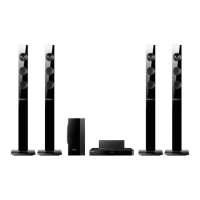
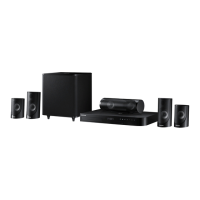
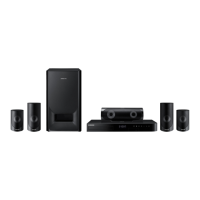
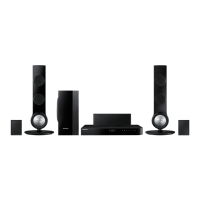
Samsung HT-J4530 - User Manual

Samsung HT-J4530
44 pages
Print Icon
To Next Page IconTo Next Page
Loading...
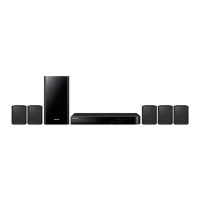
5.1CH Blu-ray™
Home Entertainment System
User manual
HT-J4500
HT-J4530
HT-J4550
imagine the possibilities
Thank you for purchasing this Samsung product.
To receive more complete service, please register your product at
www.samsung.com/register
This Nanum Gothic Eco font is provided by NAVER.
HT-J4500_XU-ECO_0306.indd 1 2015/3/9 14:38:31

Questions and Answers

  • L
    Linda BrownSep 23, 2025
    What to do if the remote control for my Samsung HT-J4530 Home Theater System doesn't work?
    • S
      Stephanie CooperSep 23, 2025
      If the remote control is not working, ensure that you are operating it within its operational range and within the proper angle relative to the sensor. Also, check if the batteries are drained.
  • A
    Alexander HarperSep 23, 2025
    Why does abnormal HDMI output appear on the screen of my Samsung HT-J4530 Home Theater System?
    • M
      Marc CampbellSep 23, 2025
      If random noise appears on the screen, it means that the TV does not support HDCP (High-bandwidth Digital Content Protection).
  • F
    fullerlaurenSep 23, 2025
    Why can't I receive radio broadcasts on my Samsung Home Theater System?
    • H
      hernandezconnieSep 23, 2025
      If you can't receive radio broadcasts, ensure that the antenna is connected properly. If the antenna's input signal is weak, install an external FM antenna in an area with good reception.
  • E
    edwardsjeremySep 23, 2025
    Why does playback not start immediately when I press the 6/7 button on my Samsung HT-J4530 Home Theater System?
    • T
      Tamara JohnsonSep 23, 2025
      If playback does not start immediately when you press the 6/7 button, wipe the disc clean, because you may be using a deformed disc or a disc with scratches on the surface.
  • J
    Justin PaceAug 31, 2025
    Why is there no sound on my Samsung Home Theater System?
    • A
      Amy GarciaAug 31, 2025
      If you're not getting any sound from your Samsung Home Theater System, it could be due to a few reasons. The system doesn't play sound during fast playback, slow playback, and step motion playback. Check if the speakers are properly connected and the speaker settings are correctly configured. Also, severely damaged discs may cause sound issues.
  • R
    Rachael MyersAug 25, 2025
    How to troubleshoot no HDMI output on a Samsung HT-J4530?
    • A
      Amber SmithAug 25, 2025
      Check the connection between the TV and the HDMI jack of the product. Also, check if your TV supports 576p/480p/720p/1080i/1080p HDMI input resolution.
  • R
    Robert HensleyAug 25, 2025
    How to fix no HDMI output on Samsung HT-J4530 Home Theater System?
    • A
      Anita Richard DDSAug 26, 2025
      If there is no HDMI output, check the connection between the TV and the HDMI jack on the product. Also, verify that your TV supports the HDMI input resolution (576p/480p/720p/1080i/1080p).
  • D
    Daniel CameronAug 26, 2025
    What to do if my Samsung HT-J4530 remote control does not work?
    • P
      paul43Aug 26, 2025
      If your Samsung Home Theater System remote isn't working, ensure you're within the operational range and at the correct angle relative to the sensor. Also, check to see if the batteries are drained and replace them if needed.
  • M
    Maurice Hill IIAug 27, 2025
    Why can I only hear sound from a few speakers on my Samsung HT-J4530?
    • C
      Cody PierceAug 27, 2025
      If you're only hearing sound from some speakers on your Samsung Home Theater System, first check if all the speakers are connected properly. Then, adjust the volume levels. When playing audio from a CD, the radio, or a TV, the unit outputs sound to the front speakers only.
  • D
    dbrownAug 27, 2025
    Why is Dolby Digital 5.1 CH Surround Sound not working on my Samsung HT-J4530?
    • S
      sanchezmatthewAug 27, 2025
      If Dolby Digital 5.1 CH Surround Sound isn't being produced by your Samsung Home Theater System, check if the audio language is correctly set to Dolby Digital 5.1-CH in the information display and if there is a 'Dolby Digital 5.1 CH' mark on the disc.

Summary

Safety Information

3 D Viewing Precautions

Health and safety information specific to viewing 3D content and using 3D glasses.

Getting Started

Accessories and Components

Lists and illustrates essential accessories and speaker components included with the product.

Front Panel Overview

Description of the controls and indicators located on the front panel of the unit.

Rear Panel Connections

Details the various ports and connectors available on the rear panel for connectivity.

Remote Control Functions

Explains the layout and operation of the remote control for navigating menus and playback.

Connections

Connecting the Speakers

Instructions for positioning and connecting the speaker system for optimal audio output.

Speaker Installation and Cable Connections

Detailed steps for installing speakers on stands and connecting speaker cables correctly.

Connecting to Network Router

Steps to connect the home cinema system to a network router for internet access and updates.

Connecting to TV and External Devices

Instructions for connecting the product to a TV and other external audio/video components.

Settings

Initial Settings Procedure

Step-by-step guide for the first-time setup process, including language and network configuration.

Home Screen Overview

Explanation of the main interface elements and navigation options available on the Home screen.

Accessing Settings Screen

How to navigate to and open the main settings menu for product customization.

Remote Control for Settings

Identifies buttons on the remote control used for navigating and making selections within the settings menus.

Picture Settings Menu

Options for adjusting display settings like 3D, aspect ratio, resolution, and BD Wise.

Sound Settings Menu

Configuration options for speaker levels, distance, tests, equalizer, and audio output formats.

Network, System, and Security Settings

Details on network configuration, system updates, security PIN, and parental controls.

Network Setup Procedures

Step-by-step instructions for configuring automatic or manual network connections.

Software Upgrade Methods

Explains how to upgrade product software via online connection or USB drive.

DLNA Setup and Usage

Instructions for setting up DLNA for media streaming from a PC and using the function.

Playing Content

Switching Source Device

Methods to select the active input source from connected devices or media.

Playing Commercial Discs

Steps for inserting and playing standard Blu-ray, DVD, or audio discs.

Playing User-Recorded Discs & USB Files

Instructions for playing discs with user-recorded content and files from a USB device.

Controlling Video Playback

Details playback controls for video content, including play, pause, skip, and slow motion.

Using the Tools Menu

Explains features accessible via the TOOLS button during playback, such as audio, subtitle, and picture settings.

Creating Playlists & Controlling Music

Guides on creating music playlists and controlling music playback from various sources.

Music Playlist, Ripping & Photo Playback

Instructions for managing music playlists, ripping audio, and playing photo content.

Listening to the Radio & RDS Features

How to tune into FM radio stations, use RDS data, and preset favorite stations.

Radio Recording & RDS Display

Process for recording radio broadcasts to USB and understanding RDS display information.

Using Bluetooth

Bluetooth Connection Procedures

Detailed steps for pairing and connecting a Bluetooth device to the home cinema system.

Bluetooth Quick Start & TV Sound Control

Features for turning on the unit via Bluetooth and directing TV audio through the speakers.

DSP;EQ Sound Modes

Explains various sound modes (CINEMA, MUSIC, GAME, etc.) for enhancing audio.

Network Services

Using BD-LIVE

How to access and utilize interactive content available on BD-LIVE enabled discs.

Using DLNA

Steps to access and play media files from a PC connected via DLNA.

App Management and Opera TV Store

Instructions for managing applications, viewing additional apps, and navigating the Opera TV Store.

Appendix

HDMI & 3 D Settings Information

Notes on HDMI output resolutions, 3D playback, and aspect ratio adjustments.

Speaker, HDMI & Audio Settings

Details on speaker selection, HDMI audio output, and Audio Return Channel functionality.

Disc and Format Compatibility

Information on supported disc types, file formats, and playback limitations.

Disc Playback Restrictions & Logos

Lists discs that cannot be played and logos of compatible disc formats.

AVCHD & USB Connection Notes

Information on AVCHD format playback, USB connection requirements, and file naming conventions.

Video & Music File Support Details

Technical specifications for supported video and music file formats, codecs, and resolutions.

Digital Output Selections

Guide to selecting digital audio output modes for compatible AV receivers.

Troubleshooting

Disc Playback Issues

Troubleshooting steps for issues like disc ejection, playback start, and sound from few speakers.

Remote Control & Audio;Subtitle Issues

Solutions for remote control malfunctions, audio language, subtitle problems, and menu display issues.

HDMI & DLNA Connection Problems

Troubleshooting guides for HDMI output errors, DLNA connection instability, and BD-LIVE connection issues.

Specifications

Licences

Warranty Information

Samsung Contact Information

Samsung HT-J4530 Specifications

General IconGeneral
Video upscalingYes
Video formats supportedAVCHD, DIVX, WMV, WMV7, WMV9
Analog signal format systemPAL
Audio decodersDTS 96/24, DTS Digital Surround, DTS-HD Master Audio, Dolby Digital, Dolby Digital Plus, Dolby TrueHD
RMS rated power500 W
Audio output channels5.1 channels
Audio formats supportedAAC, FLAC, LPCM, MP3, WMA
HDMI in-
USB ports quantity1, -
Digital audio optical in1
Depth224 mm
Width430 mm
Height55 mm
Weight1900 g
Built-in HDDNo
DVD region code2
Subwoofer depth285 mm
Subwoofer width155 mm
Subwoofer height300 mm
Rear speaker depth70 mm
Blu-ray region codeB
Playback disc typesDVD+R, DVD+RW, DVD-R, DVD-RW
Rear speaker height108 mm
Image formats supportedJPEG XR
Number of built-in speakers5
Disc loading typeTray
Disc types supportedBD, DVD, DVD+R, DVD+RW, DVD-R, DVD-RW
Playback disc formatsBlu-Ray video, DVD-Video, VCD
Optical disc player typeBlu-Ray player
AC input voltage- V
Power consumption (standby)0.5 W
Power consumption (typical)39 W
Product colorBlack
Preset stations quantity15
Package depth366 mm
Package width861 mm
Package height347 mm
Package weight14700 g
Front speaker type3-way
Subwoofer typePassive subwoofer
Weight and Dimensions IconWeight and Dimensions
Main speaker width228 mm
Rear speaker weight400 g
Center speaker weight500 g

Related product manuals