Changing Booting Priority
You can select the booting priority among the devices such as the hard
drive, CD-ROM drive, etc. The following example describes how to con-
figure the hard drive as the first booting device when the CD-ROM drive
is configured as the first booting device by default.
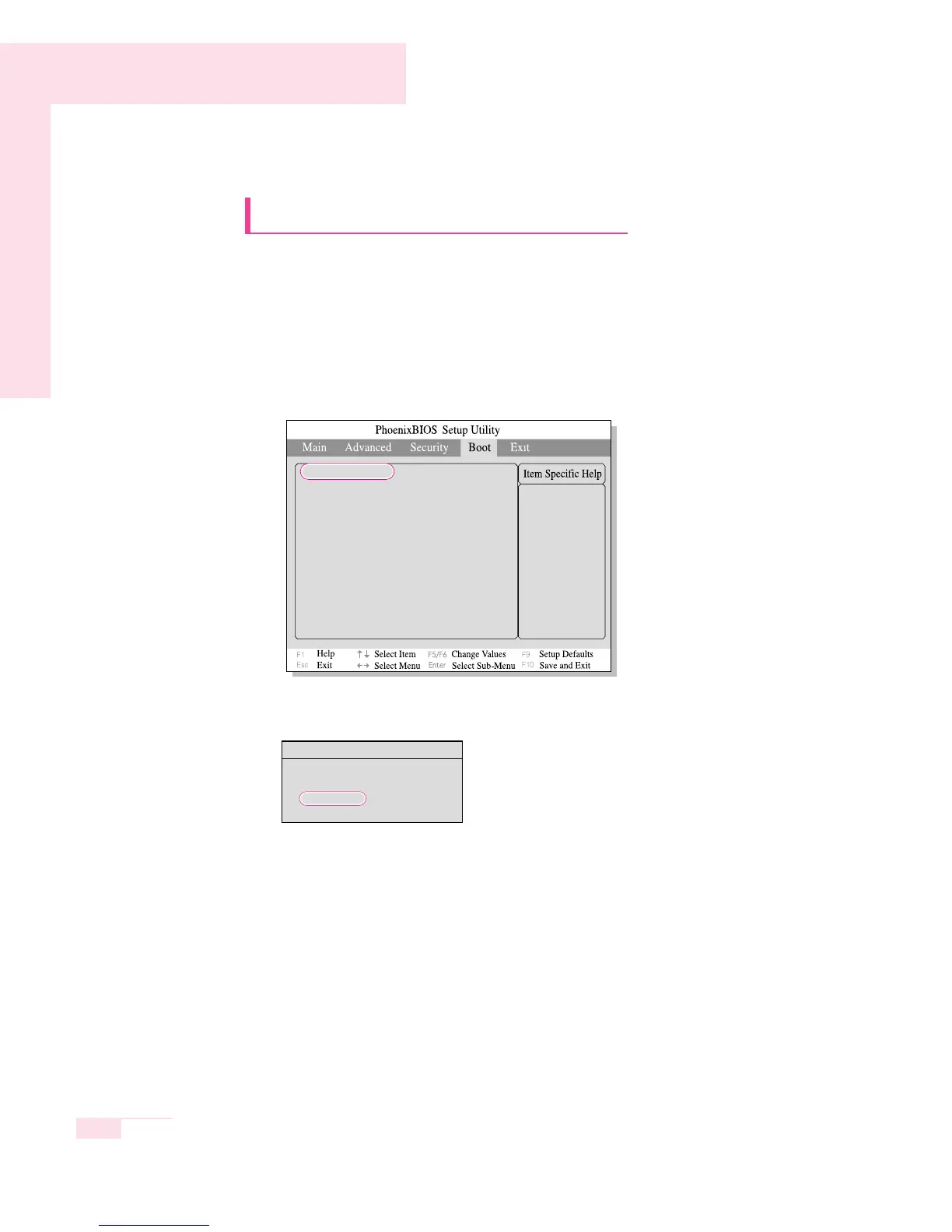
1. Select the Boot Menu in System Setup.
2. Press <Enter> on Boot Device Priority item.
3. Use the <↓> key to move to the Hard Drive item, and press <F6> key until it
is at the very top.
4. Press <F10> to save the changed configuration, and exit System Setup.
Now you can boot the system with the hard disk drive as the first booting device.
Select system boot
options
Boot Device Priority
NumLock [Off]
Enable Keypad [By NumLock]
Summary screen [Disabled]
Boor-time Diagnostic Screen [Disabled]
PXE OPROM [Only with F12]
Brightness Mode Control [Auto]
Smart Battery Calibration
6-6
Manual
Boot Options
DVD/CD-ROM Drive
Removable Devices
+ Hard Drive


 To Next Page