3-20
Manual
■ Copying an audio CD to the Computer
1. Insert an audio CD into the CD-ROM drive.
2. When the Audio CD window appears, select using Samsung AVStation
premium and click OK.
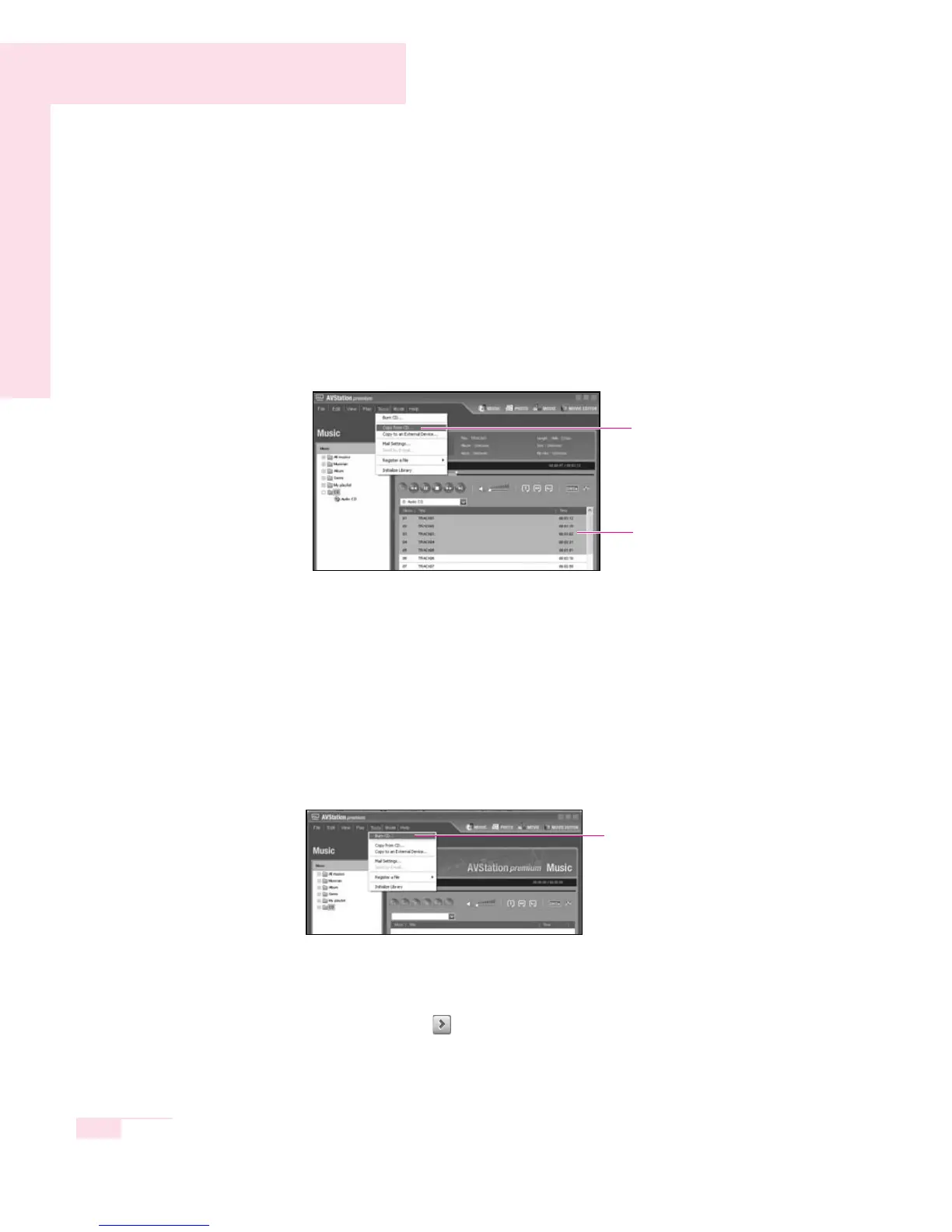
3. Select a track to be copied to the library and then select Tools > Copy
from CD.
- To select multiple tracks, select the tracks while pressing the Shift or Ctrl key
on the keyboard.
4. The selected tracks are copied from the audio CD. When the copy operation
is completed, the Copy Completed message will appear.
The copied tracks are saved in the My Documents > AVStation premi-
um > Music > Music From CD folder.
■ Burning an Audio CD
1. Insert a blank CD into the CD-ROM drive. When the CD Drive window
appears, click Cancel.
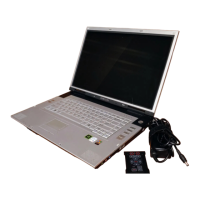
2. Select Tools > Burn CD.
3. Select Burn Audio CD and click Next.
4. Double-click Music in the left title and double-click All musics.
5. Select music files from the list and click the Add files from my PC to the
CD burning list ( ) button to move the selected files to the right Burn
Audio CD window. When you have added all music files, click Next.
6. Select a CD Writer and click on Start. When the Burn CD window appears,
click OK to create the audio CD.
Select
Copy from
CD
Select the tracks to be
copied.
Select
Burn CD


 To Next Page