3-26
Manual
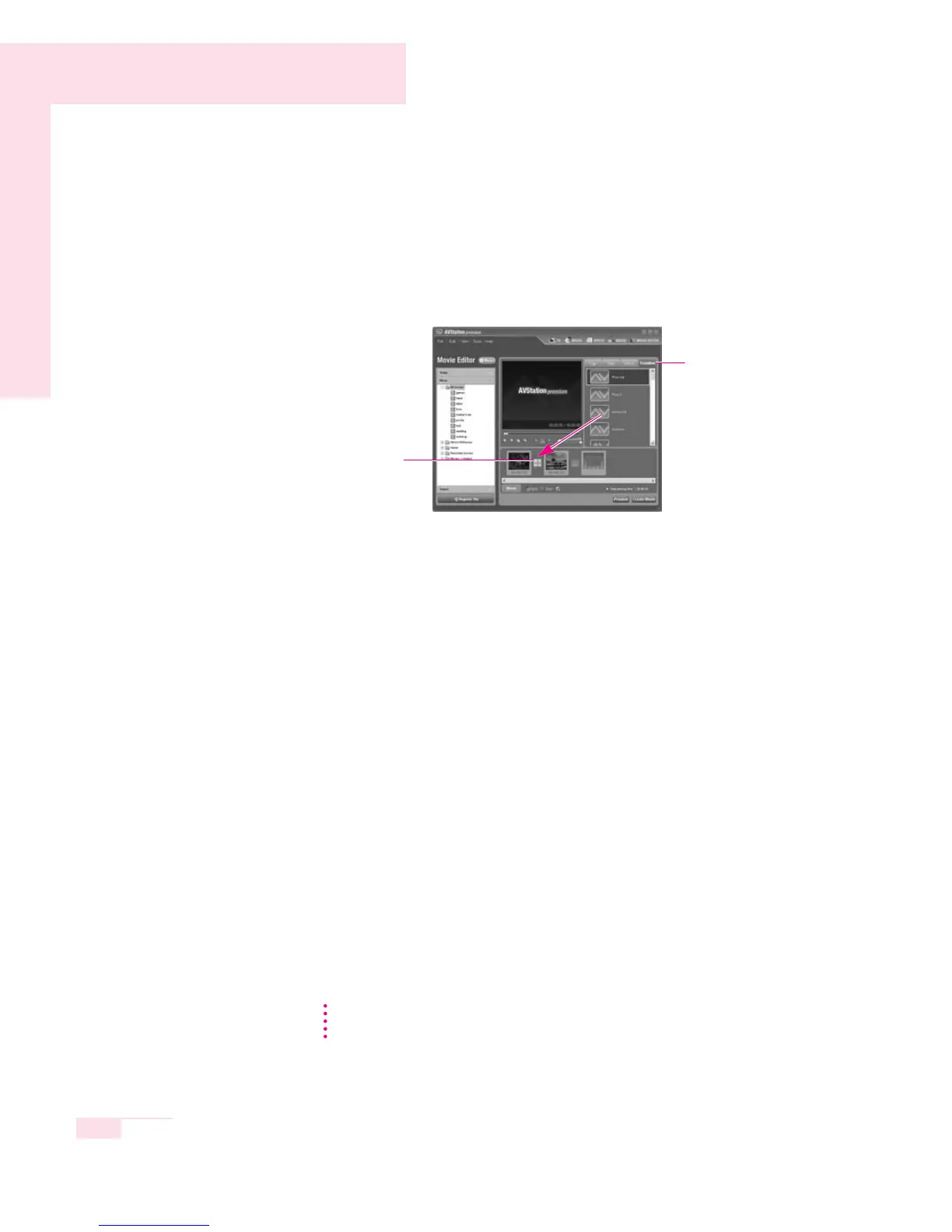
▶ Screen Effect : Select an effect from the Effect tab and drag and drop
the selected effect onto the movie in the Storyboard to
apply the effect.
▶ Transition : Select a Transition effect from the Transition tab and
drag and drop the selected effect onto the movie in the
Storyboard to apply the transition effect.
▶ Background Music : Click on Music and select a music file to apply
the background music to the movie file.
4. When finishing editing a movie, click on Create Movie and click OK
to create the edited movie as a movie file.
The edited movie is saved in the My Documents > AVStation pre-
mium > Movie > Edited Movie folder and will be displayed in the
My Movie category.
Registering a File
By registering multimedia files to the library, you can easily access and manage them
since they will be appear in the corresponding category of either the Music, Image,
Movie categories on the left-hand side of the screen.
The procedures to register an entire folder to the library will be used as an example
below.
1. Click on Register File at the bottom of the screen.
2.
Click on Add by folder, and select the folder to be registered and then click OK.
3. When the registration is completed, click OK.
The registered multimedia folder will be displayed in the music, image, or video
categories of the library.
Select a Transition Effect
and drag and drop it
onto the position to insert
the effect.
Position of the Transition
Effect
Transition
Tab
To play a file not registered to a category, select File > Open File and
select the file.
NN
NN
oo
oo
tt
tt
ee
ee


 To Next Page