4-26
4. Troubleshooting
4-3. Factory Mode Adjustments
4-3-1 How to Access Service Mode
Using the Customer Remote
Turn the power off and set to stand-by mode
Press the remote buttons in this order; MUTE-1-8-2-POWER ON to turn the set on.
The set turns on and enters service mode. This may take approximately 20 seconds.
If you fail to enter service mode, repeat steps 1 and 2 above,
press the Power button to exit and store data in memory.
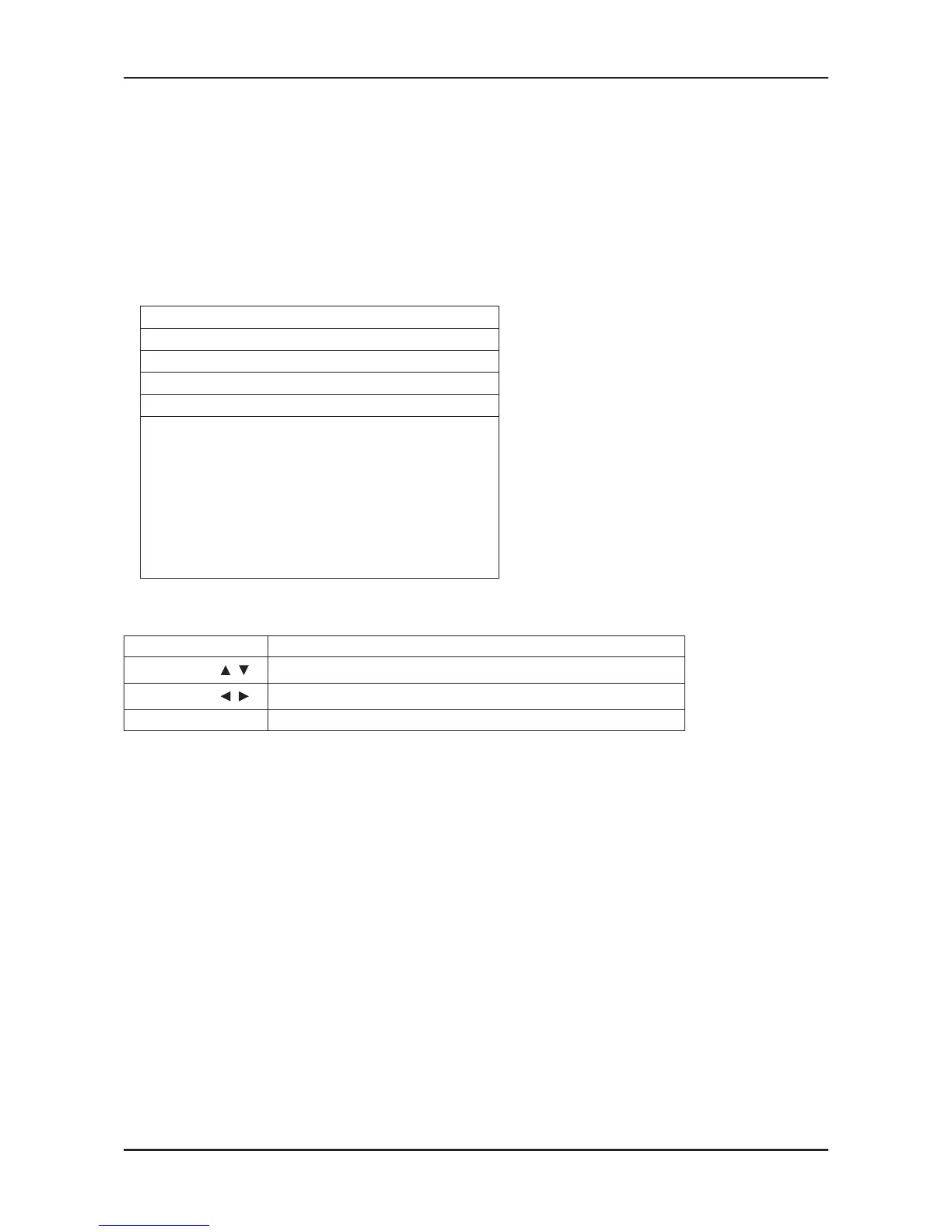
Initial SERVICE MODE DISPLAY State
Option
ADC/WB
Control
Advanced
Expert
T-STL3FHUSHC-XXXX
DTP-LP-XXXX-XX
DTP-LP-App-XXXX-XX
ADC : HDMI X COMP X PC X AV X
EDID : SUCCESS
HDCP : SUCCESS
Build Date : XX-XX-XXXX
Date Of Purchase : XX/XX/XX
6. Buttons operations withn Service Mode
Menu Full Menu Display/Move to Parent Menu
Direction Keys
/
Item Selection by Moving the Cursor
Direction Keys
/
Data Increase / Decrease for the Selected Item
Source
Cycles through the active input source that are connected to the unit
*How to access the Advanced menu setup.
- While in the factory menu, navigate the cursor and highlight advanced.
On the remote keypad hit the zero key 4 times.
The Advanced menu will then be active for adjustment if wanted.
1.
2.
3.
4.
5.








 To Next Page