43
Turning the Computer On and Off
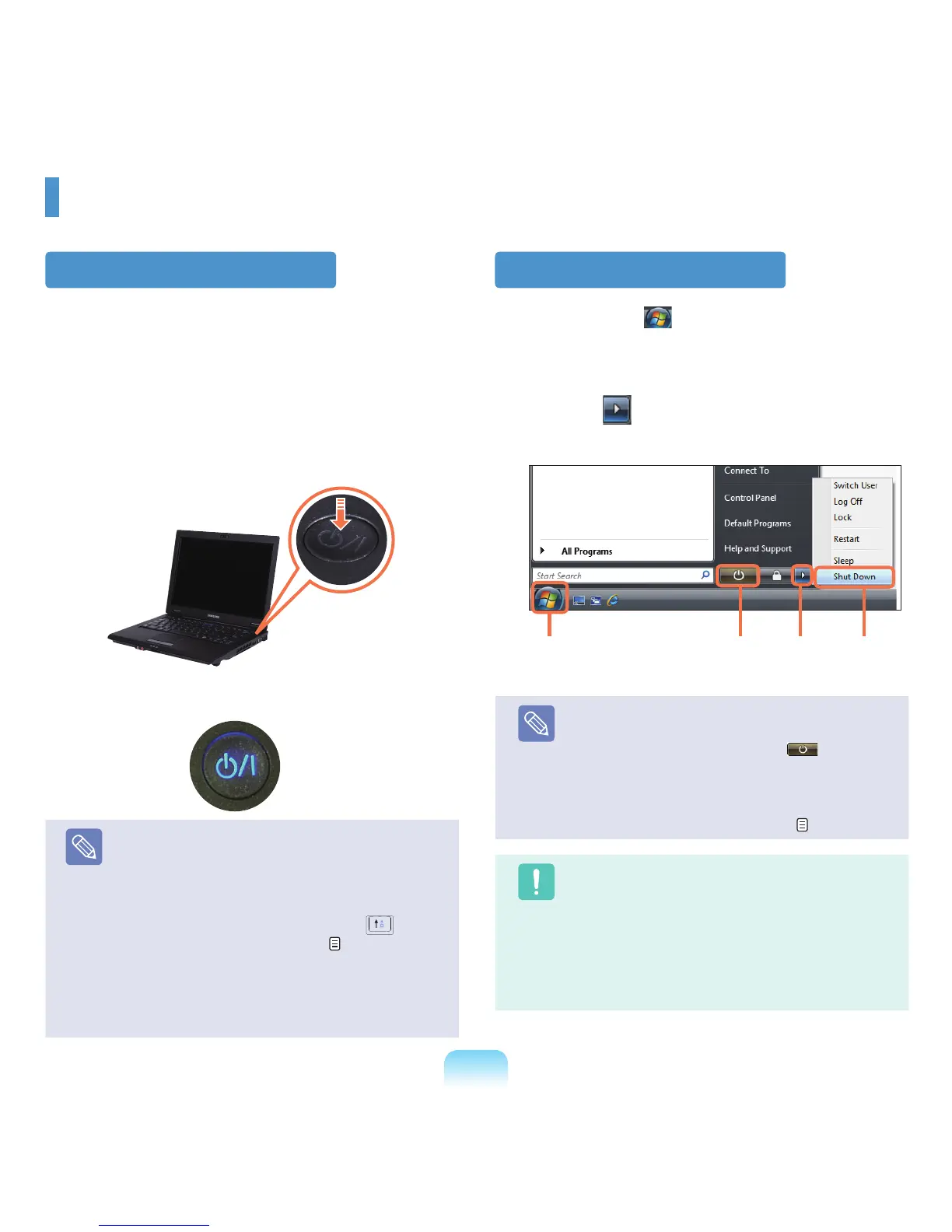
Turning the computer on
1
Installthebattery and connect the AC adapter.
(RefertotheInstallation Guide.).
2
LifttheLCDpanelup.
3
PressthePower button to turn the computer on.
4
Power buttonLEDislitwhilethecomputeristurned
on.
Note
■
IfyoupressandreleasethePowerbuttonon
the computer when it is on, the computer enters
Sleepmode.
■
Whenrunningthecomputeronbatterypower,
theLCDbrightnessisdimmedautomaticallyto
savebatterypower.Pressthe
Fn+( )keyto
increasetheLCDbrightness.
p. 47
■
Whenturningthecomputeronforthersttime,
theRegisterWindowsscreenappears.Youcan
usethecomputerafterregisteringyouruser
information.
Turning the computer off
1
ClicktheStart ( )buttononthetaskbar.
2
Clickthe( )andclickonShut down.
Thecomputerwillshutdown.
Note
Before Using the Power Button
SincethePowerIconissettopowersavingmode,
selecting
Start > Power Button ( ),willcause
the computer to enter Sleep mode.
Toshutdownthecomputerbyclickingthisicon,
refer to the descriptions for Setting up Start menu
powerbuttonoftheControlPanel.
p. 87
Caution
Whenthesystemcannotbeshutdownduetoa
systemerror,turnitoffbypressingandholdingthe
PowerButtonforlongerthan4seconds.
However,turningthecomputeroffbythismethod
maycauseasystemproblem.Thereafter,when
turningthecomputerbackon,thediskchecking
programmaylaunchtocheckforandcorrectany
disk errors.
Power
Button
1 2 3



 To Next Page