English _71
● SETUP SCREEN
Dewarping mode
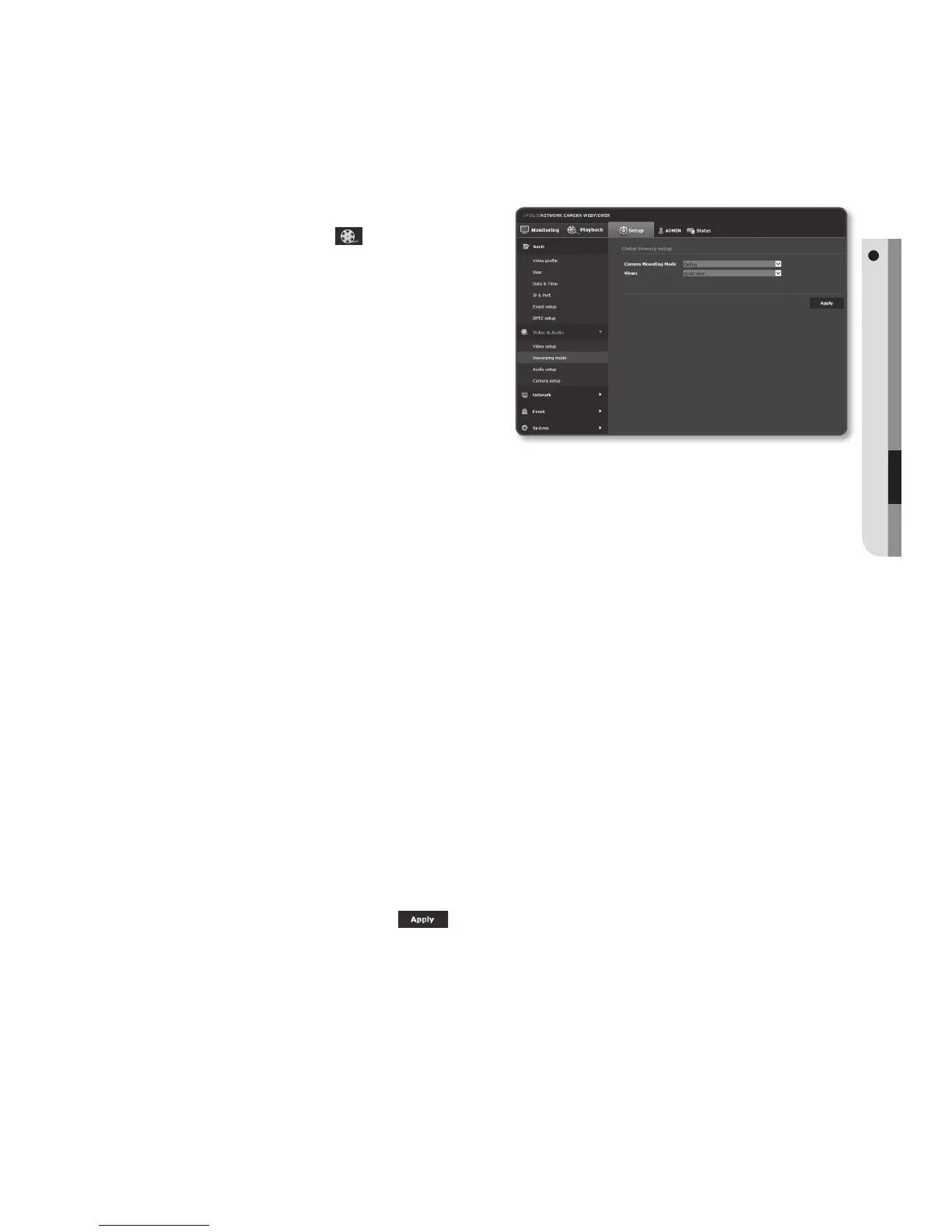
Sets the camera position and give the information to the user program.
1. From the Setup menu, select the
<Video & Audio (
)> tab.
2. Click <Dewarping mode>.
3. Set <Camera Mounting Mode>.
• Ceiling : Select this for ceiling-
mounted cameras.
• Ground : Select this for cameras
placed on the floor.
• Wall : Select this for cameras placed
on the wall.
4. Set <Views>.
• Quad View : Shows four Single Rectangle screens at the same time. However,
Quad View does not support DPTZ at [Monitoring]. It does not allow the image
reversion or zoom for a selected area at <DPTZ setup>. Quad View is available in
Wall-mounted, Ceiling mounted and Floor Standing modes.
• Double Panorama : Shows the calibrated video images of the 360˚ wrap-around
view of the areas that are valid for Wall-mounted and Ceiling mounted modes.
Can set the initial position at the [Setup] menu.
Can flip images horizontally through <DPTZ setup>. Available in Wall-mounted
and Ceiling mounted modes.
• Single Panorama : Shows the calibrated video images of the 360˚ wrap-around
view of the areas that are valid for Wall-mounted mode. Can set the initial position
at the [Setup] menu, but does not support the DPTZ function. Available in Wall-
mounted mode.
• Single Rectangle : Calibrates a specific scene to be optimized for a viewer. Can
adjust DPTZ at [Monitoring], and allows the image reversion or zoom for a
selected area at <DPTZ setup>. Available in Wall-mounted, Ceiling mounted and
Floor Standing modes.
5. When done, click [Apply (
)].
J
`
When you change the Camera Mounting mode, the camera reboots automatically.


 To Next Page