18 19
APP Guide Line (POWERbot-E)
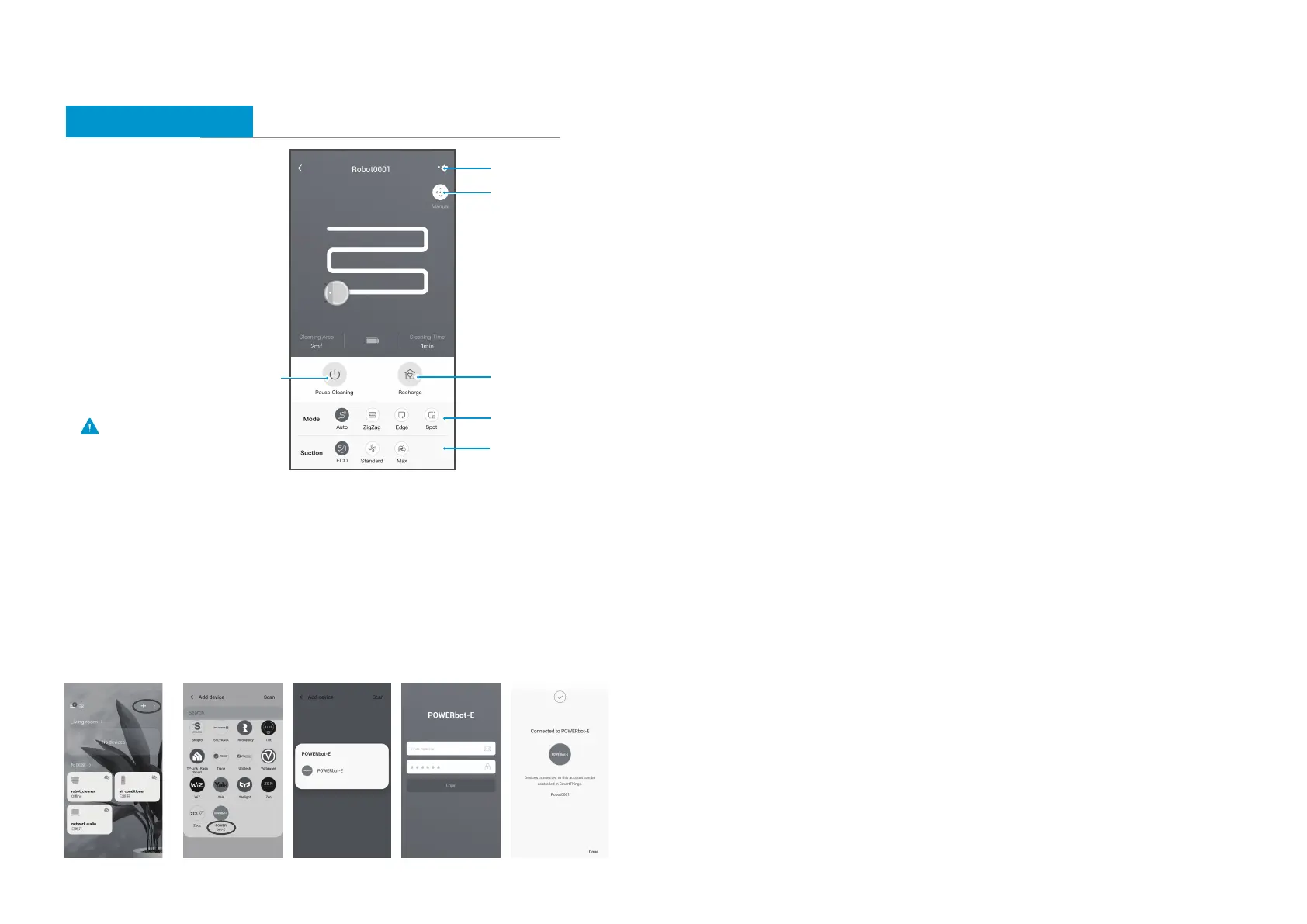
App quick guide
Network access guide
Make sure your phone is connected
to home WiFi.
Step 1 Step 2 Step 3 Step 4
Setting up the wireless router
• Samsung POWERbot-E supports only Wi-Fi 2.4 Ghz.
• Samsung POWERbot-E supports IEEE 802.11b/g/n and Soft-AP.
– IEEE 802.11n is recommened.
• Samsung POWERbot-E supports only DHCP (Dynamic Host Configuration Protocol).
Please make sure that the DHCP server option is activated on your wireless router.
• POWERbot-E supports the WEP-OPEN, WPA-PSK/TKIP, and WPA2-PSK/AES for the
authentication and encryption protocols.
– WPA2-PSK/AES is recommended.
– Confirm that your router has a unique SSID and password.
• The quality of your wireless network connection may be influenced by the surrounding
wireless environment.
• If your Internet service provider has permanently registered the MAC address (a unique
identification number) of your PC or modem, your POWERbot-E may not be able to
connect to the Internet. Ask your Internet service provider about the procedure to connect
an apparatus other than a PC to the Internet.
•
If your internet service provider requires your ID or password to connect to the internet,
your POWERbot-E may not be able to connect. If this is the case, you must enter your ID
or password when connecting to the Internet.
• The POWERbot-E may not be able to connect to the Internet because of firewall issues.
Contact your Internet service provider to resolve these issues.
• Some wireless routers may transmit an abnormal Domain Name Server (DNS) address
even if the Internet is not connected. If this occurs, contact the manufacturer of your
wireless router and your Internet service provider.
• If you still cannot connect to the Internet even after trying the procedure provided by
your Internet service provider, please contact an authorized Samsung service center.
• If your router is not a Wi-Fi certified product, The POWERbot-E may not be able to
connect to the Internet.
Setting up a Samsung account
• You must sign in to a Samsung account before using the SmartThings app.
• To set up a Samsung account, you can follow the directions provided by the SmartThings
app.
• Or, if you have a Samsung smartphone, you can add your Samsung account in the setting
app of your smartphone. Then, it will automatically sign in to your Samsung account.
• Adding a device to the SmartThings APP
• Connect your smartphone to your wireless router.
– If the smartphone is not connected, turn on the Wi-Fi in the Settings App and select a
wireless router you want to connect to.
– Disable the "Mobile data" use option of a smartphone to use Wi-Fi only and connect a
device.
•
Launch the SmartThings app on your smartphone.
• If a pop-up saying that a new device has been found appears, tap ADD NOW.
– If the pop-up doesn’t appear, tap the + button and select the device which you want to
connect from the list of AVAILABLE DEVICES.
– If your device doesn’t appear in the list, add the device manually by selecting the device
type and selecting the specific device model.
•
[Android] The connection to your device will be progressed automatically.
– [iOS] Open the setting app, and select POWERbot-E in the Wi-Fi list.
• Provide the authentication when you are directed to do so.
• [Android] The connetion to your wireless router will be progressed automatically.
–
[iOS] Open the setting app, and select the wireless router in the Wi-Fi list.
• The remaining setup will be automatically done. Then, a new Device Card will be added.
Caution
Once the network access is
configured successfully, you can
operate your cleaner by App.
Step 4
More Settings
Manual control
Cleaning modes
Suction power
Recharging
Start/Pause
APP Guide line(SmartThings)
If you want to use your SmartThings App to control the robot.
STEP 1. Finish the POWERbot-E App registration.
STEP 2. Download the SmartThings App, search “SmartThings” in APPLE App store or Google
Play Store and download.
- You must sign in to a Samsung account before using the SmartThings app.
- To set up a Samsung account, you can follow the directions provided by the SmartThings app.
STEP 3. Register in the SmartThings App and login in.
STEP 4. Link the SmartThings App and POWERbot-E App as below instruction, and then can
control your robot via SmartThings App.




 To Next Page