39
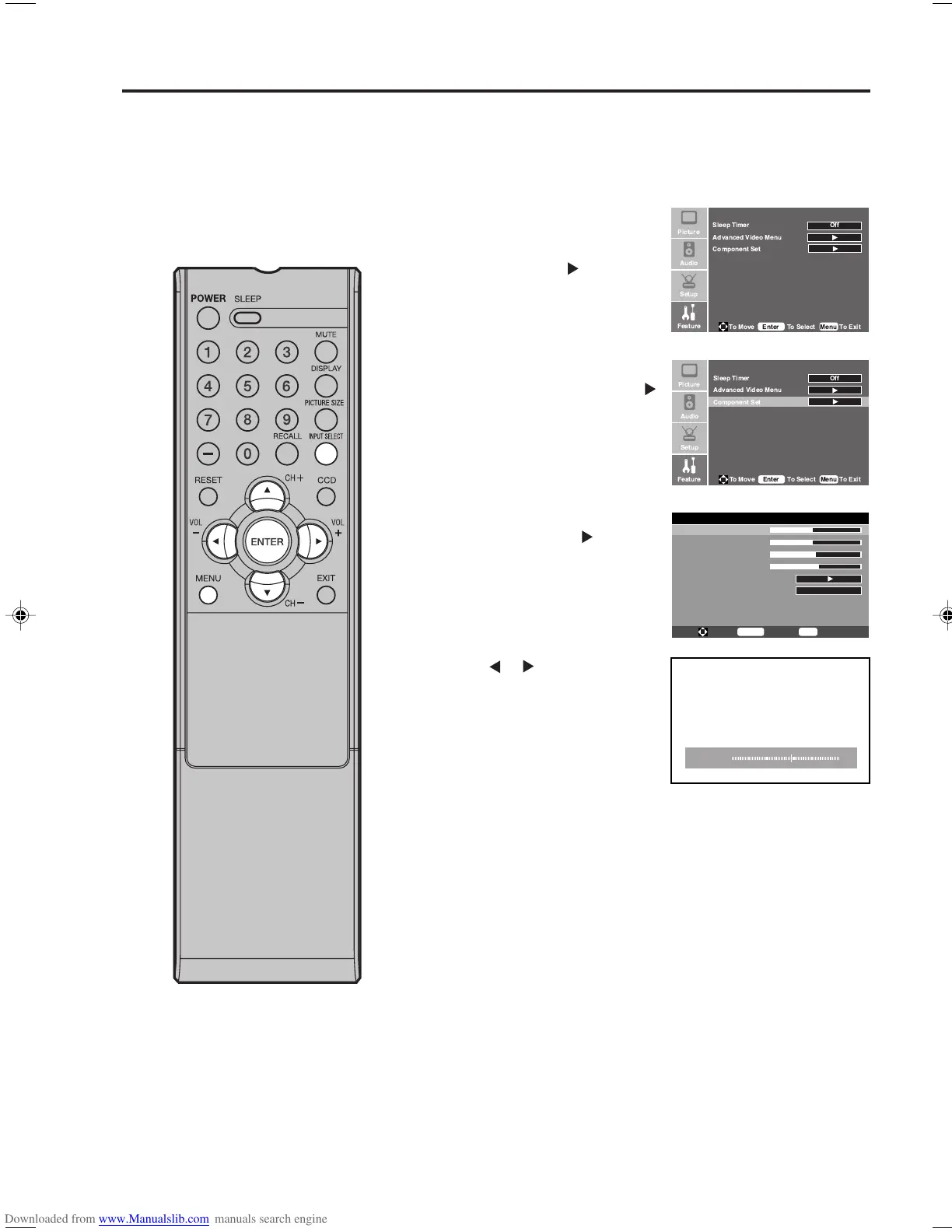
Example: Adjust the H-Pos in the component mode.
1
Press INPUT SELECT repeatedly to select the component
mode.
2
Press MENU during the
component mode. Then press
▲ or ▼ to select “Feature”
menu, then press
.
3
Press ▲ or ▼ to select
“Component Set”, then press
or ENTER.
4
Press ▲ or ▼ to select
“H-Pos”, then press or
ENTER.
5
Press or to adjust the
setting.
You can adjust to optimize the
performance of the TV in the
Component and PC mode.
Component setting - 720x480p@60/59.94Hz
H-Pos 48
V-Pos 48
Clock 50
Phase 51
Auto adjust
Setting
To Move
To Select
To Exit
Enter
Menu
Preset
H-Pos: To adjust the horizontal position of the
image on the PC Monitor-screen.
V-Pos: To adjust the vertical position of the
image on the PC Monitor-screen.
Clock: To minimize any vertical bars or stripes
visible on the screen background.
Phase: This must be adjusted after the frequency
of your PC has been set to 60hz to
optimize pic ture quality (page 16).
Auto adjust
(PC Setting only): To optimize “H-Pos”, “V-Pos”, “Clock”
and “Phase” automatically.
Setting: To return your settings to the factory
settings.
6
Press MENU to return to the normal screen.
NOTE:
• If no buttons are pressed for more
than approx. 30 seconds, the Menu-
screen will return to normal Monitor-
screen automatically.
• The “Component Set” and “PC Set”
settings are not effective for normal
mode, or other input modes.
H-Pos 56
Picture control adjustment in the Component and PC mode
33F0201A_En_p36-39 7/5/07, 3:29 PM39


 To Next Page