15
Connections to other equipment
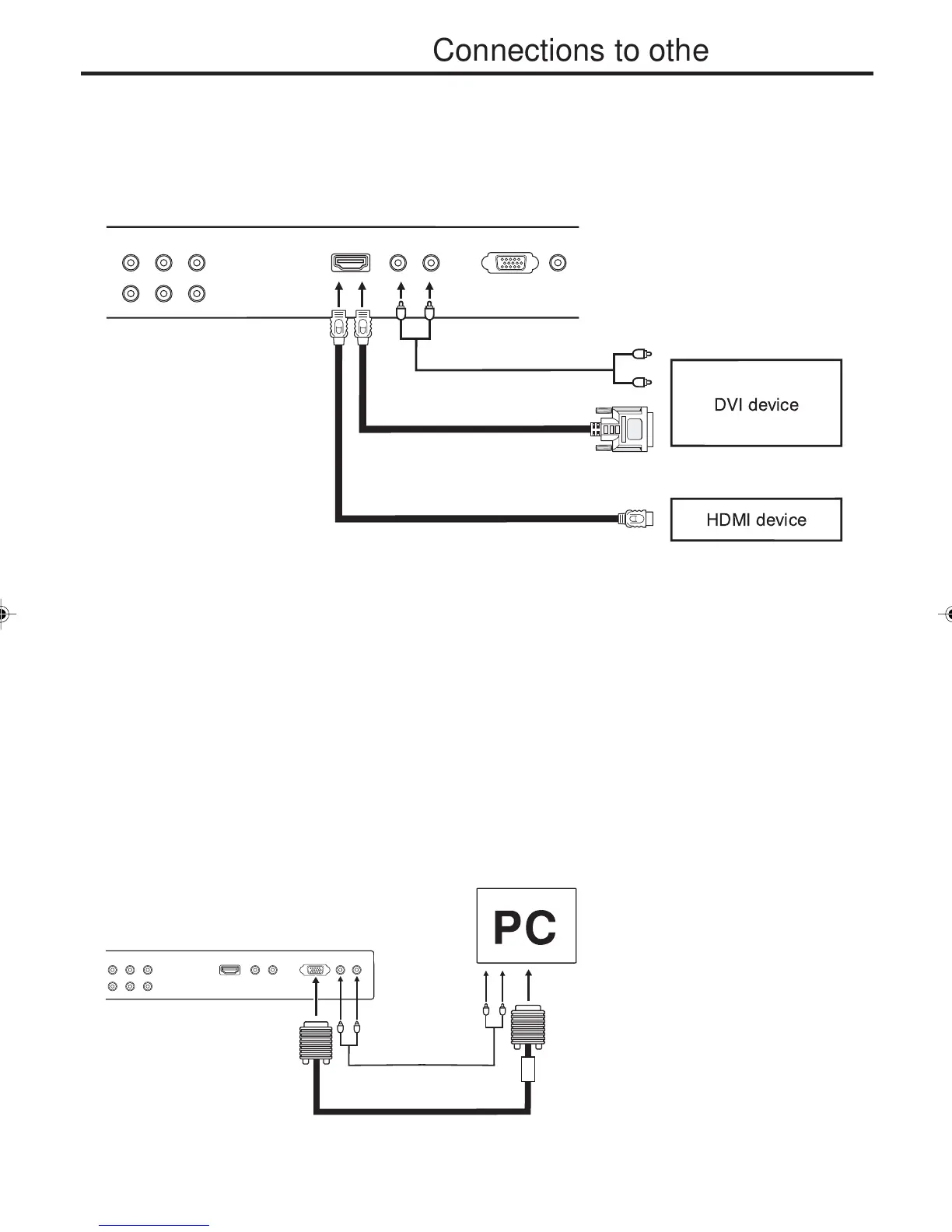
Audio cord (not supplied)
VGA cable (not supplied)
To connect the Plasma Display to a PC (Personal Computer)
Before you connect this Plasma Display to your PC, change the adjustment of your PC’s Resolution and
Refresh rate (60 Hz).
Connect one end of a (male to male) VGA cable to the video card of the computer and the other end to the
VGA connector PC MONITOR on the back of the
Plasma Display
. Attach the connectors firmly with the screws
on the plug.
In case of a Multimedia computer, connect the audio cables to the audio outputs of your
Multimedia computer and to the AUDIO L and R connectors of the PC AUDIO (L/R) IN jacks of the Plasma
Display.
Press INPUT SELECT on the remote control to select PC mode.
Switch on the computer. The Plasma Display can operate as the computer monitor.
Monitor Display modes
MODE Resolution Refresh rate
VGA 640x480 60Hz
SVGA 800x600 56.3Hz
SVGA 800x600 60.3Hz
XGA 1024x768 60Hz
To return to normal mode
Press INPUT SELECT again.
Rear lower of the Plasma Display
To connect the Plasma Display to a HDMI or a DVI device
Rear lower of the Plasma Display
HDMI - to - DVI adapter cable
(HDMI type A connector)
(not supplied)
Audio cord (not supplied)
HDMI cable (type A connector)
(not supplied)
To DVI output
To HDMI out
or
The HDMI input receives digital audio and uncompressed video from a HDMI device or uncompressed digital
video from a DVI device.
When you connect to a DVI device with a HDMI-to-DVI adapter cable, it transfers only the video signal. Separate
analog audio cords are required.
NOTE:
You must choose an appropriate setting for each connection (see page 33. “Selecting the HDMI audio input
source”).
To PC AUDIO
IN jacks
To PC IN
3V03001A_En_p12-16 8/23/05, 16:3215


 To Next Page