24
1
2
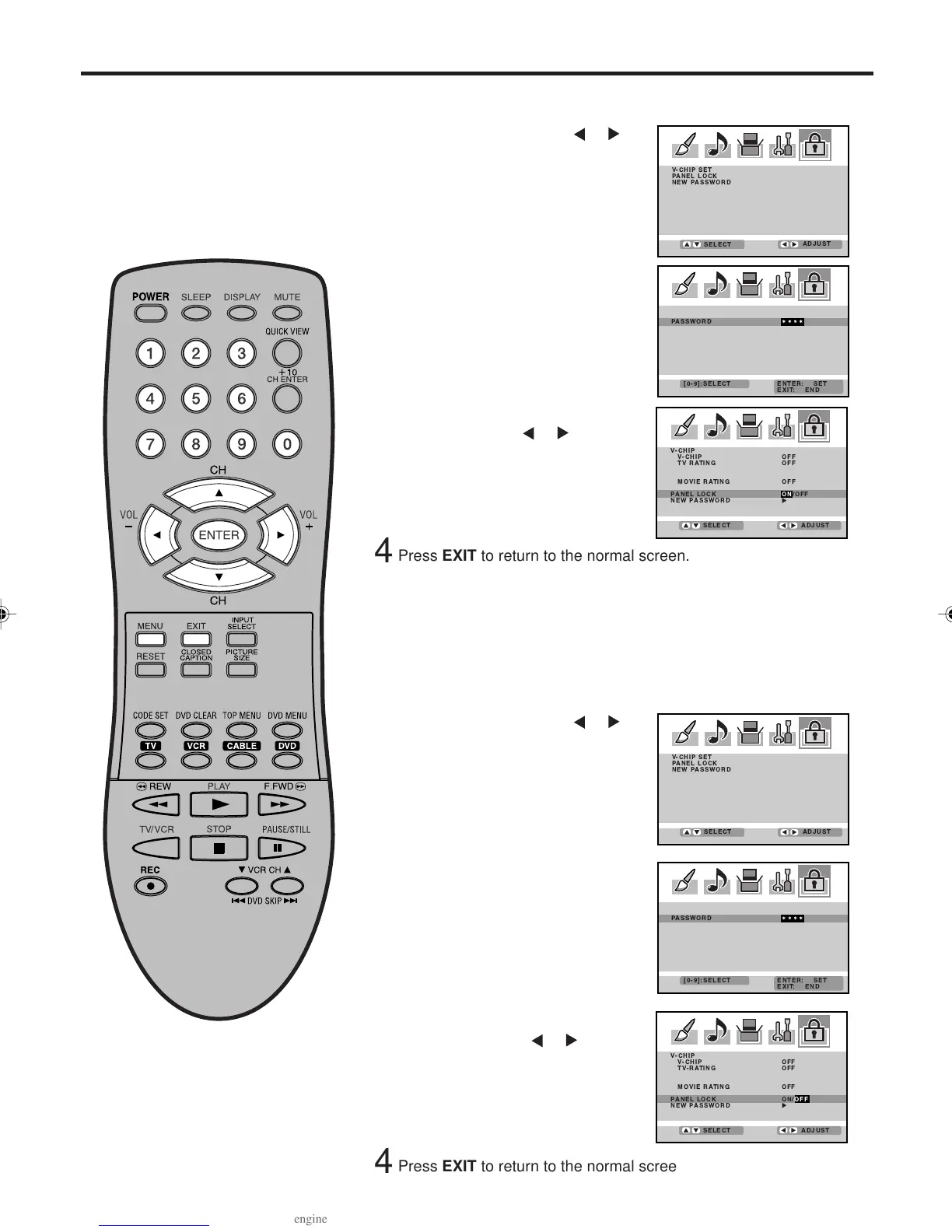
Setting the panel lock
Press ▲ or ▼ to select “PANEL
LOCK” and press
or to
select “ON”.
If a button on the front panel is
pressed, the message “NOT
AVAILABLE” appears.
3
Press MENU, then press or
to select LOCKS menu.
To lock the front panel
You can lock the front panel
buttons to prevent your settings
from being changed accidentally
(by children, for example). When
the panel lock is ON, all control
buttons on the Plasma Display
front panel (except POWER) do
not operate.
To unlock the front panel
Press and hold VOLUME ▼ on the front panel of Plasma Display for
about 10 seconds until the message “PANEL LOCK:OFF” appears
on the screen.
3
Press ▲ or ▼ to select “PANEL
LOCK”, then press or to
select “OFF”.
2
1
Press MENU, then press or
to select LOCKS menu.
You also can unlock the front panel using the menus
Press ▲ or ▼ to display the
password entering mode.
Use the number buttons (0-9)
to enter your password, then
press ENTER. The LOCKS
menu appears.
Press ▲ or ▼ to display the
password entering mode. Use
the number buttons (0-9) to
enter your password, then press
ENTER. The LOCKS menu
appears.
4
Press EXIT to return to the normal screen.
4
Press EXIT to return to the normal screen.
3V03001A_En_p24-26 8/23/05, 16:3324



 To Next Page