44
SELECTING VIDEO MODE
This projector automatically detects the signal from the VIDEO
INPUT JACK(s) or the S-VIDEO INPUT JACK. When those
jacks are connected at the same time, select the type of Video
source in VIDEO SOURCE Menu.
Press the MENU button and the ON-SCREEN MENU will
appear. Press the POINT LEFT/RIGHT buttons to select VIDEO
SOURCE and press the SELECT (REAR CLICK) button.
Another dialog box VIDEO SOURCE Menu will appear.
Press the POINT DOWN button and a red-arrow icon will
appear. Move the arrow to the source that you want to select,
and then press the
SELECT (REAR CLICK) button.
1
2
This box indicates the
Video source being
selected.
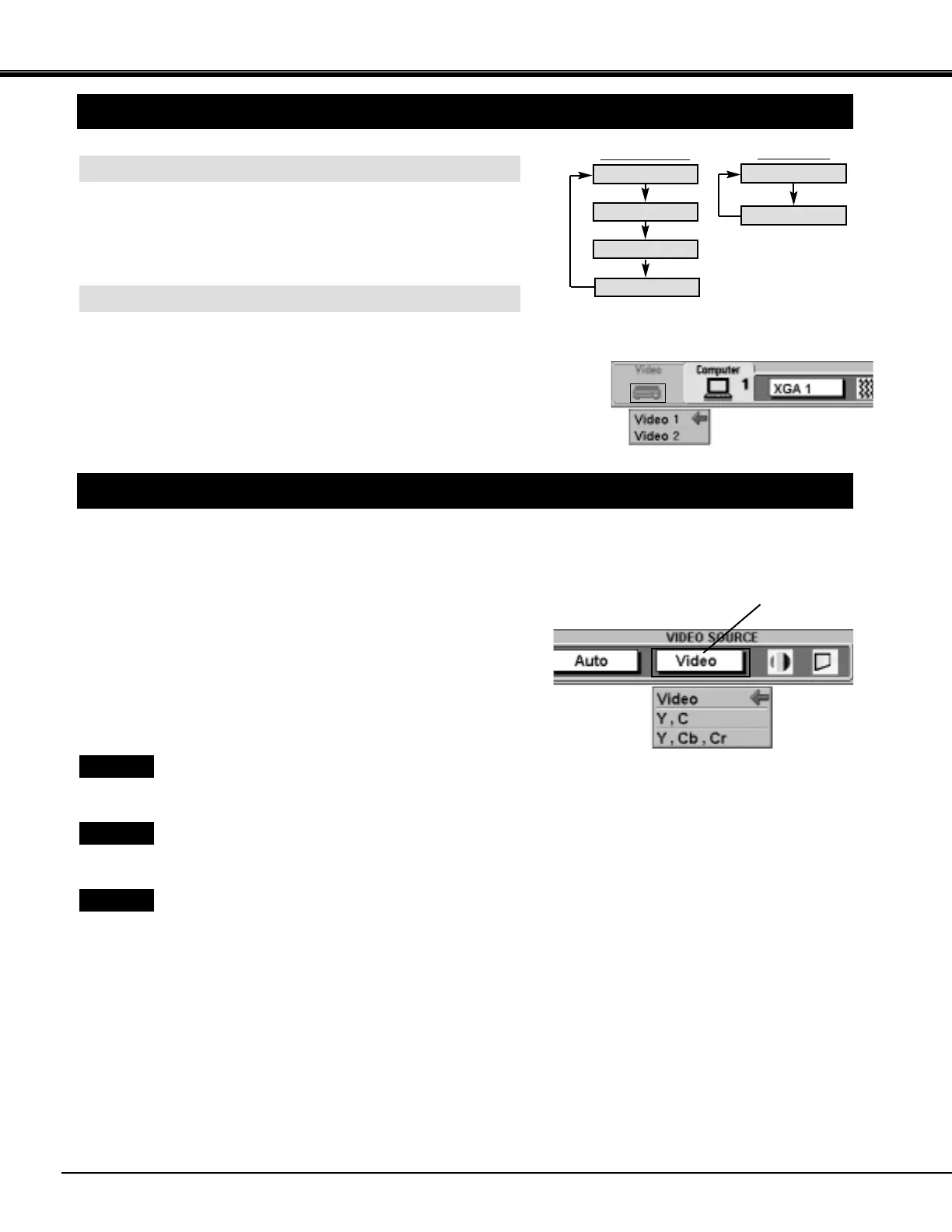
SELECTING VIDEO SOURCE
VIDEO MODE
VIDEO button
Video 1
Video 2
DIRECT OPERATION
Press the MODE button on the projector or the VIDEO button on the
remote control unit to select Video 1, Video 2 Input.
The "Video 1", or "Video 2" display will appear on the screen for a few
seconds.
MODE button
Computer 1
Computer 2
Video 1
Video 2
MENU OPERATION
Press the MENU button and the ON-SCREEN MENU will
appear. Press the POINT LEFT/RIGHT buttons to select
Computer and press the SELECT (REAR CLICK) button.
Another dialog box VIDEO MODE
Menu will appear.
Press the POINT DOWN button and a red-arrow icon will
appear. Move the arrow to the mode either Video 1 or Video 2,
and then press the SELECT (REAR CLICK) button.
1
2
Video
Y, C
When connect the separate Y/C video output from the
video equipment to the VIDEO/Y and C jacks, select
"Y,C" in VIDEO SOURCE Menu.
When connect the composite video output from the video
equipment to the VIDEO/Y jack, select "Video" in VIDEO
SOURCE Menu.
Y, Cb, Cr
When connect the component video output from the
video equipment to the VIDEO/Y, C/Cb (B-Y) and Cr (R-
Y) jacks, select "Y, Cb, Cr" in VIDEO SOURCE Menu.



 To Next Page