46
VIDEO MODE
PICTURE IMAGE ADJUSTMENT
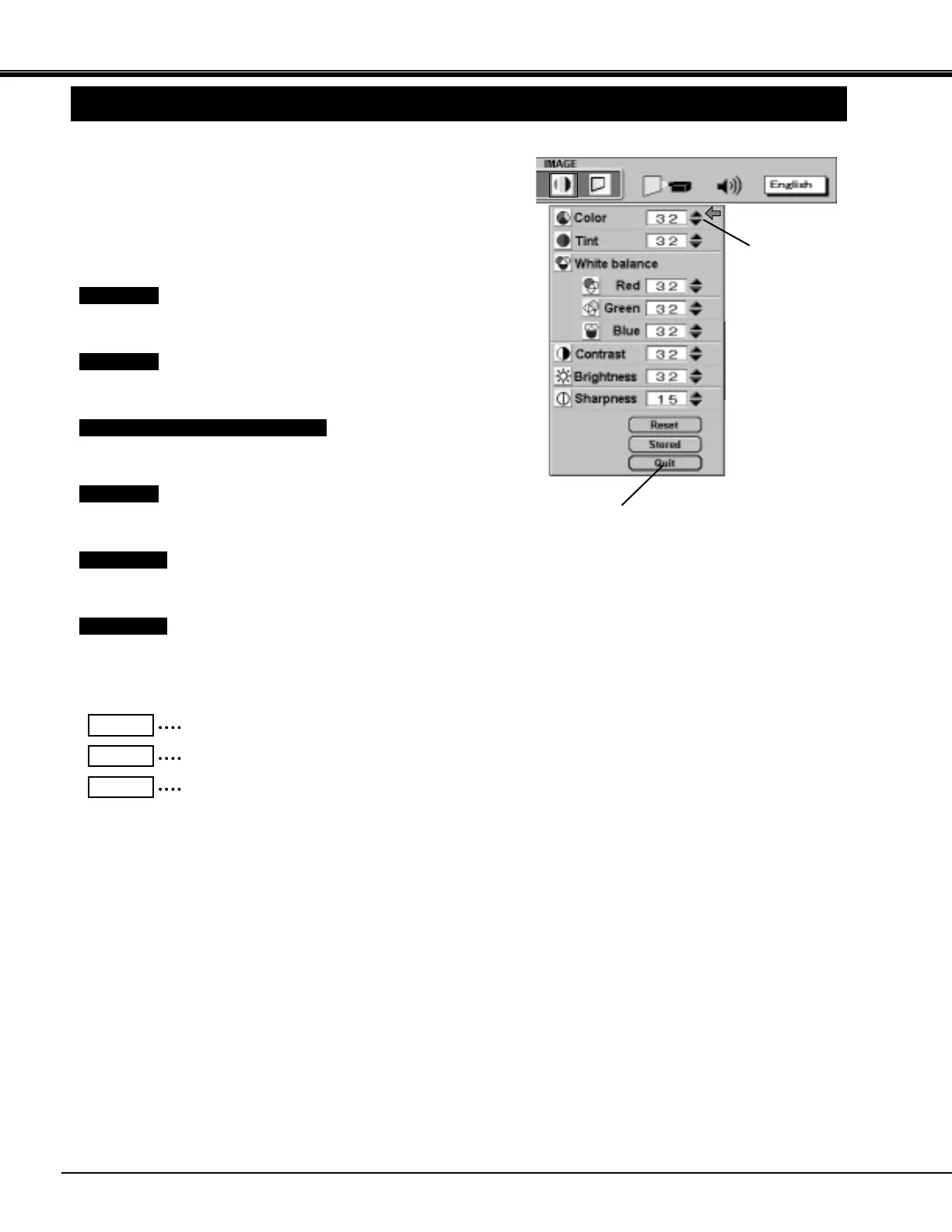
Each of the keys operates as follow.
Press the MENU button and the ON-SCREEN MENU will
appear. Press the POINT LEFT/RIGHT buttons to select IMAGE
and press the SELECT (REAR CLICK) button. Another dialog
box PICTURE IMAGE ADJUSTMENT Menu will appear.
1
Closes the PICTURE
IMAGE ADJUSTMENT
Menu.
Point to ▼ button to lighten the image, and select ▲ to deepen the
image. (From 0 to 63.)
Point to ▼ button to increase purple, and select ▲ to increase green.
(From 0 to 63.)
Point to ▼ button to decrease contrast, and select ▲ to increase
contrast. (From 0 to 63.)
Point to ▼ button to darken the image, and select ▲ to brighten the
image. (From 0 to 63.)
Recalls the data previously adjusted.
Reset
Stores the data in the memory.
Stored
Closes the PICTURE IMAGE ADJUSTMENT Menu.
Quit
Point to ▼ button to soften the image, and select ▲ to sharpen the
image. (From 0 to 31.)
Color
Tint
Contrast
Brightness
Sharpness
Move the arrow to the color that you want to adjust. Point to ▼ to
lighten the color and select ▲ to deepen the color. (From 0 to 63.)
White balance (Red / Green / Blue)
2
Press the POINT DOWN button and a red-arrow icon will
appear. Move the arrow to the function that you want to select
and then press SELECT (REAR CLICK) button.
Move the arrow to
▲ or ▼ and press
SELECT (REAR
CLICK) button.



 To Next Page