EasyManua.ls Logo

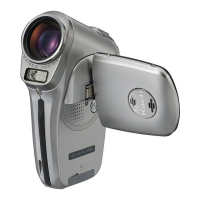
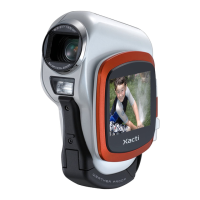
Sanyo Xacti VPC-CA6 - User Manual

Sanyo Xacti VPC-CA6
193 pages
Print Icon
To Next Page IconTo Next Page
Loading...
VPC-CA6EX
VPC-CA6
INSTRUCTION MANUAL
Digital Movie Camera
Please read these instructions carefully before using the camera.
Make sure to read and understand the separate booklet ā€œ
SAFETY MANUALā€.
Keep this manual in a safe place for later reference.
Important note
This manual explains how to safely operate the VPC-CA6EX and VPC-CA6.
Any information regarding only one of these products will be labeled as such.

Table of Contents

Questions and Answers

  • M
    marieandersonSep 12, 2025
    How to fix no sound during playback on Sanyo Xacti VPC-CA6 Digital Camera?
    • S
      susanmooreSep 12, 2025
      If there is no sound during audio playback on your Sanyo Digital Camera, the playback volume setting might be too low. Select the playback volume icon Z and adjust the volume.
  • C
    Christina CallahanSep 9, 2025
    Why is part of my Sanyo Xacti VPC-CA6 Digital Camera image cut off?
    • P
      Phillip BruceSep 9, 2025
      If a part of the image is missing when using your Sanyo Digital Camera, it's possible that the grip belt or a finger was blocking the lens. Hold the camera correctly, ensuring the lens is not obstructed.
  • B
    Betty CalderonSep 8, 2025
    Why does Sanyo Xacti VPC-CA6 Digital Camera zoom stop intermittently?
    • K
      Kimberly MorganSep 8, 2025
      If you experience momentary stops while zooming in or out with your Sanyo Digital Camera, it's likely that the optical zoom has reached its maximum magnification. This is not a malfunction. Release the zoom switch and press it again.
  • R
    ralph38Sep 7, 2025
    Why does my Sanyo Xacti VPC-CA6 say ā€œNo imageā€?
    • M
      Margaret WallerSep 7, 2025
      If your Sanyo Digital Camera displays ā€œNo imageā€, it means there is no recorded data for the selected playback mode. Try capturing images or making audio recordings before attempting playback.
  • N
    Natasha JenningsAug 23, 2025
    How to fix no power on Sanyo Digital Camera?
    • J
      Jason ShannonAug 23, 2025
      If your Sanyo Digital Camera shows no power, it could be due to a dead battery pack. Try recharging the battery pack. If that doesn't work, replace it with a new one. Another possibility is that the battery pack wasn't inserted correctly. Make sure to reinsert it, ensuring it's properly oriented.
  • M
    Mark BerrySep 5, 2025
    Why does my Sanyo Digital Camera turn off by itself?
    • K
      Kristie CastroSep 5, 2025
      If your Sanyo Digital Camera turns off by itself, the power save function is likely operating. Simply turn the camera on again.
  • A
    Adam SilvaSep 4, 2025
    What to do if subject is too bright on Sanyo Digital Camera?
    • D
      denisedawsonSep 4, 2025
      If the subject was too bright when using your Sanyo Digital Camera, use the exposure correction function.
  • P
    Phillip HillSep 3, 2025
    How to view images on Sanyo Xacti VPC-CA6?
    • A
      Amanda JonesSep 3, 2025
      If there is no playback image appearing on your Sanyo Digital Camera, ensure that the camera is in the playback mode. Press the REC/ PLAY button to switch to the playback mode.
  • L
    larry95Sep 2, 2025
    How to fix overexposed images on Sanyo Digital Camera?
    • C
      Cathy CraigSep 2, 2025
      If your Sanyo Digital Camera image is too bright, the forced flash mode might be selected. Try selecting a different flash mode.
  • W
    William HernandezAug 31, 2025
    How to reduce noise in Sanyo Xacti VPC-CA6 images?
    • K
      kramerjenniferSep 1, 2025
      If there is noise in the captured image of your Sanyo Digital Camera, the ISO sensitivity setting might be too high. Set the ISO sensitivity to a lower setting.

Summary

For American Users

Declaration of Conformity

Regulatory statement regarding FCC compliance and product conformity.

For Canadian Users

For EU Users

Symbols in Manual

Shoot, Playback, and Save

Install Battery Pack and Card

Instructions for inserting the battery pack and memory card into the camera.

Shooting Operations

Record Video Clips

Guide on how to start and stop recording video clips.

Capture Still Images

Steps for taking still photographs with the camera.

Burn Video Clips to DVD (Windows XP)

Install Software Programs

Instructions for installing the SANYO Software Pack for DVD burning.

Water-Resistant Feature

Precautions: Do Not Wash with Water

Guidelines on avoiding water contact for cleaning and washing the camera.

Precautions: Do Not Drop into Water

Advice on preventing accidental immersion in water and actions to take if it occurs.

Not for Underwater Use

Clarification that the camera is not designed for underwater photography.

Basic Operation

Before Taking Pictures

Essential steps and tips before starting to take photos.

Using Autofocus

Explanation of how the autofocus system works and its limitations.

Photography Tips

General advice and hints for improving photo quality.

Shooting Settings

Access Recording Menu

How to display and navigate the camera's recording menu.

Image Quality Settings

Adjusting video and still image quality for optimal results.

Scene Select Modes

Using preset modes for different shooting conditions.

Focus Range Adjustment

Setting the focus distance to match the subject's distance.

ISO Sensitivity Settings

Adjusting camera sensitivity to light conditions.

White Balance Settings

Adjusting color tone based on lighting conditions.

Playback Operations

Access Playback Menu

How to display and navigate the camera's playback menu.

Playback Modes

Choosing between continuous or single clip playback.

Protect Images

Preventing accidental erasure of image and audio data.

Delete Data

Procedure for deleting images and audio files from the card.

Printing Instructions (DPOF)

Setting up print orders and specifying print details.

Rotate Image

Correcting the orientation of captured still images.

Red-Eye Correction

Amending images to reduce the red-eye effect.

Edit Video Clips

Cutting, joining, and deleting parts of video clips.

Option Settings

Access Option Menu

How to display and navigate the camera's option menu.

Operation Sounds

Setting camera sounds, button feedback, and audio guide.

Power Save Function

Configuring the camera's automatic power-off feature.

Connecting Devices

Connect to TV

Steps to connect the camera to a television for playback.

Direct Printing (PictBridge)

Printing photos directly from the camera to a PictBridge printer.

Appendices

Frequently Asked Questions (FAQ)

Answers to common user questions about camera operation.

Troubleshooting Guide

Solutions for common camera problems and issues.

Camera Specifications

Technical details and features of the digital camera.

Included Accessories

Accessory List

Details of items included with the camera package.

Attaching the Grip Belt

Compatible Media Cards

Special Features

Water-Resistant Design

Information about the camera's splashproof properties and usage.

Capture Still Shots During Video

How to take still photos without interrupting video recording.

Optimal Use of Captured Images

Using accessories and software for viewing, printing, and creating DVDs.

System Map

Setup

Camera Parts Names

Identification of the camera's front and rear components.

Charging the Battery Pack

Recharging Battery Pack Tips

Install Battery Pack and Card

Install the Battery Pack

Procedure for opening the compartment and inserting the battery.

Install the Memory Card

Instructions for inserting the memory card into the camera.

Turn Camera On and Off

Turn Camera On

Methods to power on the camera for recording or playback.

Wake Camera from Power Save

Restoring camera power when the sleep function is active.

Turn Camera Off

How to properly shut down the camera.

Operation Buttons

Set Date and Time

Capture Date Display

Basic Operation

Before Taking Pictures

Essential steps and tips before starting to take photos.

Using Autofocus

Explanation of how the autofocus system works and its limitations.

Video Clip Recording and Playback

Record Video Clips

Guide on how to start and stop recording video clips.

Playback Video Clips

Steps for playing back recorded video clips.

Still Image Capture and Playback

Shoot Still Images

How to capture still photographs using the camera.

View Still Images

Procedure for browsing captured still images.

9-Image Display Playback

Viewing multiple images simultaneously in a grid format.

Shooting Menu Options

Access Recording Menu

How to display and navigate the camera's recording menu.

Image Quality Settings

Adjusting video and still image quality for optimal results.

Scene Select Modes

Using preset modes for different shooting conditions.

Image Filters

Applying unique effects like sepia or monochrome.

Flash Mode Settings

Configuring flash operation for different lighting conditions.

Self-Timer Function

Using the self-timer for delayed shots.

Image Stabilizer

Minimizing picture jitter caused by unintentional hand motion.

Focus Range Adjustment

Setting the focus distance to match the subject's distance.

ISO Sensitivity Settings

Adjusting camera sensitivity to light conditions.

White Balance Settings

Adjusting color tone based on lighting conditions.

Playback Operations

Access Playback Menu

How to display and navigate the camera's playback menu.

Playback Modes

Choosing between continuous or single clip playback.

Slideshow Playback

Setting up and playing back images in a slideshow format.

Protect Images

Preventing accidental erasure of image and audio data.

Delete Data

Procedure for deleting images and audio files from the card.

Printing Instructions (DPOF)

Setting up print orders and specifying print details.

Rotate Image

Correcting the orientation of captured still images.

Red-Eye Correction

Amending images to reduce the red-eye effect.

Extract Still Image from Video

Saving a frame from a video clip as a separate still image.

Edit Video Clips

Cutting, joining, and deleting parts of video clips.

Option Settings

Access Option Menu

How to display and navigate the camera's option menu.

Operation Sounds

Setting camera sounds, button feedback, and audio guide.

Power Save Function

Configuring the camera's automatic power-off feature.

File Number Reset

Managing file numbering for new and reformatted memory cards.

Format Memory Card

Procedure for formatting the memory card before first use or if errors occur.

Reset Camera Settings

Restoring camera settings to factory presets.

Connecting Devices

Connect to TV

Steps to connect the camera to a television for playback.

Direct Printing (PictBridge)

Printing photos directly from the camera to a PictBridge printer.

Appendices

Frequently Asked Questions (FAQ)

Answers to common user questions about camera operation.

Troubleshooting Guide

Solutions for common camera problems and issues.

Camera Specifications

Technical details and features of the digital camera.

Hints for Taking Pictures

Tips for improving photo quality in various shooting situations.

Sanyo Xacti VPC-CA6 Specifications

General IconGeneral
BrandSanyo
ModelXacti VPC-CA6
CategoryDigital Camera
LanguageEnglish

Related product manuals