The Sapling Company, Inc.
1633 Republic Road
Huntingdon Valley, PA 19006
USA
+1 215.322.6063 P.
+1 215.322.8498 F.
www.sapling-inc.com
3030
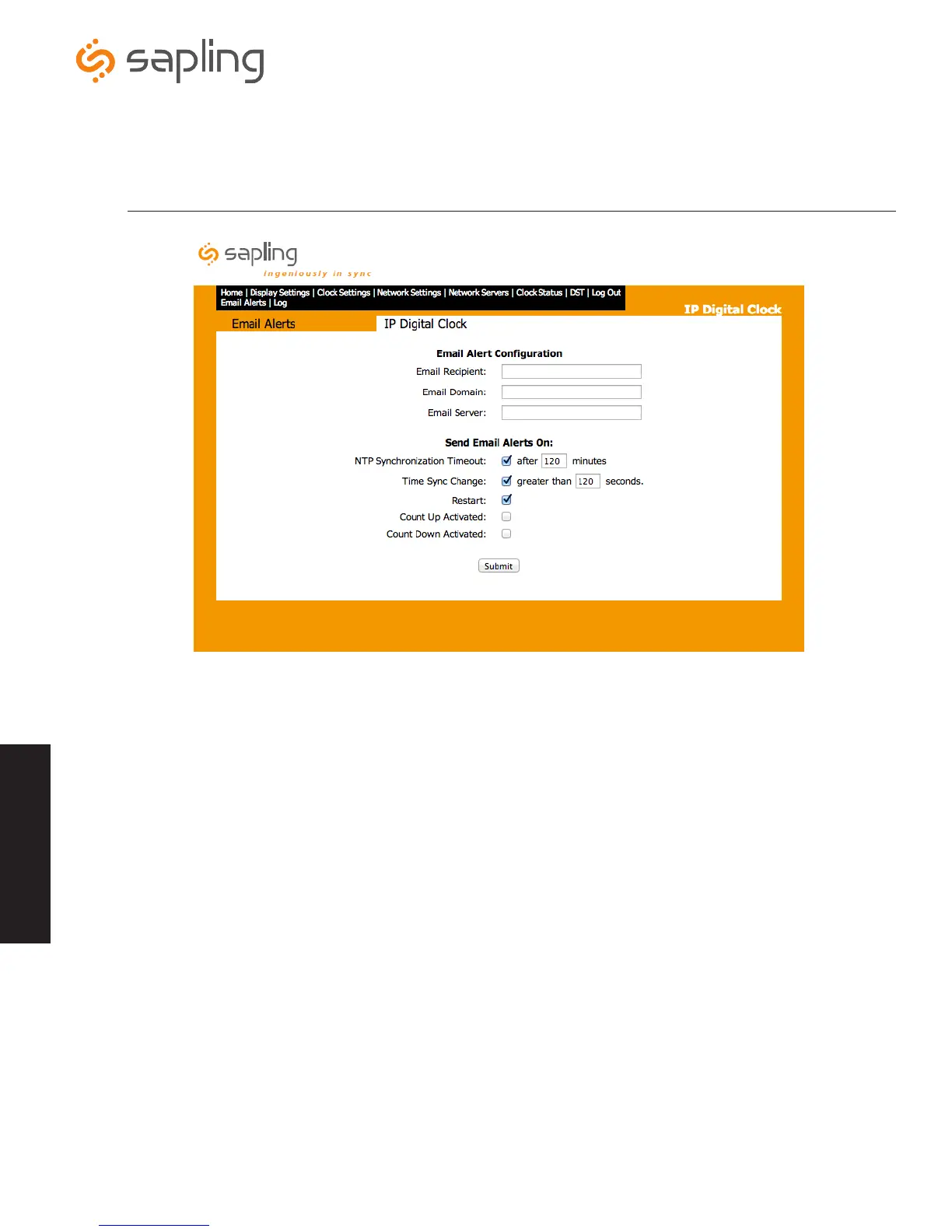
Email Alert Configuration
1. Email Recipient - This field is where the user name of the email recipient will be inserted. Do not enter the domain and suffix.
(correct: johnsmith) (incorrect: johnsmith@domain.com)
2. Email Domain - This field is where the user will enter the domain name of the email server. (i.e. domain.com)
3. Email Server - This field is where the email server address will be placed. (i.e. server.domain.com)
Send Email Alerts On:
4. Email Alert: NTP Synchronization Timeout - When checked, this will send an alert when the clock hasn’t received a time
synchronization for x amount of minutes.
5. Email Alert: Time Sync Change - When checked, this will send an alert when the IP clock’s internal time is different from the time that
it receives from the NTP server by x amount of seconds.
6. Email Alert: Restart - When checked, this will send an alert when the clock has been reset.
7. Email Alert: Count Up Activated - When checked, this will send an alert when a count up has been activated. *Option only available if
Elapsed Timer is installed.
8. Email Alert: Count Down Activated - When checked, this will send an alert when a count down has been activated. *Option only
available if Elapsed Timer is installed.
9. Submit - This button, when clicked, will save all changes on the Email Alerts page.
Web Interface - Email Alerts
Web Interface
q
w
e
r
t
y
u
i
o


 To Next Page