SECTION 9:
ON–DEVICE DATA LOGGING
1. Connect the X4 to the OBDII port.
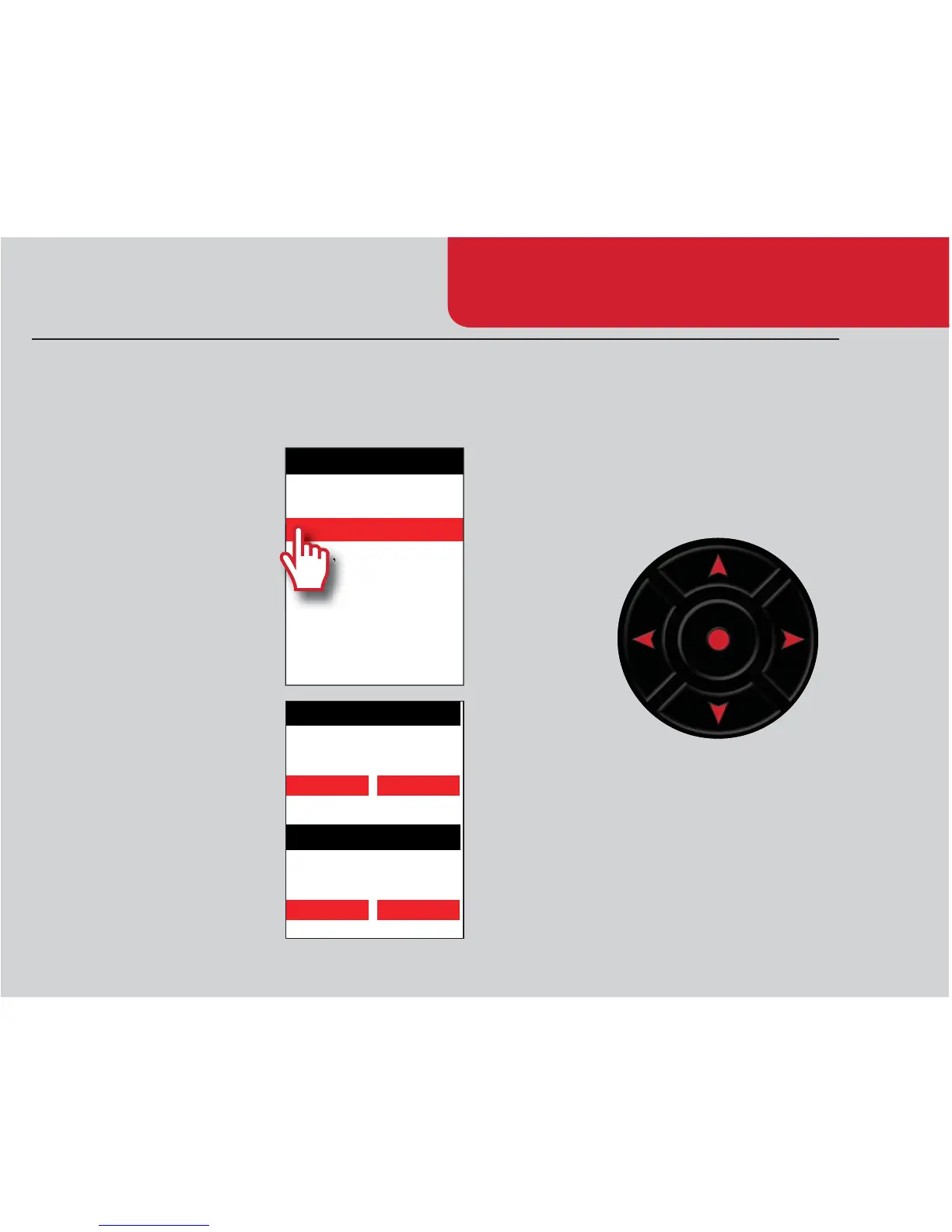
2. From the Main Menu, scroll to Gauges/Datalog and
press the center button on the X4.
3. On initial setup, you will need
to move to *VUÄN\YH[PVU,
press the center button, and
select your vehicle from a list
VMKH[HSVNÄSLZ0U[OLM\[\YL
you can continue without going
through the vehicle selection.
4. Once you select your vehicle,
default gauges will show
up and you can now monitor
these gauges.
5. The items being monitored can be adjusted by pressing
up or down on the device to highlight and then press-
ing the center button on the X4 to select which reading
you’d like to change. Within this menu, you can change
the item you’re monitoring, and the units in which it will
be displaying.
6. To start or stop data logging, press the center button
on the X4 while monitoring the gauges.
7. While monitoring, press right or left on the device to
go to the Gauges/Datalog menu. From this menu, you
TH`Z[HY[YLJVYKPUNZLSLJ[HKH[HSVNÄSL^P[O^OPJO[V
SVNJOHUNL[OLNH\NLSH`V\[HUKYLZL[[OLTPUTH_
values on the monitor.
MAIN MENU
PROGRAM VEHICLE
GAUGES / DATALOG
VEHICLE DIAGNOSTICS
VEHICLE INFO
DEVICE INFO
DEVICE SETTINGS


 To Next Page