DC.R340TT.MAN.001—01—User Manual SDT340TANKTEST EN
11/44
9. Home screen
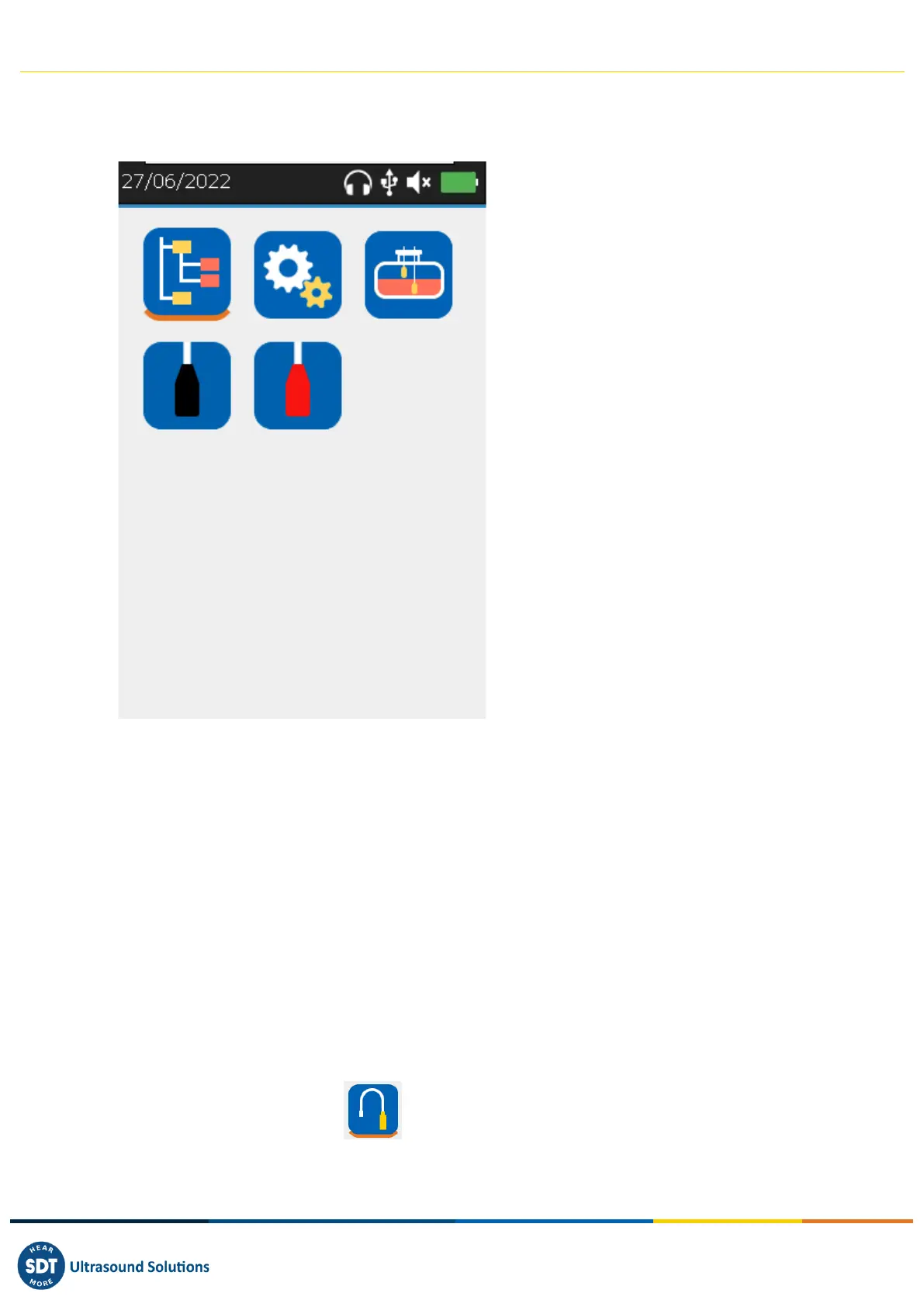
Connect the sensors to the SDT340 to display the icons associated with the TankTest mode
❶ Tree Structure Data Collection Mode
❷ General Settings
❸ Guided tank inspection procedure
The icon is available with the 340 TankTest
provided that both sensors are connected,
in the right order
❹ Direct access to the airborne sensor
❺ Direct access to the immersed sensor
❻ Battery status
❼ Audio output (default is mute)
❽ USB connection established with the PC
❾ Connected headset
❿ Time and date scrolling information
(synchronized with your PC)
The Home screen is displayed a few seconds after the device is turned on.
On top left, date and time are scrolling ❿. On the top right are the connectivity icons (when activated),
USB ❽ (when the SDT340 is connected to a computer), wireless headset (when paired), wired headset
(when connected) ❾ and battery status ❻.
Use the navigation keys to select an icon and press Enter to validate your choice. The selected icon is
indicated by a bottom orange line (cf. ❶).
Press Home to directly come back to the Home screen from any menu.
When no sensor is connected to the device, the ❸❹❺ icons are not displayed and the sound icon
❼ is blocked without the ability to adjust the volume. However, the user hears background noise
emanating from the internal electronics.
It is necessary to connect the two TankTest sensors in the right inputs to display the
guided mode icon and the widgets associated with the sensors
The flexible sensor for leak detection can be connected to the black input. Once connected and
recognized by the device, the icon allows access to the real-time measurements of the flexible
sensor.



 To Next Page