SECULINE Co., Ltd.
AE Mode
Setting the appropriate exposure mode for specific subject and conditions improves the image quality dis-
played for the exposure amount is automatically adjusted.
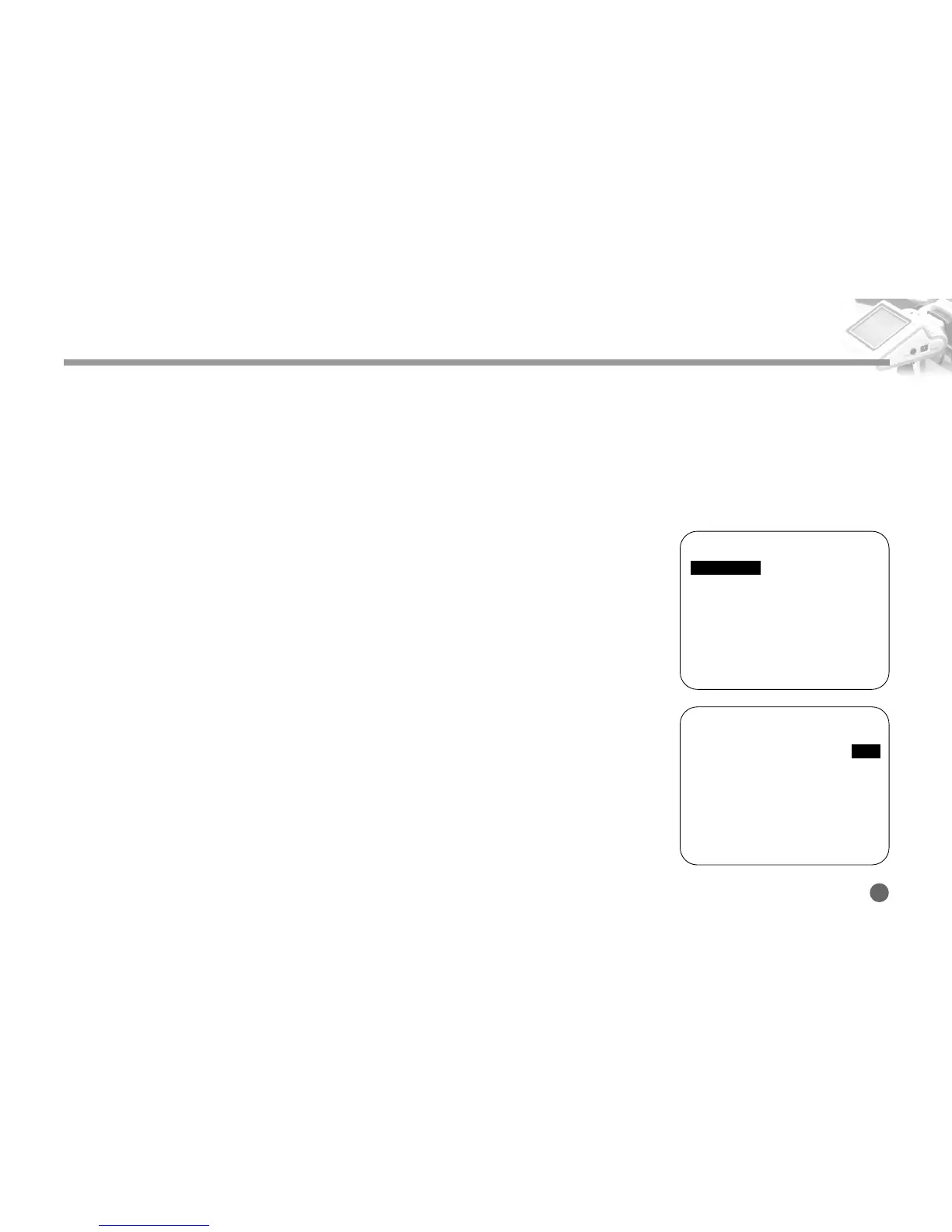
Turn on the power switch and the LCD screen appears.
1. Push and hold the Navigation button to the right, and the Setup Menu appears.
2. Push the Navigation button up and down to move to the AE Mode Menu.
Then, press the Navigation button to the right.
Five AE modes appear.
- AVG: AE values are set after measuring the average of all the shooting subjects.
- CWE: AE values are set after measuring the center of the subject.
- C1: AE values for 50% of the center area
- C2: AE values for 25% of the center area
- C3: AE values for 12% of the center area
3. Push the Navigation button up and down to set the desired exposure.
4. Push the Navigation button to the left to exit the menu.
AE MODE
AE Mode ---- AVG
AVG : Average entire image
CWE : CENTER Weighted
C1 : 50% Area around Center
C2 : 25% Area around Center
C3 : 12% Area around Center
3
ZIGVIEW
Digital Angle View Finder
13
========SETUP (v0.95)========
■
Size Adjust
➧
■
AE Mode
➧
AVG
■
AE Compensation +5
■
Negative Effect OFF
■
B/W Effect OFF
■
Back-Light Brightness 10
■
Extra Zoom out OFF
■
Display Battery Status ON
■
Display Zoom Status ON
■
Save and Load
➧
2



 To Next Page