SECULINE Co., Ltd.
ZIGVIEW
Digital Angle View Finder
20
Save and Load
■
Save and Load
You may save and load the screen setup values up to 5 modes depending on the
conditions.
Turn on the power switch and the LCD screen appears.
■
Save Setup
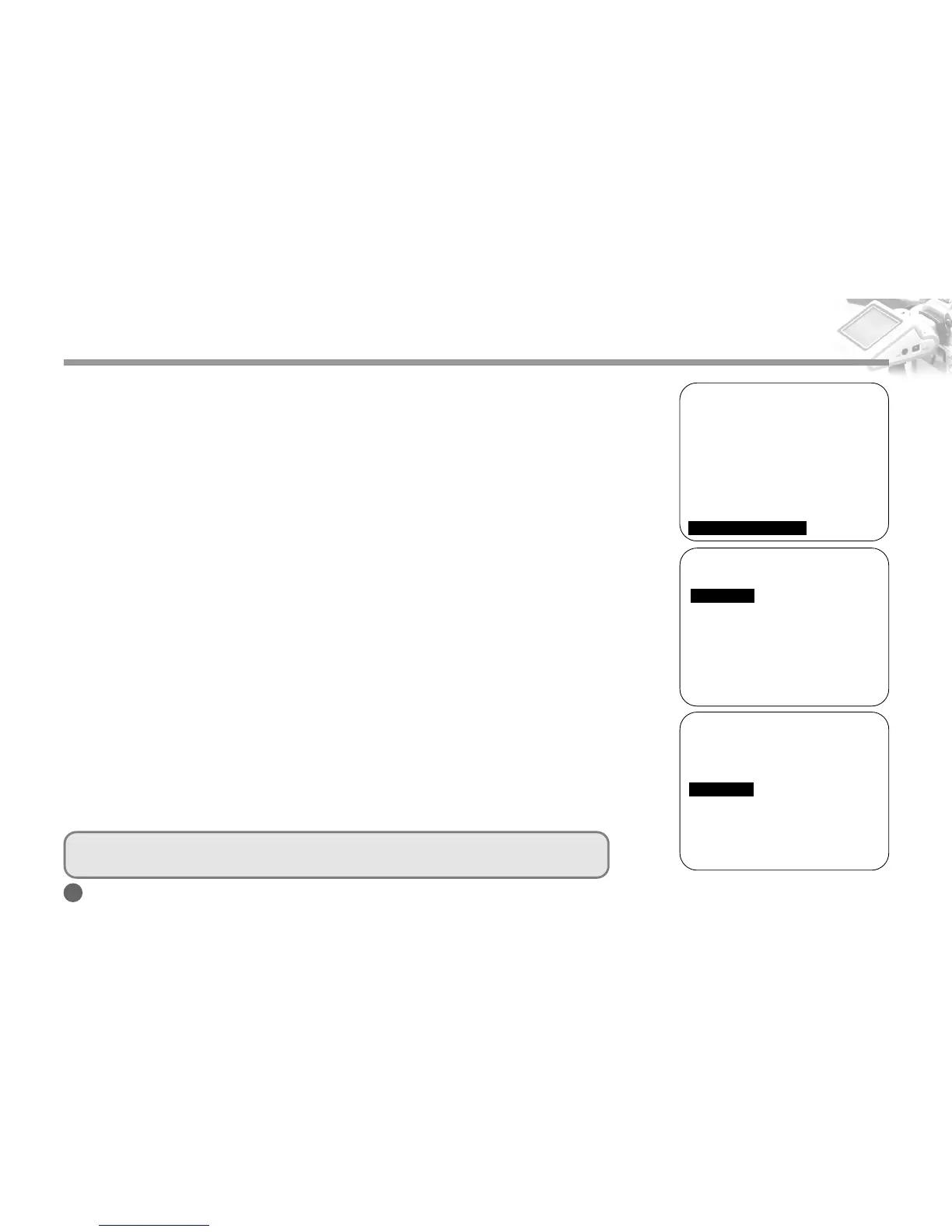
1. Push and hold the Navigation button to the right, and the Setup Menu appears.
2. Push the Navigation button up and down to move to the Save and Load. Then,
press the button to the right.
3. Push the Navigation button up and down to select the Save Setup, and press the
Navigation button to the right.
4. Push the Navigation button up and down to select between 1 and 5. Then, press
the center of the Navigation button to save the present value.
■
Load Setup
1. Push and hold the Navigation button to the right, and the Setup Menu appears.
2. Push the Navigation button up and down to move to the Save and Load. Then,
press the button to the right.
3. Push the Navigation button up and down to select the Load Setup, then push the
button to the right.
4. Push the Navigation button up and down to select between 1 and 5. Then, press
the center of the Navigation button after selecting the desired value to reset the
value.
Using ZIGVIEW
SAVE and LOAD
Save Setup 001
(1~5)
Load Setup 001
(1~5)[6: Default Load]
Center : Confirm
SAVE and LOAD
Save Setup 001
(1~5)
Load Setup 001
(1~5)[6: Default Load]
Center : Confirm
■
You may set 1 to digital camera, 2 to film camera, and 3 to film viewer, etc.
■
Number 6 of the load setup is the factory default setting.
========SETUP (v0.95)========
■
Size Adjust
➧
■
AE Mode
➧
AVG
■
AE Compensation +5
■
Negative Effect OFF
■
B/W Effect OFF
■
Back-Light Brightness 10
■
Extra Zoom out OFF
■
Display Battery Status ON
■
Display Zoom Status ON
■
Save and Load
➧



 To Next Page