SECULINE Co., Ltd.
ZIGVIEW
Digital Angle View Finder
19
Display Zoom and Battery Status
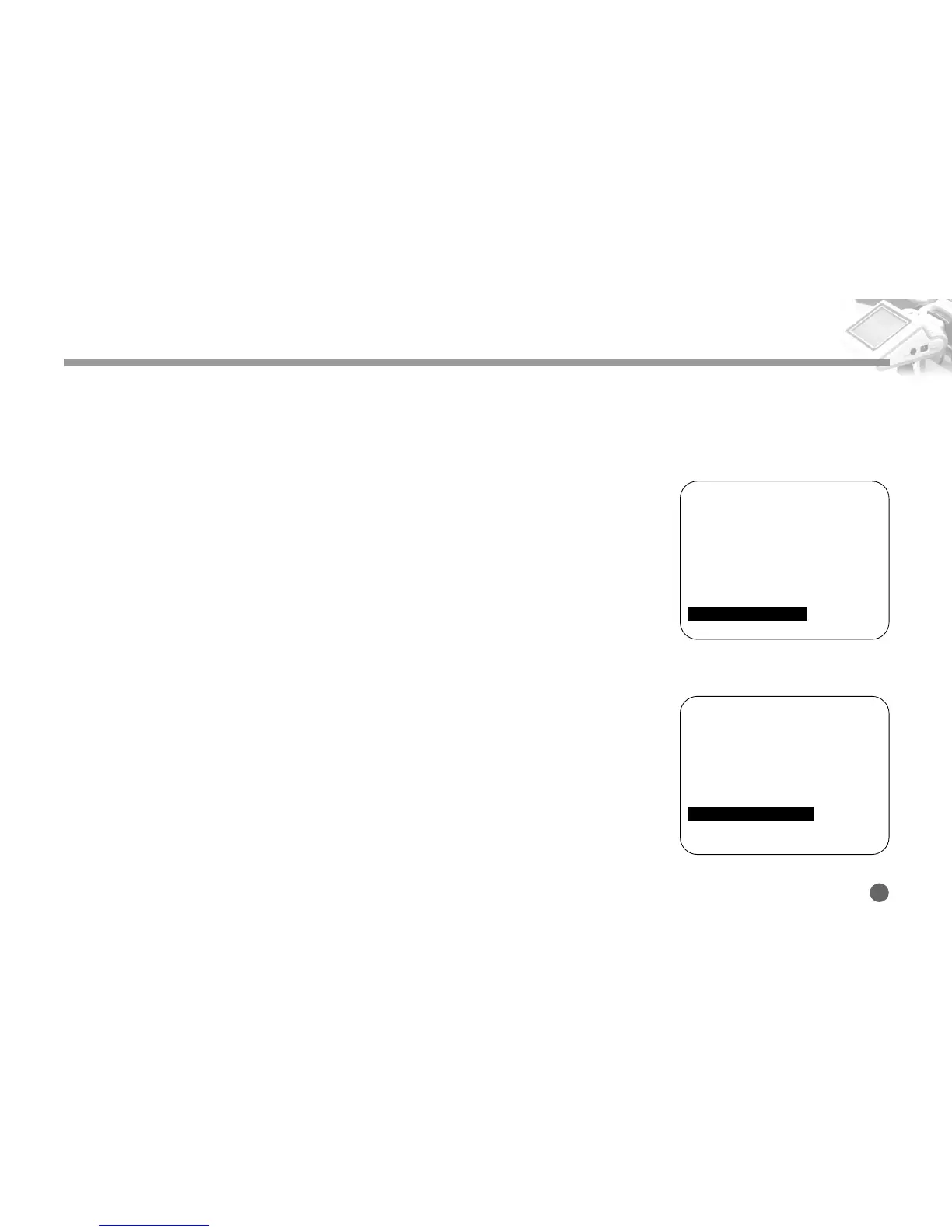
■ Display Zoom Status
The zoom rate is displayed at the left bottom of the screen.
Turn on the power switch and the LCD screen appears.
1. Push and hold the Navigation button to the right, and the Setup Menu appears.
2. Push the Navigation button up and down to move to the Display Zoom Status
menu.
Then, press the button to the right.
3. Push the Navigation button up and down to select ON.
When using the zoom function on the screen, the rate is displayed on the left bot-
tom.
■ Display Battery Status
The battery status is displayed at the right top of the screen.
Turn off the power switch and the LCD screen appears.
1. Push and hold the Navigation button to the right, and the Setup Menu appears.
2. Push the Navigation button up and down to move to the Display Battery Status
menu.
Then, press the button to the right.
3. Push the Navigation button up and down to select ON.
The current battery status is displayed at the right top of the screen.
========SETUP (v0.95)========
■
Size Adjust
➧
■
AE Mode
➧
AVG
■
AE Compensation +5
■
Negative Effect OFF
■
B/W Effect OFF
■
Back-Light Brightness 10
■
Extra Zoom out OFF
■
Display Battery Status ON
■
Display Zoom Status ON
■
Save and Load
➧
========SETUP (v0.95)========
■
Size Adjust
➧
■
AE Mode
➧
AVG
■
AE Compensation +5
■
Negative Effect OFF
■
B/W Effect OFF
■
Back-Light Brightness 10
■
Extra Zoom out OFF
■
Display Battery Status ON
■
Display Zoom Status ON
■
Save and Load
➧



 To Next Page