Chapter 3: Installing the RTM II 11
RTM II FlexNet User Guide DUG-10009-01
3.2.2 Logging In
Use your computer's Device Manager utility to identify which COM port the Sensus device is using, and
then connect to the device and log in.
Identify the correct COM port
1. Use the appropriate procedure for your Windows® operating system to open Device Manager.
2. Expa
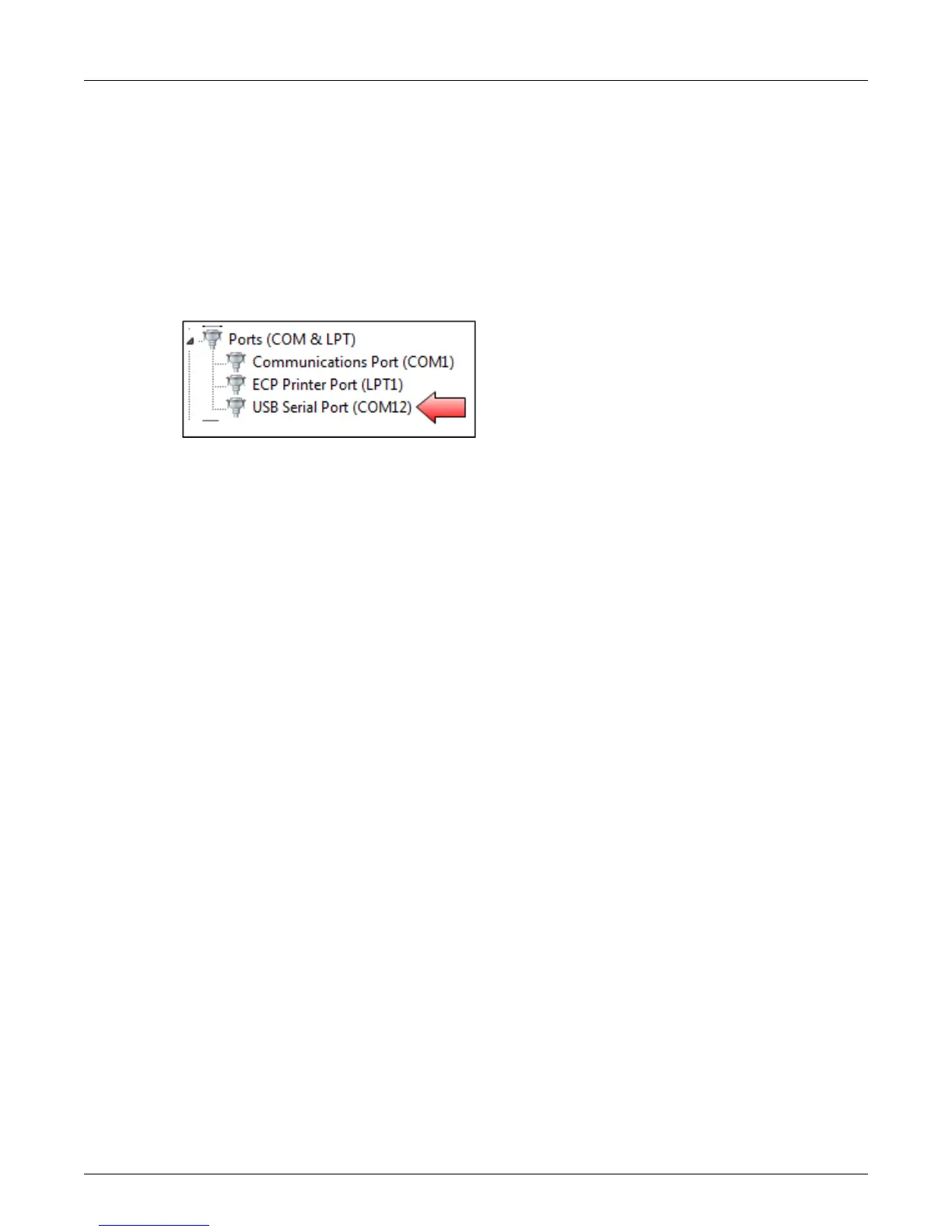
nd Ports, and wait for Device Manager to show the COM port number for the Sensus device.
This is the COM port you will select when you log in to Automation Device Configurator. For
example:
Log in to Automation Device Configurator
1. Open the Automation Device Configurator software.
2. Sele
ct the COM port you identified in the previous steps and choose Connect.
3. Wa
it until you see “Ready” in the login window. If you see an error message in this window, verify
that you have selected the correct COM port. Once the device is connected, you can log in.
4. Type
the password provided to you and choose Login.
The Device Dashboard page shows the current st
atus of the connected device including
configuration settings, power information, and signal strength. The system automatically refreshes all



 To Next Page