RTM II FlexNet User Guide DUG-10009-01
Appendix B Basic Troubleshooting
Follow the guidelines below to resolve common issues with your RTM II. If you cannot resolve the
problem, call Sensus Automation Technical Support at 208-658-1292, Ext. 21, or send an email to
automation.support@sensus.com.
B.1 RTM II Session is Offline
A DNP Session Offline message means that the RTM II is not able to communicate with the IED. Check
the following.
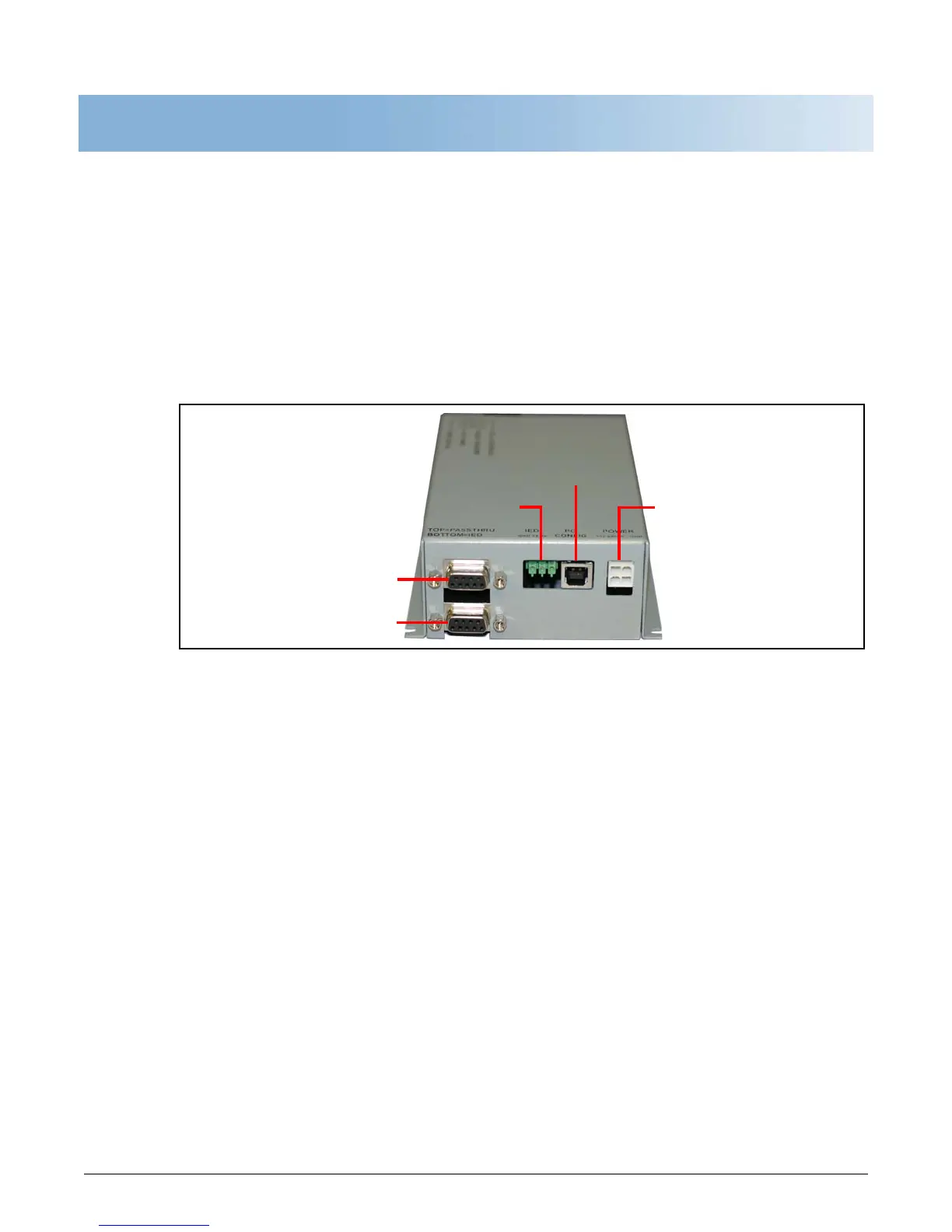
• Phy
sical Connections: Verify the IED is connected to the device using the correct communication
port. Connect the IED to the bottom COM port on the device.
Pass Through Port
IED Port
PC Port
IED Terminal DC Power
• DNP Parameters: Verify that the Master/Outstation Address settings match. If these settings for the
device and the IED do not match, communication between the two will not be possible. These can be
changed using AutomationControl.
• Ser
ial Parameters: The default communication rates for the RTM II are 9600 baud, 8 data bits, 1
stop bit and no parity. These must match the parameters of the IED. These can be changed using
AutomationControl.
• IED Conf
iguration: Many IEDs have different protocols available for their ports. Whatever port you
are using for the communication must be configured for the DNP protocol.
B.2 Radio Communication Issues
Verify the device’s ability to transmit and receive. (The device must be connected to power and an
antenna attached in order to carry out this test.) You can check the radio strength using the Automation
Device Configurator utility. See Testing the Receiver Strength
on page 10.
• Verify that the correct radio setting
s are entered for your Sensus Automation FlexNet channels. If this
is a completely new FlexNet installation, you may need to check with Sensus Automation Technical
Support that your Automation Network Interface and FlexNet Base Stations are linked and routed.
• Verify all antenna and antenna cab
le connections, raise the antenna, or reposition the antenna.
• Power cycle the device and wait 5 minutes for radio communication to s
tabilize. If the signal strength
does not improve, contact Sensus Automation Technical Support.
• If you are still unable to send a command or reques
t to your device, contact Sensus Automation
Technical Support.



 To Next Page