Chapter 4: Introduction to AutomationControl 19
RTM II FlexNet User Guide DUG-10009-01
4.2 Device History
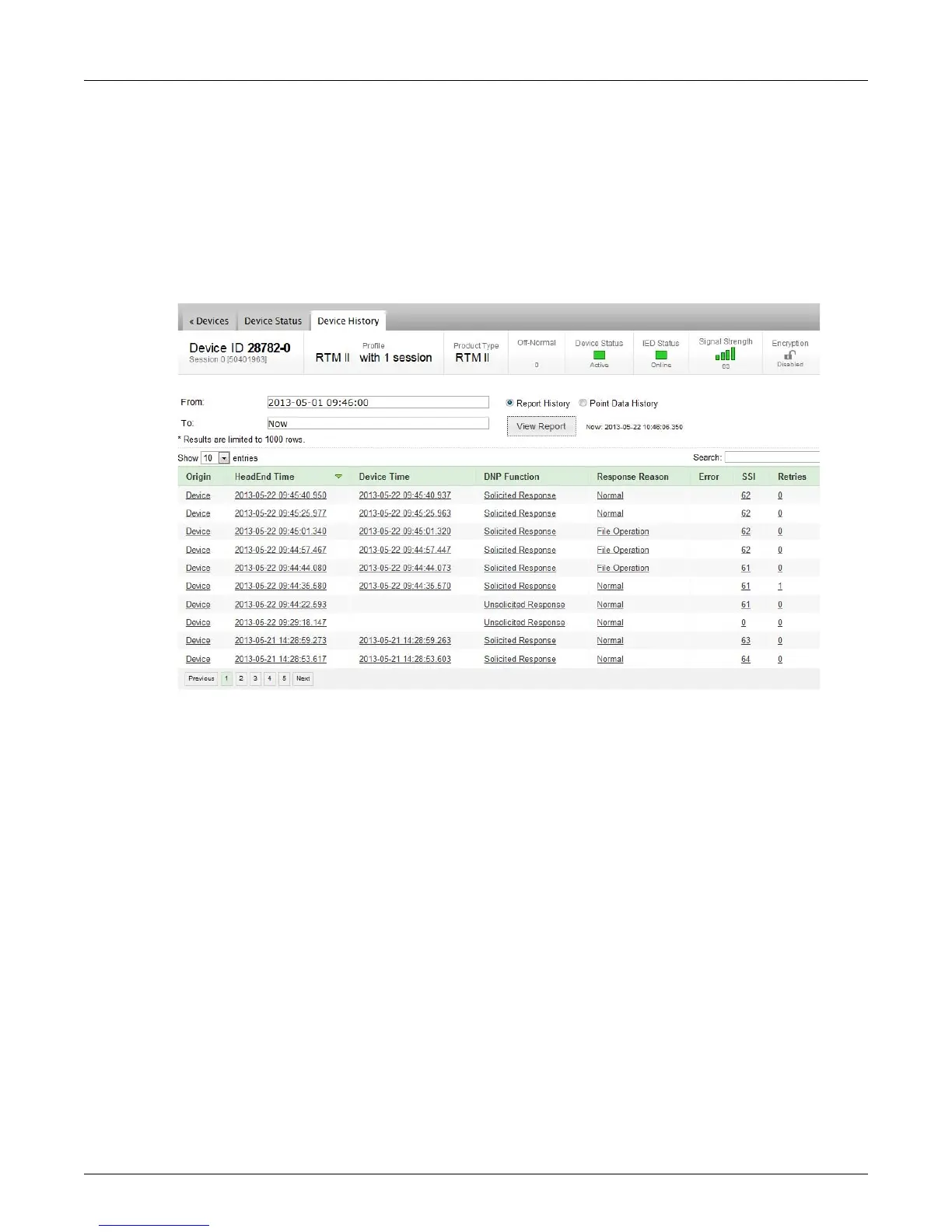
Device History lets you see historical device reporting activity. You can select a date/time range, perform
a full-text search, filter the number of results, and move between pages. To protect resources when the
system finds and returns a lot of data, it might only return limited results.
• Select an option—Report History or
Point Data History—select a date/time range (or leave as the
default, “Now,” which is the current time), and choose View Report.
• Choose an item in the list to see more details in th
e report. This shows detailed information on all
data, commands, responses, and other DNP objects in a report.
Report History shows:
• The origin of each report (from the device or from AutomationControl)
• Timestamps for the time the repor
t was sent or received by AutomationControl and sent by the
device
• DNP function description within the report (refer to the sta
ndard DNP documentation for more
details)
◦ Unsolicited
: Anything AutomationControl did not request from the device.
◦ Solicited: Any request or command from AutomationControl.
◦ Read
◦ Direct Operate: Sends a command directly to the IED in one step.
◦ Select Before Operate: Adds a slight amount of latency since it is a two-step command (1-Select,
2-Operate).
• Response reason
◦ Nor
mal: Any type of changed data or response to a request.
◦ Time Scheduled Report: A customized report set up to respond at a user-specified time.
◦ Session Offline: The Sensus device and the IED are not communicating.
◦ Session Online: The Sensus device and the IED are communicating successfully.
◦ Any errors detected in the report



 To Next Page