87
Pro 3 User’s Guide
Pitch and Mod Wheels
Modulation Wheel
The Mod wheel controls the amount of modulation for any program that
uses it as a modulation source. This allows you to “perform” modulation in
real time by moving the wheel. This is a great way to add expressiveness
to a sound or performance by using it to control vibrato, lter effects, and
potentially a lot more.
To choose a modulation destination for the Mod wheel:
1. In the modulation section, press the source button. Use Soft Knob 1 to
scroll to Mod Slot 1 if it’s not already displayed.
2. Use Soft Knob 2 to scroll through the various mod sources and choose
mod wheel.
3. Use the Soft Knob 4 to scroll through the various mod destinations and
choose a parameter (such as cutoff).
4. Hold down a note on the keyboard (or press the hold button and play a
note on the keyboard) and turn the Mod wheel.
5. Use the Soft Knob 3 to set the modulation amount to your preference.
Higher amount settings add greater modulation the further you push
the Mod wheel. A negative amount setting will apply modulation in the
negative direction.
As a shortcut, you can hold down the source button and move the Mod wheel
to quickly assign this modulation path.
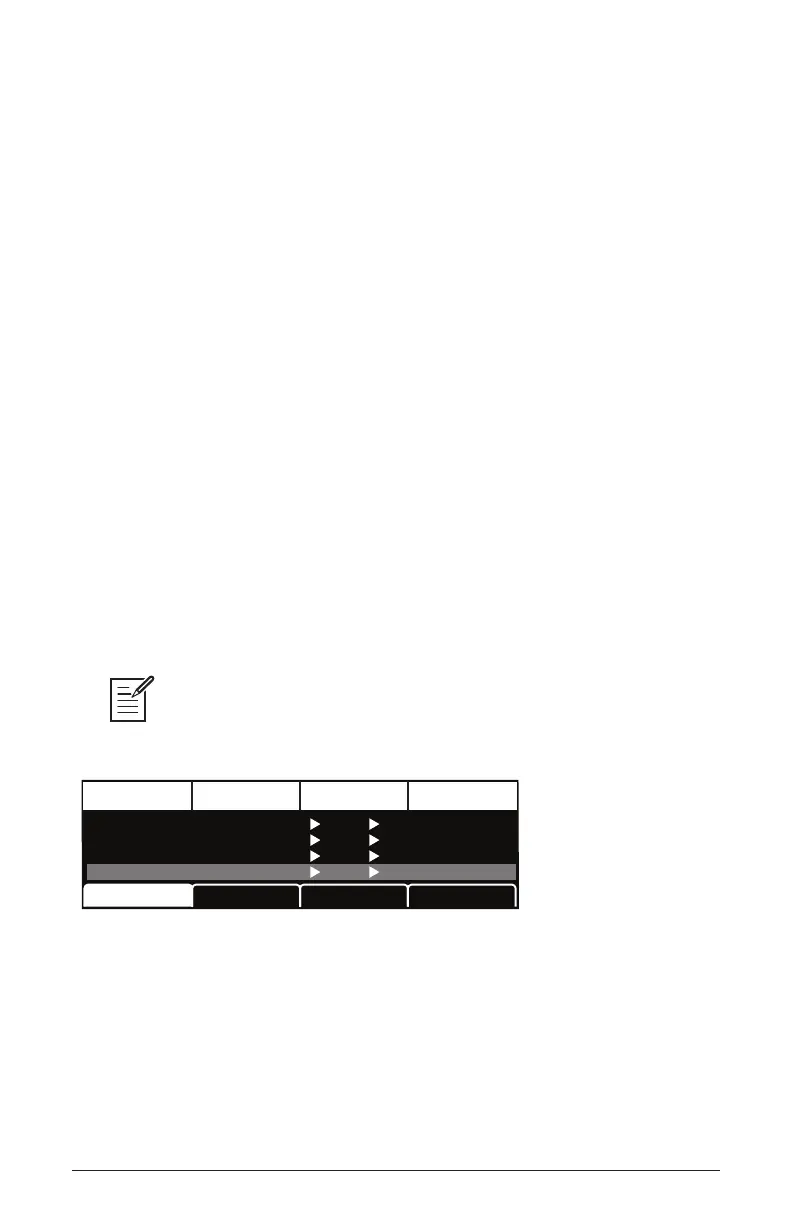
DestinationEdit Mod 1 Source Amount
Sort SourceSlot Sort
Mod 1
Mod 2
Mod 3
Mod 4
Slider
LFO 2t
Aftertouch
Mod Wheel
60
35
25
80
Cuto
Osc1 Shape
Drive
LFO1 Amt
Sort Dest















 To Next Page