EasyManua.ls Logo

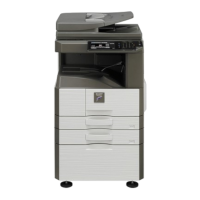
Sharp MX-M310 - Service Manual

Sharp MX-M310
137 pages
Print Icon
To Next Page IconTo Next Page
Loading...
Parts marked with ā€œ ā€ are important for maintaining the safety of the set. Be sure to replace these parts with
specified ones for maintaining the safety and performance of the set.
This document has been published to be used
for after sales service only.
The contents are subject to change without notice.
SERVICE MANUAL
CONTENTS
CODE: 00ZMXM310/S1E
DIGITAL MULTIFUNCTIONAL
SYSTEM
MX-M260/M310
MODEL
MX-M260N/M310N
NOTE FOR SERVICING
[1] PRODUCT OUTLINE . . . . . . . . . . . . . . . . . . . . . . . . . . . . . . . . . . . 1-1
[2] SPECIFICATIONS . . . . . . . . . . . . . . . . . . . . . . . . . . . . . . . . . . . . . . 2-1
[3] CONSUMABLE PARTS . . . . . . . . . . . . . . . . . . . . . . . . . . . . . . . . . . 3-1
[4] EXTERNAL VIEW AND INTERNAL STRUCTURE . . . . . . . . . . . . . 4-1
[5] ADJUSTMENTS . . . . . . . . . . . . . . . . . . . . . . . . . . . . . . . . . . . . . . . 5-1
[6] SIMULATION . . . . . . . . . . . . . . . . . . . . . . . . . . . . . . . . . . . . . . . . . . 6-1
[7] SELF DIAG AND TROUBLE CODE . . . . . . . . . . . . . . . . . . . . . . . . 7-1
[8] MAINTENANCE. . . . . . . . . . . . . . . . . . . . . . . . . . . . . . . . . . . . . . . . 8-1
[9] FIRMWARE UPDATE . . . . . . . . . . . . . . . . . . . . . . . . . . . . . . . . . . . 9-1
[10] ELECTRICAL SECTION . . . . . . . . . . . . . . . . . . . . . . . . . . . . . . . . 10-1

Table of Contents

Other manuals for Sharp MX-M310

Questions and Answers

  • T
    Tracy RoachSep 12, 2025
    How to fix white or black lines on Sharp All in One Printer copies?
    • S
      stephanie45Sep 12, 2025
      If white or black lines appear on copies from your Sharp All in One Printer, clean the imaging unit. Also, ensure that the toner cartridge is installed correctly.
  • J
    Joshua Bartlett MDSep 10, 2025
    What to do if Sharp All in One Printer shows wrong paper size in bypass tray?
    • N
      Nicole RichSep 12, 2025
      If your Sharp All in One Printer displays the wrong paper size for the paper in the bypass tray, check the bypass tray settings. Make sure the correct paper size is selected.
  • M
    mary11Sep 9, 2025
    Why is part of the copied image cut off on my Sharp All in One Printer?
    • C
      courtneychavezSep 9, 2025
      If part of the copied image is cut off when using your Sharp All in One Printer, make sure the original is placed correctly on the scanner. Also, check the copy settings to optimize the margins.
  • J
    Justin WilsonSep 8, 2025
    How to stop Sharp All in One Printer copy job that stops before finishing?
    • S
      Shannon WoodwardSep 8, 2025
      If a copy job on your Sharp All in One Printer stops before it's finished, check the paper path for any jams or obstructions.
  • E
    Eric RochaAug 23, 2025
    What to do if my Sharp Printer is not printing?
    • B
      Brett GreenAug 23, 2025
      If your Sharp Printer isn't printing, there are several potential causes. First, ensure the interface cable is securely connected and restart your computer. Check that the LAN cable is firmly inserted into both the printer and the computer. Also, verify that the printer is configured for the same network as the computer and is online, indicated by the lit 'ON LINE' indicator. Insufficient computer memory or hard disk space can also cause printing issues; delete unnecessary files or close applications. Finally, ensure that the printer driver is installed correctly. If an error message appears on the touch panel, follow the instructions to clear the error.
  • D
    danielsmithSep 5, 2025
    What to do if Sharp All in One Printer text is not clear in a copy?
    • S
      salazarjaneSep 6, 2025
      If the text is not clear when making copies with your Sharp All in One Printer, try replacing the toner cartridge. It might be running low.
  • Q
    qvelasquezSep 4, 2025
    How to resolve dark or light copies on Sharp All in One Printer?
    • D
      dlaneSep 5, 2025
      To resolve copies that are too dark or too light on your Sharp All in One Printer, you can adjust the density settings directly in the copy menu.
  • E
    elizabethmorseSep 3, 2025
    Why is my Sharp All in One Printer not operating?
    • T
      thomas10Sep 4, 2025
      If your Sharp All in One Printer is not operating, verify that the printer is properly connected to a power source and that it is turned on.
  • C
    Cynthia WilsonSep 2, 2025
    How to fix smudged or dirty copies from Sharp All in One Printer?
    • C
      crystal97Sep 2, 2025
      If your copies are coming out smudged or dirty when using the Sharp All in One Printer, you should clean the scanner glass and the interior of the machine.
  • C
    Catherine LewisSep 1, 2025
    What to do if my Sharp All in One Printer makes blank copies?
    • P
      Pamela ThomasSep 1, 2025
      If your Sharp All in One Printer is producing blank copies, the first thing to check is the toner cartridge. If it's empty or low, replace it with a new one.

Summary

NOTE FOR SERVICING

1. Warning for Servicing

Critical safety warnings for servicing, focusing on electrical hazards, grounding, and cord handling.

2. Precautions for Servicing

General safety guidelines for servicing, including high-temperature areas, high voltage, laser units, and chemical handling.

[2] SPECIFICATIONS

1. Basic Function

Details the fundamental specifications of the base engine, including dimensions, warmup, and first copy time.

[3] CONSUMABLE PARTS

1. Supply System Table

Lists consumable parts, their content, life expectancy, model names, and notes, categorized by region.

[4] EXTERNAL VIEW AND INTERNAL STRUCTURE

1. External View

Illustrates the exterior of the machine, identifying all external parts and their functions.

[5] ADJUSTMENTS

1. Adjustment Item List

An index of all adjustable parameters, including adjustment procedures and SIM numbers for various sections.

2. Details of Adjustment

Provides detailed instructions and specifications for performing machine adjustments across different sections.

[6] SIMULATION

1. General

An overview of the simulation mode's purpose, functions, and general operating procedures for accessing various tests and settings.

2. Simulation Code List

A comprehensive catalog of simulation codes, detailing their functions and the main/sub codes required to access them.

[7] SELF DIAG AND TROUBLE CODE

1. Trouble Code List

A categorized list of all possible trouble codes, their descriptions, and the detection methods used by the machine.

2. Details of Trouble Code

Explains the specific causes and recommended remedies for each listed trouble code, aiding in diagnosis and repair.

[8] MAINTENANCE

1. Maintenance List

A schedule detailing maintenance actions (cleaning, replacement, lubrication) for various parts at different service intervals.

2. Details of Maintenance

Provides detailed procedures for disassembling and maintaining specific machine units and components.

[9] FIRMWARE UPDATE

1. Firmware Update Procedure

Outlines the necessary items and step-by-step instructions for updating the machine's firmware using a PC.

[10] ELECTRICAL SECTION

1. Block Diagram

Illustrates the system's overall block diagram, showing interconnections between major components and PWBs.

Sharp MX-M310 Specifications

General IconGeneral
FunctionsPrint, Copy, Scan, Fax
Print Speed31 ppm
Print Resolution600 x 600 dpi
Copy Speed31 cpm
Copy Resolution600 x 600 dpi
Scan Resolution600 x 600 dpi
DisplayLCD
TypeAll in One Printer
Paper SizeA4, A5, B5, Letter, Legal
Duplex PrintingYes
ConnectivityUSB, Ethernet

Related product manuals