Useful Features
26
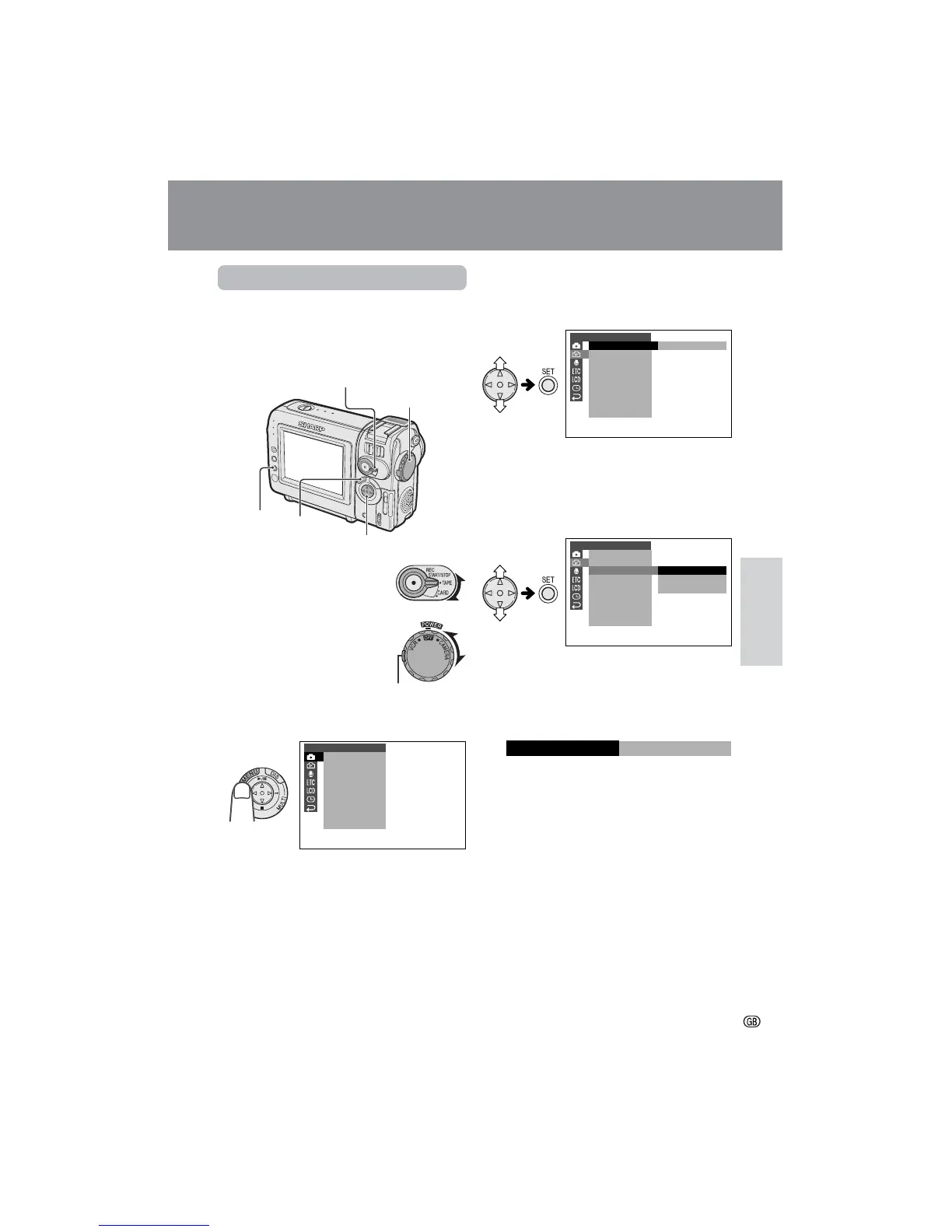
Using the Menu Screens
Use the menu screens to adjust the various
camcorder settings.
Example: Changing the DGTL ZOOM menu
setting in TAPE-CAMERA mode.
1 Set the Media Selection
switch to TAPE or CARD.
2 Hold down the Lock button
and set the Power switch to
CAMERA or VCR.
3 Press the MENU button until the menu
screen appears.
4 Press l or m on the Operation button
to select the desired menu screen (Y),
then press the SET button.
• You can press k, instead of the SET
button.
5 Press l or m to select the desired
menu item (DGTL ZOOM), then press
the SET button.
• You can press k, instead of the SET
button.
6 Press l or m to select the desired
menu setting, then press the SET
button.
• You can press j, instead of the SET
button.
• To adjust another menu item, press l or
m to select “RETURN” and press the
SET button, then perform steps 4 to 6.
CAMERA
PHOTO SNAP
SNAP EFF.
DGTL ZOOM
TAPE SPEED
REC
16 9:
M
OT ION
RETURN
GUIDE
SET
OFF
40
300
04
DGTL ZOOM
EFFECT
MANUA L
PIC.
SCENE MENU
FULL AUTO
MAN. F OC US
W
HITE
EXPOSURE
SHUT. SPEED
QK.
RETURN
RETURN
BAL.
SET
CAMERA
PHOTO SNAP
SNAP EFF.
DGTL ZOOM
TAPE SPEED
REC
16 9:
M
OT ION
RETURN
GUIDE
SET
SNAP
Useful Features
To turn off the menu screen
Press the MENU button.
Notes:
• Certain menu items are common to all
camcorder modes. If the SOUND menu item, for
example, is set to “OFF” in TAPE-CAMERA
mode, it will be automatically set to “OFF” in
other modes.
• The menu screen automatically turns off if no
settings are made within five minutes.
• Items that are not selectable are greyed out.
Media Selection switch
Power switch
Operation button
MENU button
SET button
Lock button
Example
Example
Example



 To Next Page