Cyan
Magenta
Yellow
Black
21
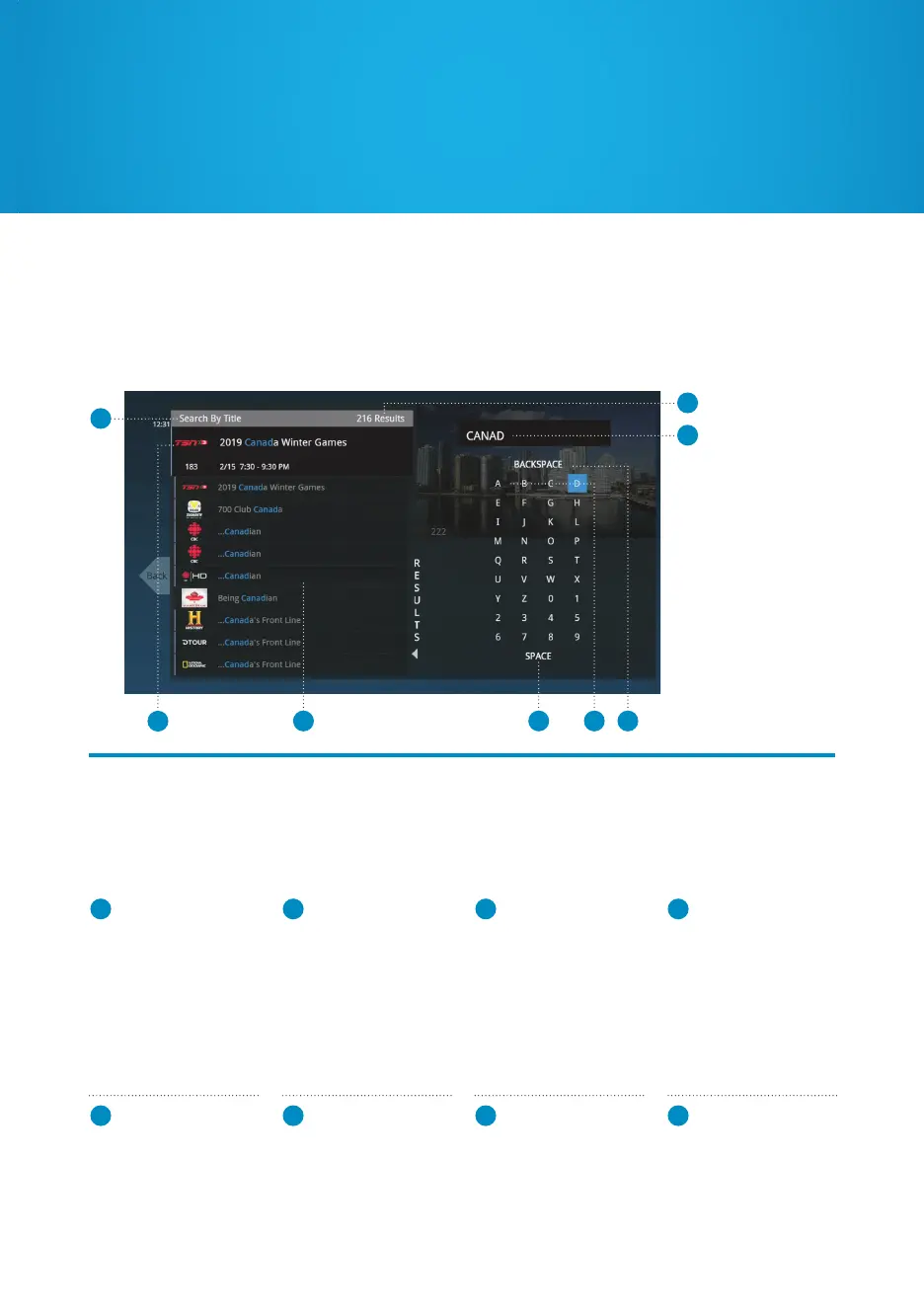
Search By Title or Keyword
When you select “Search By Title” or “Search By Keyword”, a screen appears to enter text
to browse. Use the ARROW buttons to navigate the on-screen keyboard. To enter a letter,
press OK with that letter highlighted. To browse the list, press the LEFT arrow until the
panel is highlighted.
1
2
3
4
7 85 6
1
SEARCH TYPE
Describes the type of
search you’re doing.
2
SEARCH
RESULTS
As you enter characters
on the right, the list on
the left will filter down
to display shows that
match your entry.
3
SEARCH BOX
As you select characters,
the characters are
entered in the search
box. Tip: The number
keys on your remote
can be used to enter
letters. 1 is used for
spaces.
4
HIGHLIGHTED
PROGRAM
The details for the
channel and show are
highlighted.
5
LIST
The vertical list fills
with shows that
match your criteria.
Press the UP and
DOWN arrows to
navigate the list.
6
SPACE
Use a space to
separate words in
your search entry.
7
SELECTOR
To enter a letter, move
the selector to it, and
press OK. The letter
will be entered into
the search box.
8
BACKSPACE
Removes a character
from the search box.
Press CLEAR on the
remote to clear the
entire search box.
To search for a program name, use Search By Title. If you’re looking for a specific actor or
something contained in the description of the show, use Search By Keyword.


 To Next Page