17
Operation
English
•
RDS is available only in models that are
distributed in Europe.
•
RDS is only possible in the FM band.
•
RDS searches for the preset stations only. If no
stations have been stored in the memory, or if
the program type could not be found among the
preset stations, “NO PTY” is displayed.
Note
Listening to Media on a USB
Device
Your AVR is compatible with USB 2.0 or USB 1.1 media
in the FAT 16 or FAT 32 le format and is compatible
with the following MP3 and WMA media:
•
MP3:
Bit rates between 96 – 320kbps. Fixed bit-
rates at 44.1kHz sampling is recommended. Variable
bit-rates (VBR) are playable, but playing time may be
displayed incorrectly. Files must have a “.mp3” le
extension.
•
WMA:
Bit rates of 64kbps or higher. NOTE: Bit rates
of 80kbps and 256kbps are not compatible. Files
must have a “.wma” le extension.
A maximum number of 65,536 folders and les can be
supported.
PlayinglesonaUSBdevice
1
Insert the USB drive into the AVR’s front-panel
USB port.
•
Do not connect a personal computer or peripheral
to the USB port. USB hubs are not supported.
Caution
2
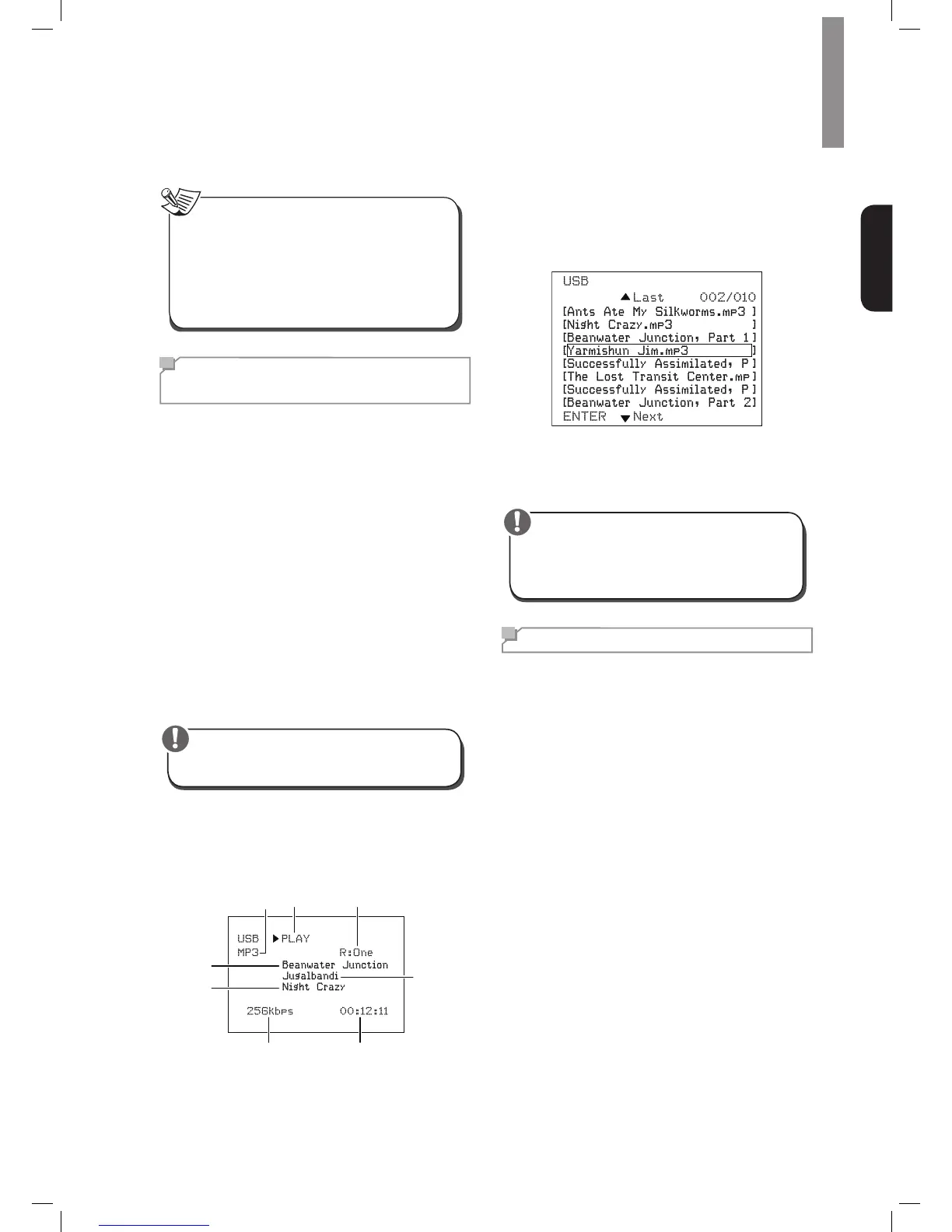
Select USB as the source device. “USB” will
appear on the front-panel display, and after the
AVR loads the contents of the current folder the
USB playback screen will appear on the OSD.
File
Type
Playback
Mode
Repeat
Mode
Artist Name
Album Title
Data
Rate
Elapsed
Time
Song Title
Use the remote’s Transport Control buttons to control
playback.
To browse the contents of the current folder, press the
remote’s RETURN button. The USB folder screen will
appear on the OSD for 20 seconds.
Use the remote’s UP/Down and ENTER buttons to
highlight and select tracks.
•
To prevent damage or malfunction, press the
remote’s Stop (■) Transport Control button before
removing the USB device from the AVR’s USB
port.
Caution
Selecting a Surround Mode
Selecting a surround mode can be as simple or
sophisticated as your individual system and tastes. Feel
free to experiment, and you may nd a few favorites
for certain sources or program types. You can nd
more detailed information on surround modes in Audio
Processing and Surround Sound, below.
To select a surround mode, press the Surround Mode
Select buttons. Each press advances to the next
available surround mode.
Digital surround-sound modes, such as Dolby Digital
and DTS systems, are available only with specially
encoded programs, such as those available via HDTV,
DVD and Blu-ray Disc media and digital cable or
satellite television. Other surround modes such as
Dolby Pro Logic II may be used with digital or analog
signals to create a different surround presentation or to
use a different number of speakers.
Surround mode selection depends upon the number
of speakers in your system, the programs you are
watching or listening to, and your personal tastes.



 To Next Page