Shure Incorporated
14/38
•
•
•
•
1.
2.
•
•
•
•
Use Designer's Optimize Workflow
Designer's optimize workflow speeds up the process of connecting systems with at least 1 microphone and 1 audio processor.
Optimize also creates mute control routes in rooms with MXA network mute buttons. When you select Optimize in a room, De
signer does the following:
Creates audio routes and mute control routes
Adjusts audio settings
Turns on mute synchronization
Enables LED logic control for applicable devices
The settings are optimized for your particular combination of devices. You can customize settings further, but the optimize
workflow gives you a good starting point. Optimize works with any device in Designer.
To use the optimize workflow:
Place all relevant devices in a room.
Select Optimize. Designer optimizes microphone and DSP settings for your equipment combination.
If you remove or add devices, select Optimize again.
After optimizing a room, check and adjust settings to fit your needs. You may need to:
Delete unnecessary routes.
Check levels and adjust gain.
Check that AEC reference signals are correctly routed.
Fine-tune DSP blocks as needed.
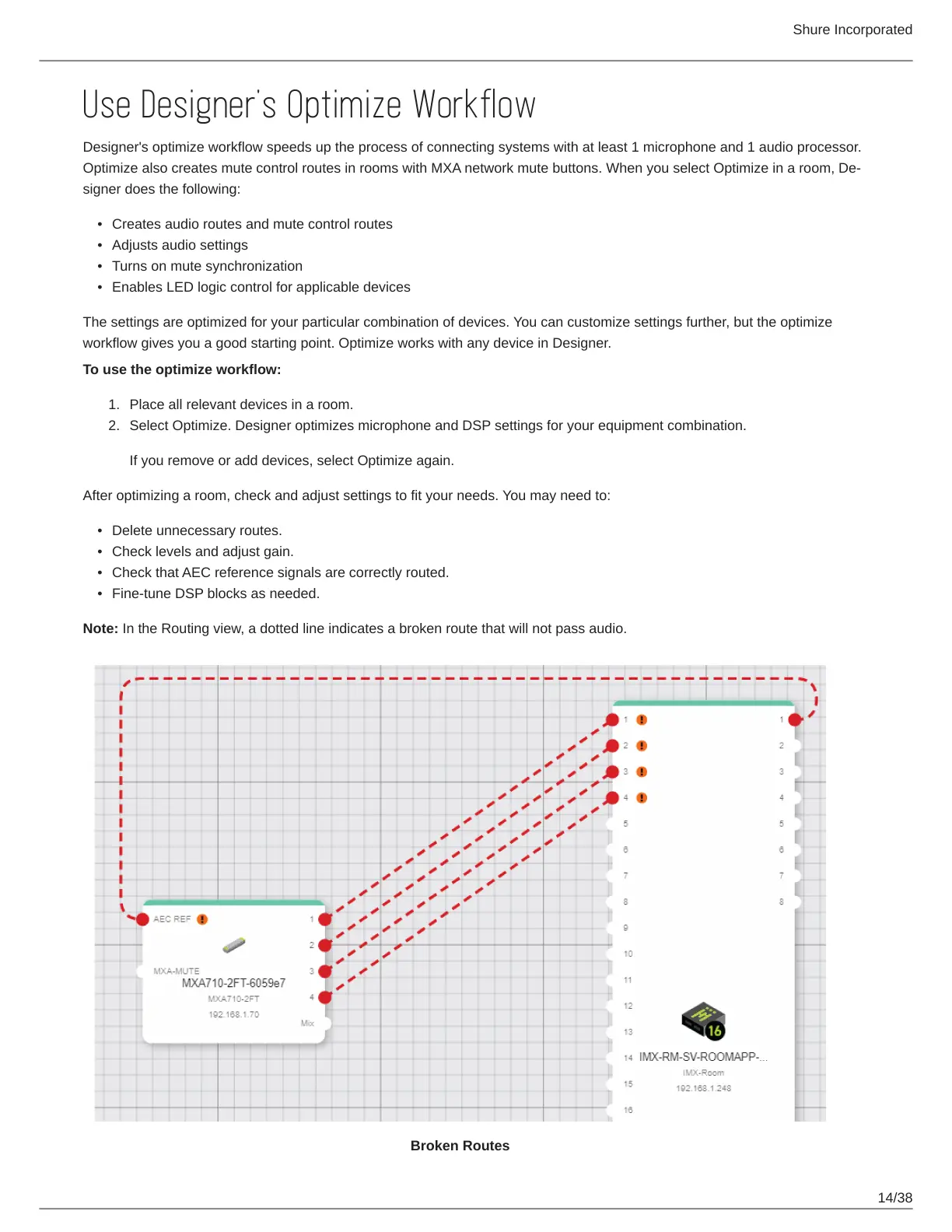
Note: In the Routing view, a dotted line indicates a broken route that will not pass audio.
Broken Routes


 To Next Page