fig. 4
After switch-on. the machine loads the graphics. This operation, which lasts approx. 25 seconds, results in the display of a logo with a clock on
the monitor
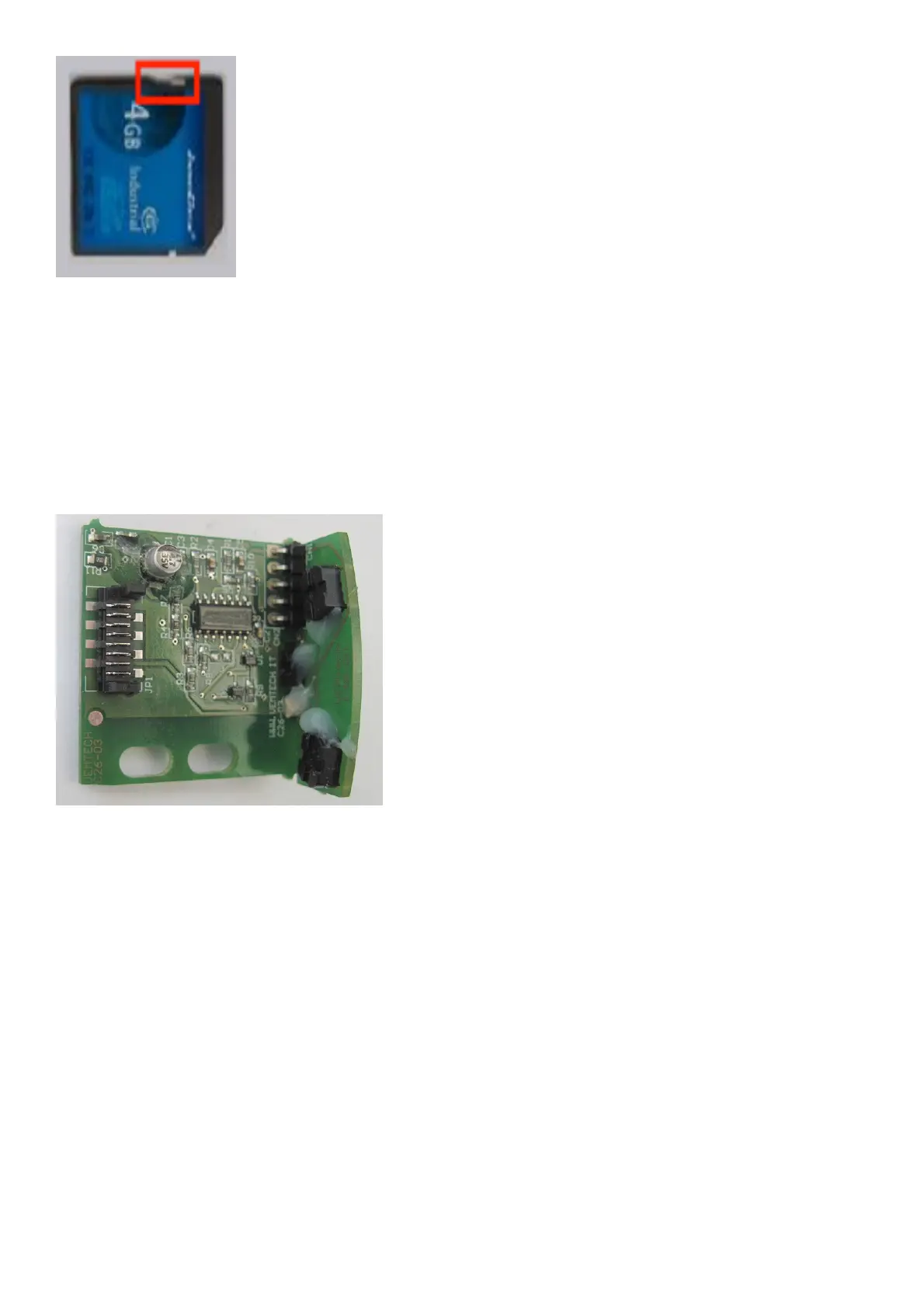
if the "clock" logo is displayed for longer, check the correct loading of the SD and replace it if necessary.
If the “clock” logo does not appear after switch-on, check:
- the connection of the monitor power supply cable;
- connection of the monitor signal cable (L, Fig.3) to connector on MBUGRF board;
- the correct functioning of the MBUGRF board;
- The correct insertion of the SD in the JSD1 connector.
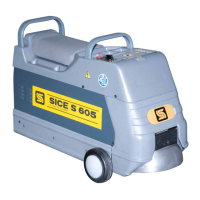
5.3 WHEEL ENCODER board
Fig. 4a
Perform the ENCODER TEST to check that the encoder board functions correctly (chap. Service Programmes)
6. HARDWARE CONFIGURATION OF MBE32F MAIN BOARD
On the boards used in the wheel balancer, there are certain hardware (dip switch and jumpers) settings that allow them to be used on different
models. According to the code of the requested spare part, the board is configured in the factory. During the installation phase, it is
recommended not to modify these configurations for any reason.
7. MACHINE SOFTWARE CONFIGURATIONS
When replacing the MBUGRF CPU board or performing the board reset diagnostic test “t5”, the wheel balancer must be configured correctly for
the specific machine version.
Configure the wheel balancer as follows:
7.1 Enabling wheel spin with button
-access the service environment and, turning the unit, position it to encoder position notch 50;
-Remaining on this notch, hold down the Enter button (with the cursor on the “spin counter” icon) for approx. 5 seconds. A window with the
message “Start OFF” appears on the monitor;
- Press Enter to enable the wheel spin with a button; the message “on” appears on the monitor;


 To Next Page