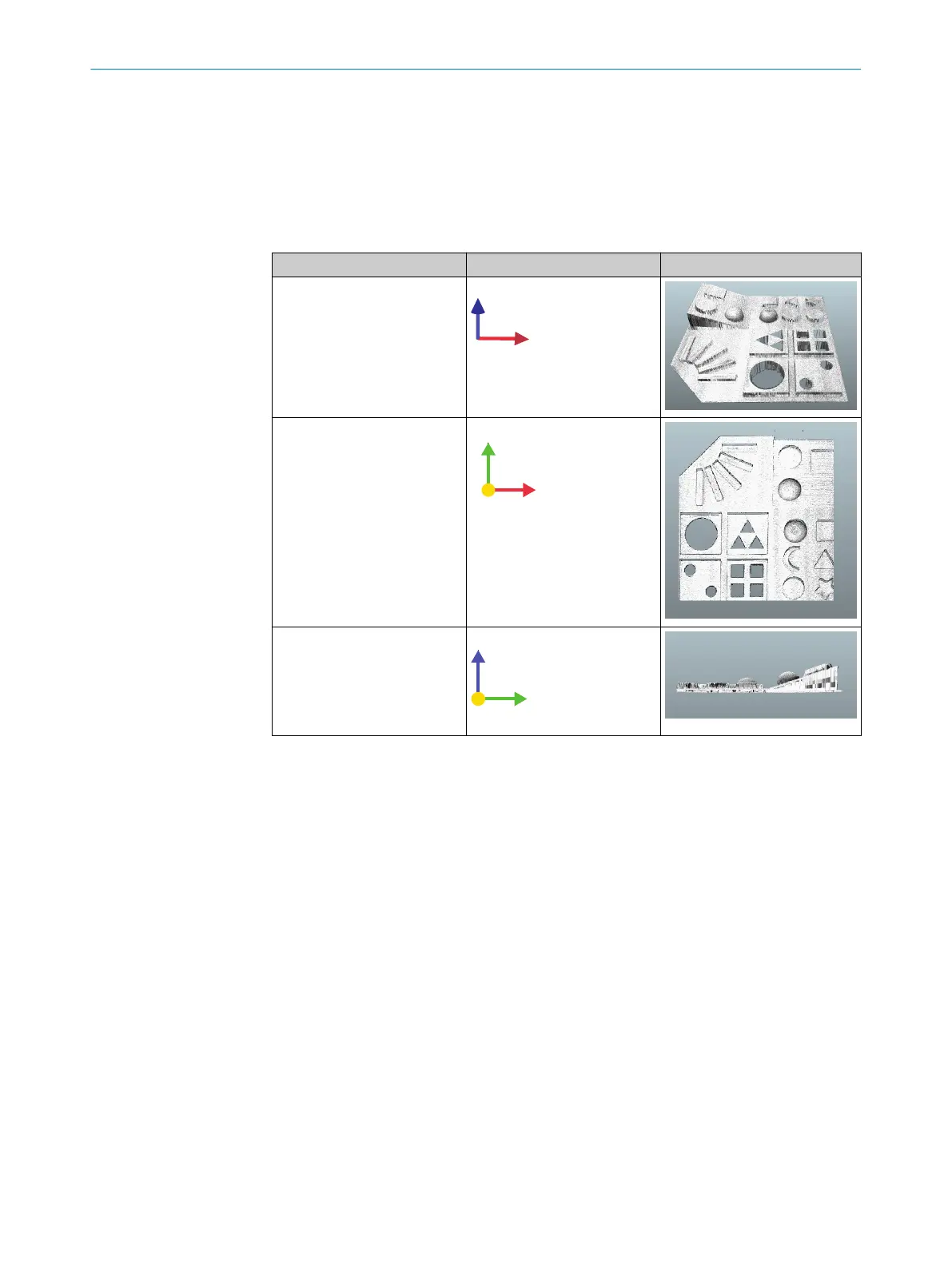
3D navigation control
To change between orthographic 2D and 3D viewing angles, use the 3D navigation
control in the lower left corner of the image viewer:
•
Click an arrowhead (X, Y or Z) to view an orthographic 2D projection of the object.
•
Click the same arrowhead twice to flip the 2D projection, e.g. switch between the
top and bottom view for the Z-axis.
•
Press Home to restore the default viewing position.
View Projection
Home
Top view
Right view
7.3.5 Menus
The View, Color and Options menus in the image viewer contain options for visualization
of the heightmap and the reflectance data:
•
Select Reflectance from the View menu to display the heightmap with reflectance
overlay. The reflectance image is useful for displaying surface details, such as
prints.
•
Select Surface or Points from the Options menu to display the data as a smooth
surface or with a point representation.
7.4
Installing SensorApps
7.4.1 Available SensorApps
The available SensorApps for the device can be downloaded from SICK AppPool (http://
apppool.cloud.sick.com/). The use of SICK AppPool requires a SICK ID, which can be
obtained at the login page at the link above.
The Apps tab on each device page on www.sick.com contains a list of available Senso‐
rApps for the device.
7 COMMISSIONING
38
O P E R A T I N G I N S T R U C T I O N S | TriSpectorP1000 8022395/19OK/2020-12 | SICK
Subject to change without notice




 To Next Page