EasyManua.ls Logo

SICK TriSpector1000 - User Manual

SICK TriSpector1000
104 pages
Print Icon
To Next Page IconTo Next Page
Loading...
O P E R A T I N G I N S T R U C T I O N S
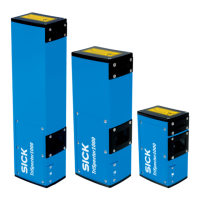
TriSpector1000
3D Vision

Table of Contents

Questions and Answers

  • C
    Chad SullivanAug 2, 2025
    Why is there no laser on my SICK Accessories even though the LED is on?
    • M
      Mrs. Elizabeth ReynoldsAug 2, 2025
      If the laser LED is on but there's no visible laser in your SICK Accessories, it could be due to the laser module's protection circuit being activated by a voltage spike. To resolve this, ensure all cables are securely connected, the power source is stable, and use a power switch to power on the TriSpector1000.
  • S
    Scott BoydAug 7, 2025
    How to fix SICK Accessories Shape tool when it does not find the object?
    • K
      Kathleen MayAug 7, 2025
      If the Shape tool in your SICK Accessories doesn't find the object and returns 'Not Found', it could be due to noise or variations in the object's areas between samples. To fix this: * Use the Shape tool only on edges consistently present in live images. * Apply a mask in the tool parameter pane (Masks section) to exclude unwanted object parts. * Increase the Shape tool's robustness. * Decrease the Shape tool's edge threshold to include more edges for matching. * Avoid including noise or areas prone to change.
  • S
    Shawn CampbellAug 12, 2025
    What to do if the result is invalid in SICK Accessories?
    • W
      William DeanAug 12, 2025
      If the result from your SICK Accessories is invalid, it's likely that the Shape, Plane, Edge, and Peak tools aren't receiving image data within their region of interest. In Job mode, ensure these regions are correctly positioned in 3D space. Try increasing the robustness slider or including a larger image portion for the Shape tool. Note that if a Shape tool result is invalid, all linked tool results will also be invalid.
  • M
    Mark HendersonAug 17, 2025
    Why is my SICK Accessories only receiving every other image?
    • T
      Trevor May DDSAug 17, 2025
      If your SICK Accessories is only receiving every 2nd, 3rd, or 4th image, it's likely due to triggers arriving while the image acquisition is still in progress. These triggers are discarded as overtrigs, preventing new image acquisition from starting. To resolve this, reduce the image acquisition time by decreasing the Length parameter in the Image workflow step.
  • C
    castillomatthewAug 22, 2025
    How to improve image quality on reflective surfaces with SICK Accessories?
    • R
      Rose BuckleyAug 22, 2025
      If a reflective surface is causing difficulty in getting a good image with your SICK Accessories, try tilting the TriSpector1000 to adjust the camera-laser angle. For more data from reflective surfaces, tilt the TriSpector1000 forward. To reduce noise from reflections, tilt it backwards for a more look-away camera-laser angle.
  • K
    Kathryn ShepherdAug 27, 2025
    How to get data at the bottom of a hole using SICK Accessories?
    • P
      padilladouglasAug 27, 2025
      If you're finding it difficult to get data at the bottom of a hole using your SICK Accessories, try tilting the TriSpector1000 forward or backward. This will allow different parts of the hole to be visible.

Summary

Safety information

Intended use

Defines the proper application scope and purpose of the TriSpector1000 sensor.

Improper use

Outlines prohibited uses and conditions to avoid for safe and correct operation.

Laser safety

Details laser safety precautions, warnings, and compliance information for Class 2 lasers.

Product description

System requirements

Specifies the necessary PC hardware, software, and peripherals for optimal performance.

Mounting

Electrical installation

Prerequisites for the safe operation of the device in a system

Outlines essential safety measures and requirements for electrical connections.

Encoder

Explains the importance and requirements for using an encoder with the TriSpector1000.

Operation

Commissioning

Guides through the initial setup, including installing SOPAS ET and connecting hardware.

Description of the user interface

Introduces the SOPAS ET device window and its main components.

Image workflow step

Details how to set up image acquisition parameters for optimal image quality.

Task workflow step

Describes how to use various analysis tools for image processing and measurement.

Results workflow step

Covers settings for result processing, output handling, and decision logic.

Interfaces workflow step

Explains how to configure digital I/O, command channels, and output strings.

Maintenance

Troubleshooting

General faults, warnings, and errors

Lists common issues and their possible causes and resolutions.

Technical data

Appendix

Setting up a TriSpector1000 to communicate via EtherNet;IP

Guides on connecting the TriSpector1000 to an Allen Bradley PLC via EtherNet/IP.

TriSpector1000 Result Output Function Block

A guide for connecting the TriSpector1000 to a Siemens PLC.

SICK TriSpector1000 Specifications

General IconGeneral
BrandSICK
ModelTriSpector1000
CategoryAccessories
LanguageEnglish

Related product manuals