Configuring the Motion settings
•
Set the ProfileTrigger parameter to Encoder to acquire profiles based on encoder
input. A profile is triggered each time the sensor has received a specified number
of ticks from the encoder.
•
• Set the ProfileTrigger parameter to Freerunning to acquire profiles continuously. In
free running mode, the time between two profiles is determined by the Speed and
ProfileDistance parameters. The object traversing speed must be constant to get
heightmaps with correct proportions.
•
• Set the image resolution by adjusting the ProfileDistance and X-Resolution parame‐
ters. Keep the pixels as square as possible to ensure that all image processing
algorithms work smoothly.
Configuring the Field of view settings
Adjust the Width, Height, and Length parameters of the field of view to fit the object. The
number of profiles in the acquired heightmap is determined by the Length parameter
divided by the ProfileDistance parameter. The maximum number of height profiles is
2500.
Configuring the Image Trigger settings
•
Select None (continuous) to acquire profiles continuously. A 3D image is displayed as
soon as the specified number of height profiles have been acquired.
•
Select Trigger on I/O 3 to start the image acquisition based on a digital input signal.
•
Select Object Trigger to start the image acquisition when the object extends above a
specified threshold.
•
Select Software to display a Force Trigger button which enables triggering from the
user interface.
Using a configuration
•
Click Set Configuration to apply the parameter changes. A green cog icon in the user
interface indicates a valid configuration.
•
Click Save configuration to save the configuration to the camera's flash memory.
•
Click Load configuration to load the latest saved configuration.
7.3.4 Image handling controls
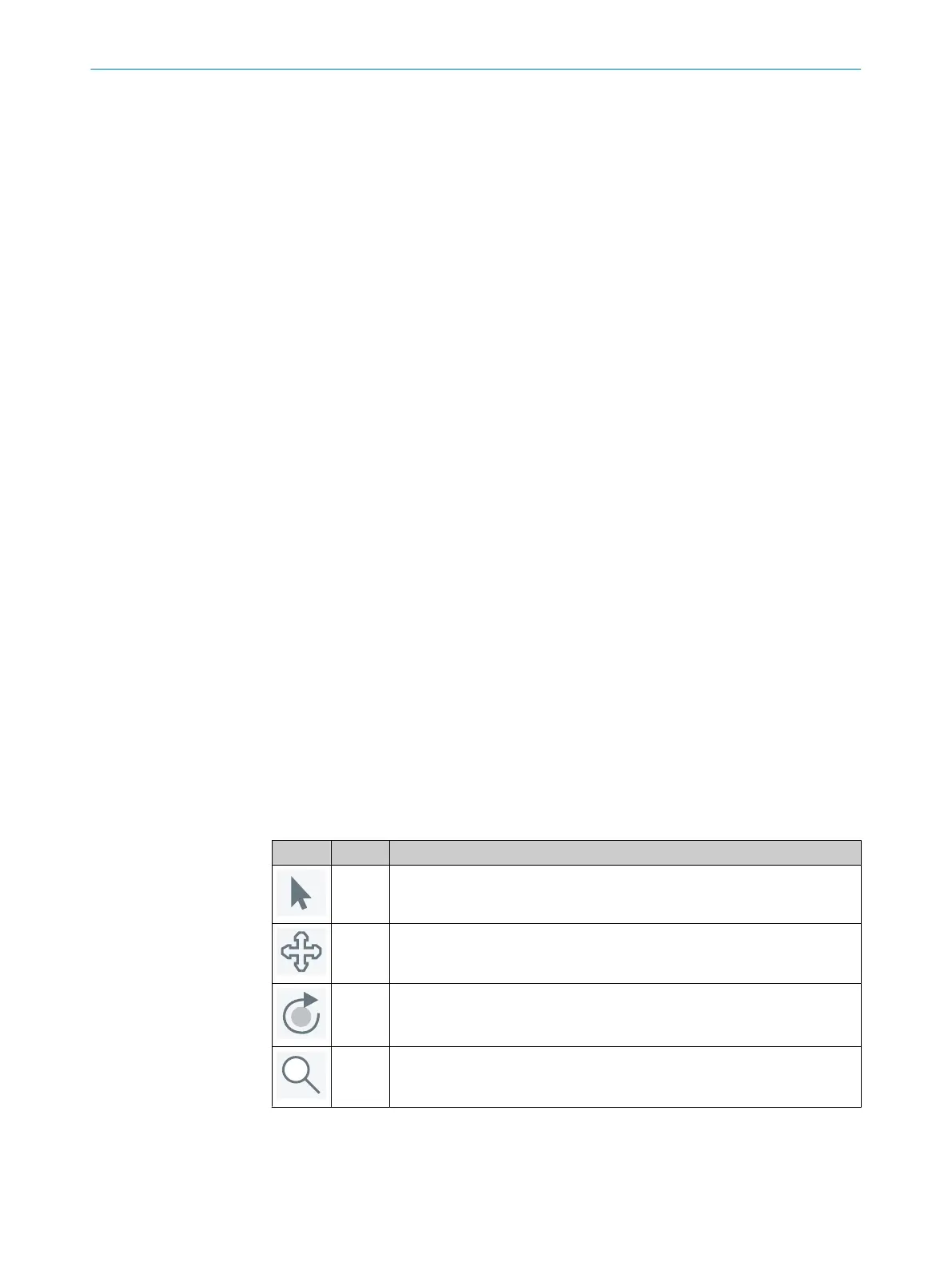
Use the image handling controls to scale, move, and rotate the 3D image in the viewer.
As an alternative to the buttons, use the mouse shortcuts described below.
Button Name Description
Select Hover over a region to display the coordinates and corresponding pixel inten‐
sities. Click and drag to change the dimensions of the region of interest.
Move Click and drag to move the image.
Mouse shortcut: Press and hold Shift.
Rotate Click and drag to rotate the image.
Mouse shortcut: Press and hold Ctrl.
Zoom Click and drag upwards to zoom in and downwards to zoom out.
Mouse shortcut: Use the mouse scroll wheel.
COMMISSIONING 7
8022395/19OK/2020-12 | SICK O P E R A T I N G I N S T R U C T I O N S | TriSpectorP1000
37
Subject to change without notice




 To Next Page