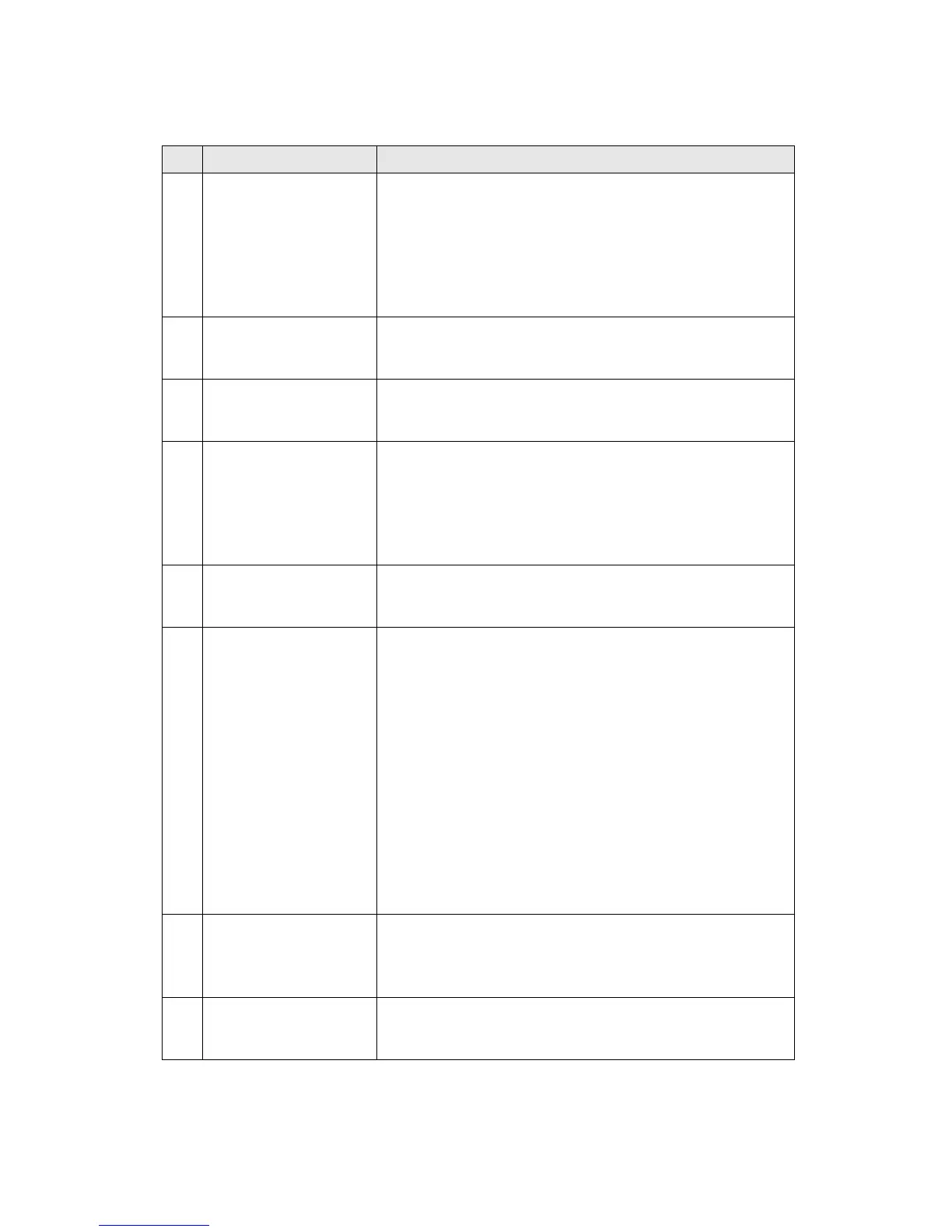
Note that pressing this switch will cause the cabin to
glide down to the un-powered rest position. Therefore,
the space under the cabin must be free from objects
and personnel to prevent damage and injury.
2 System ON Button
These buttons are used to power up the simulator norm
ally. Press the buttons for 2 seconds or longer to activa
te.
3 System Shutdown B
utton
These buttons are used to power down the simulator
normally. Press the buttons for 2 seconds or longer to
activate
4 Maintenance Switch
This switch is for use by trained maintenance personnel
only. The switch allows the computer systems to boot up
without starting the simulator operation for special
maintenance and troubleshooting purposes. This
switch should always be in the down position when the
simulator is being operated normally.
5 Supply Power LEDs
These LEDs light respectively, when the main power,
power to the actuator controllers, and the cabin power
are supplied.
6 Condition LEDs
These LEDs light according to the status of the simulator
as follows:
l NORMAL LED: Lights (Green) when in normal
operating condition.
l DRIVING LED: Lights (Green) when simulator is in
driving condition.
l CONTROL ERROR LED: Lights (Red) when an
System will automatically power down.
l SAFETY SENSOR LED: Lights (Red) when either
the photo sensor or floor pressure sensor is
activated.
l SEAT BELT LED: Lights (Red) when the seat belt is
released during the game.
7 Menu, Set, Up &
Down, LCD Panel
These buttons and the LCD panel are used to configure
the simulator settings and show the current status of the
simulator. They are explained in a separate section
below in this manual.
9 Service Button
This button increments the credit. It has the same effec
t as inserting a coin in the coin selector. But there is n
o change of coin meter.


 To Next Page