The Size Stream SS20 Body Scanner is a full-body, non-contact surface scanner designed to capture accurate body measurements and generate a 3D rendering of the scan subject. It utilizes depth sensor technology, collecting millions of data points from the reflection of infrared light. The system incorporates twenty infrared sensors, similar to those found in home-gaming systems, strategically placed to surround the subject and cover approximately 95% of the body.
Function Description:
The primary function of the SS20 Body Scanner is to provide precise body measurements and a detailed 3D mesh of an individual. From the coordinates of the reflected infrared light, the scanner's complex algorithms define the body's surface, identifying key anatomical regions such as the torso, head, arms, and legs. The active scan time is typically between 4 and 10 seconds, depending on the system setup. Following the scan, additional algorithms process the data to determine up to 240 separate measurements and landmarks, which are displayed approximately one minute after the scan. The software is designed to minimize variations in measurements due to subject movement and posture changes by offering a multi-scan option, which takes multiple scans in a continuous sequence (defaulting to three scans). For multi-scans of 3 or 5, the composite measurement value is the median; for 2 or 4 scans, it's the average of the two middle values.
Important Technical Specifications:
- Sensor Technology: Depth sensors utilizing infrared light reflection.
- Number of Sensors: 20 infrared sensors.
- Body Coverage: Approximately 95% of the body.
- Measurement Output: Up to 240 separate measurements and landmarks.
- Active Scan Time: 4-10 seconds (system setup dependent).
- Processing Time: Approximately 1 minute for measurement display.
- Software Version: Version 6 (as of December 2019).
- Output Formats (Raw Data): Binary, XYZ, OBJ, WRL.
- Output Formats (Body Mesh Data): OBJ.
- Measurement Units: Configurable (e.g., inches, metric).
- Operating System: Windows (specific version not detailed, but implies a Windows-based computer).
- Connectivity: Internet connection for updates and licensing.
- Languages Supported: English, Spanish, French, Japanese, Simplified Chinese, Traditional Chinese.
Usage Features:
- User Interface: The scanner display is divided into "New Scan," "3D Image," "Status," and "Measurements" sections. An "Utility" pane is available for administrative users.
- New Scan Initiation: A large red "New Scan" button starts the scanning sequence. Users can enter a name for the scan, which is applied to saved data files.
- Scan Posture Guidance: The system provides on-screen and voice instructions for correct scan posture, including foot placement (shoulder-width apart, toes slightly out), body alignment with handhold bars, grasping adjustable handholds, and looking straight ahead.
- Scan Wear Guidelines: Subjects should wear close-fitting garments (e.g., underwear, biking shorts, leotards, tight gym wear) for best results. Loose-fitting clothing, long hair (should be in a bun), watches, and long beards can adversely affect measurement accuracy. Nude scanning is not recommended due to privacy.
- 3D Image Display: After processing, a 3D image of the subject appears on the monitor. This image is interactive, allowing rotation on the touch screen. Individual measurements in the list can be touched to highlight corresponding lines on the avatar. The display can toggle between the finished Body Mesh and its 3D Raw Data.
- Measurement Display: Measurements are automatically displayed in the "Measurements" pane after scanning. The pane can be hidden or shown using the Ruler Icon tab. Users can select between standard and custom measurement lists.
- Custom Measurements: The software supports custom measurements, which can be created with simple adjustments to existing measurements.
- Printing: Scan data can be printed in two formats, with options for standard, custom, or both measurement lists. The scan file name can be edited before printing.
- Multi-Scan Option: Configurable to take multiple scans (default 3) to improve accuracy by mitigating movement and posture changes.
- Manual Scan: An option in the Utility Menu to start a scan sequence manually, bypassing audio instructions and starting immediately, useful for scanning objects or test scans.
- Data Saving: Options to save raw sensor data (binary, XYZ, OBJ, WRL) and body mesh data (OBJ only) to a default location or a specified location (e.g., USB memory stick).
- Logo Customization: The Size Stream logo on the scanner screen and printouts can be replaced with a customer's logo by saving a
Logo.png file to a specific directory.
- Themes: Customizable UI element colors, with a default white theme and a "Legacy" dark theme available.
- Language Selection: Support for multiple languages in the Settings Menu. Audio narration language customization is also possible.
Maintenance Features:
- Scanner Computer Startup: The power button is located on the computer underneath the main display screen. It is recessed to prevent accidental power-offs. A normal Windows Shutdown occurs when pressed while running. Users are advised to always use the power button or Windows Shut Down option, never "Restart."
- Licensing Management: The software requires a license. An alert window appears upon launch if the license is nearing expiration, providing instructions for renewal via serial number or SiteKey. Administrators must agree to terms and conditions.
- Software Updates: When connected to the internet, the software automatically checks for and downloads updates. Users are prompted to apply updates at startup, during system alignment, or manually via the "Update" button in the Utility Menu. Manual update installers are available upon request if an internet connection is unavailable.
- System Alignment: Crucial for maintaining 3D body image accuracy. The system administrator performs this using an Alignment Board. It is recommended daily or after any scanner movement/modification. The software prompts for alignment at initialization.
- Alignment Procedure: Involves unpacking and hanging the Alignment Board (numbers 1-10 facing monitor, 11-20 facing back), attaching a stabilizer foam tube, and ensuring the board is still. Alignment can be initiated from the Utility Menu. Music plays during alignment, and an audio/status message confirms completion.
- Troubleshooting: The manual includes a dedicated section for common issues:
- No Data Produced: Suggests performing system alignment and a new scan.
- Claim Code Failure (Cloud Upload): Checks for internet connection, system logs, successful measurement processing, robust internet, and existence of save folder.
- Software Hangs/Sensor Recognition Issues After Restart: Emphasizes never using Windows Restart due to sensor driver problems. Instead, perform a full SHUTDOWN, wait 5 seconds, then restart.
- System Alignment Failure: Advises ensuring the scanning area is clear, the Alignment Board is vertical and still, and contacting support if issues persist.
- Missing Sensors (e.g., 19 of 20 detected): Troubleshooting steps include checking USB connections, resetting sensors (full shutdown, disconnect/reconnect all USBs, restart), checking for failed USB ports (by individually disconnecting sensors), and checking for failed USB cables (by swapping with another sensor's cable). If all else fails, a failed sensor may require replacement.

 Need help?
 General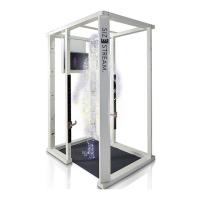

 To Next Page