14
NAVIGATING THE SCANNER DISPLAY
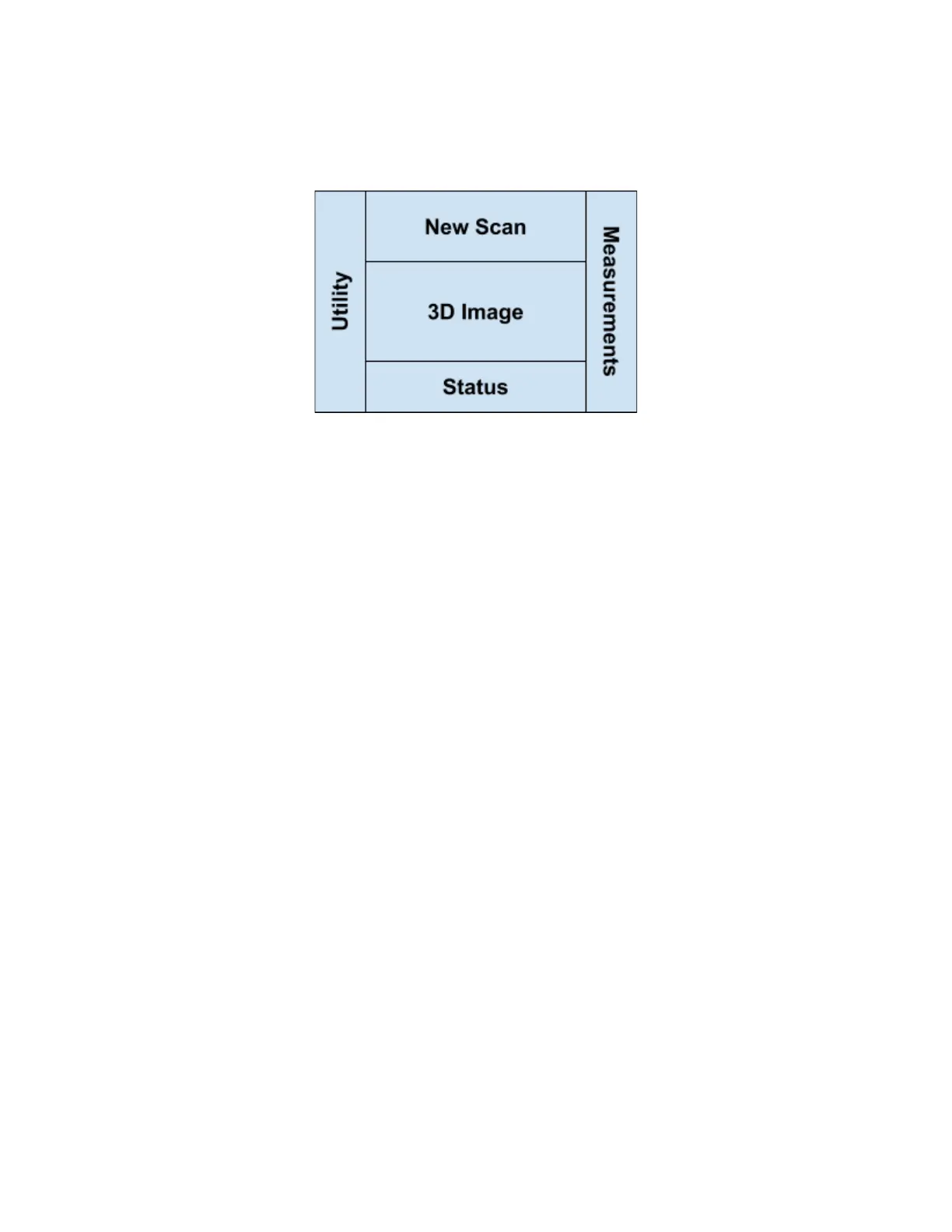
The Size Stream Scanner Display is divided into multiple sections:
New Scan: This button initiates a new scan. Depending on the user’s configuration a form field for
entering a name for the scan is also provided. This pane disappears when the scan is started
and reappears after the scan results are no longer being viewed.
3D Image: This pane displays the scan image as the data is processed. It disappears when the scan
results are no longer being viewed.
Status: Text messages will appear here showing what the scanner is doing, and if the operation was
completed. Any error messages will also appear here.
Measurements: Measurements will appear here after they are calculated. Click or touch the “Gear” control
icon to hide or view the results.
Utility: This pane is intended only for Administrative Users and can be accessed by touching or
clicking on the Gear icon. You will then be provided with options to Align the Scanner
Sensors, load existing scan data files, save files, scan without guidance, and print results.
Please note that this screen does not appear for Unattended Mode users.


 To Next Page