15
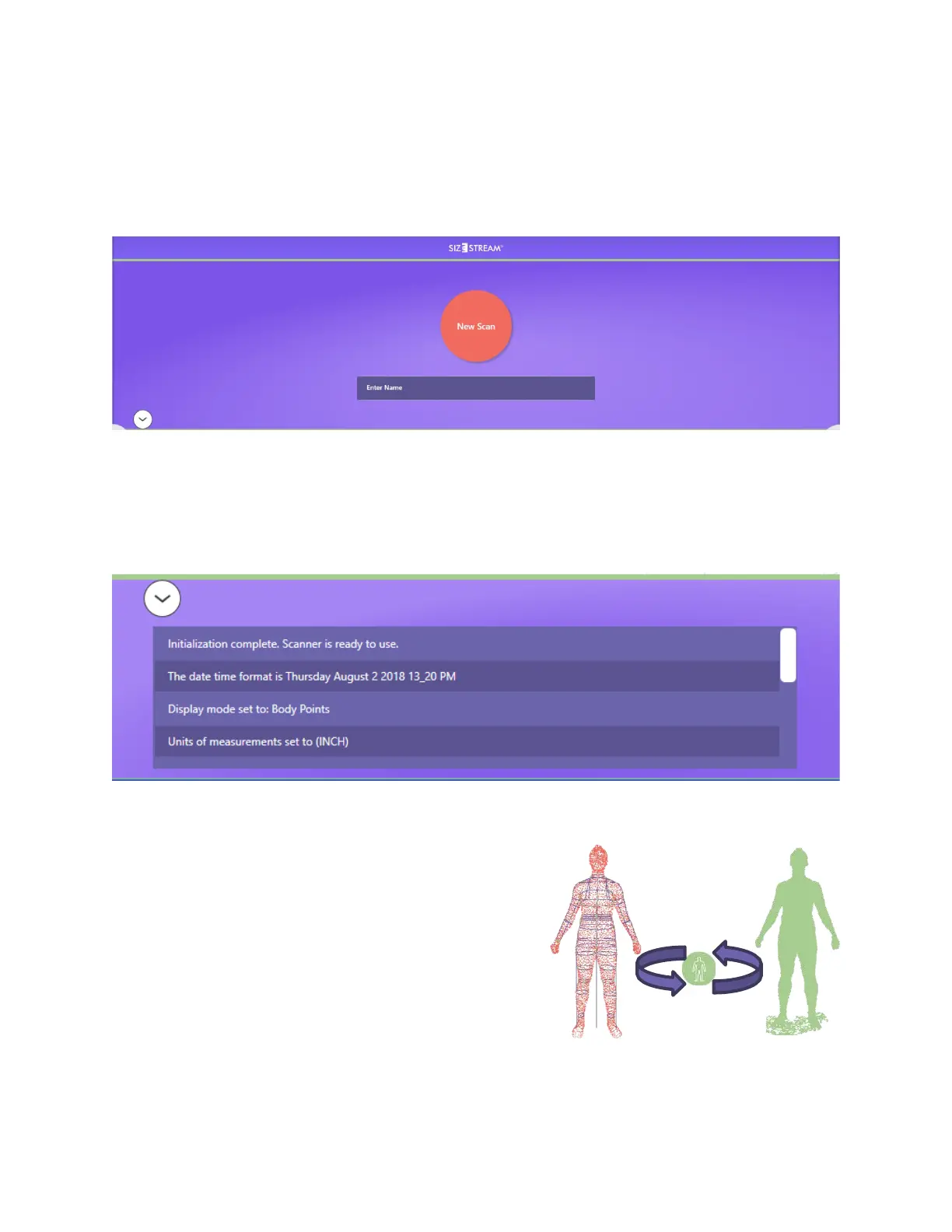
New Scan
The red New Scan button will start the scan sequence. Touch or click the circled arrow (show below) to hide
or open the New Scan pane. Touching or clicking this arrow will also clear the scan image and measurement
output list from the screen so the system will be ready for the next scan.
Status
The box at the bottom of the Main Screen shows the status of scanner operations as they occur with the top
line being the most recent entry. The status lines can be hidden by clicking the circled arrow at the upper left
of the box. The box can be hidden or resized by dragging the top edge of the box.
3D Image Display
When scanning is complete a 3D view of the resulting data will
be visible in the middle of the screen. Selecting measurements
on the Measurement Pane will affect which measurement lines
are visible in this view.
In addition to the processed body mesh, the raw data captured
by the sensors is available for review. The Raw Data button in
the corner of the 3D view allows the user to toggle the scan
image between the finished Body Mesh and its 3D Raw Data.


 To Next Page