5
Logging into Windows
The Admin user {Password is “Configure!”} is installed with Administrative privileges, allowing access to all
standard windows functions. This account is used to upgrade and troubleshoot the software. At login, the
Windows desktop will appear with the Size Stream application icon on the desktop. Double touch the icon or
double click with a mouse to launch the application.
Licensing the Scanner
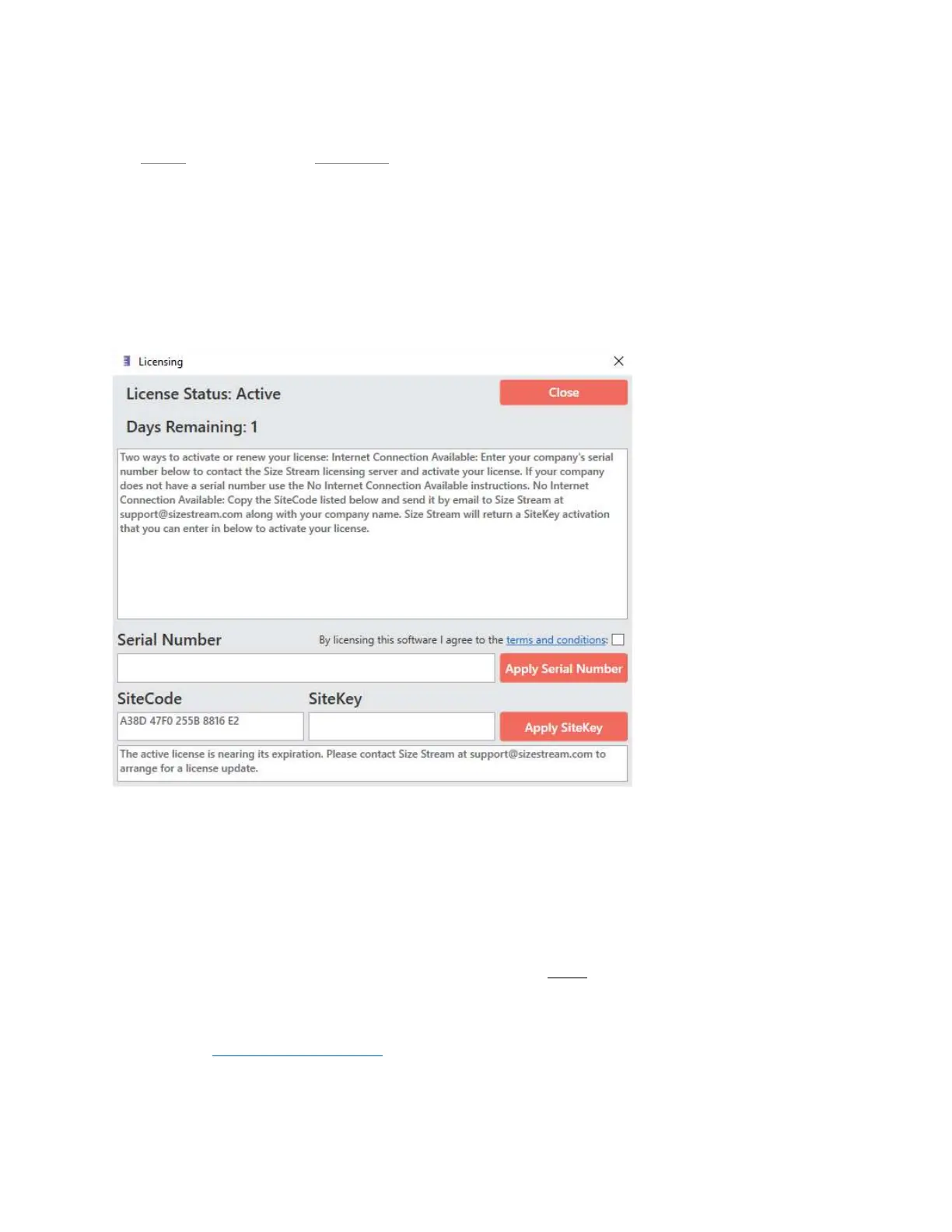
The License Information Window will appear when launching the Size Stream Software as an alert that you
should contact Size Stream to renew your license.
The Licensing box shows the number of days remaining for the active Scanner software license and
instructions on how to have the Scanner license activated or renewed.
The administrator is required to agree to the Size Stream Scanner Terms and Conditions before they can
apply a license to their software. Please make sure this checkbox is marked before applying a Serial Number
or Site Key. You can click on the Terms and Conditions link to see the full agreement.
Upon entering a Serial Number or Site Key, press the appropriate Apply button. A message will appear in the
box at the bottom of the window to tell you if the license was successfully applied. You can then touch/click
on the Close button and operate the Size Stream Scanner. If the message window indicates any problems,
please contact
support@sizestream.com.


 To Next Page