Page 31 of 56
SKIPPER Electronics AS
Edition: 2021-09-16
ESN100 Operation and Installation Manual
Chapter: PC connection
PC connection
Som features are only available via the ethernet LAN connector to a PC with SKIPPER soware:
-Printing
-History download
-Soware upgrade
-Diagnostics of alerts
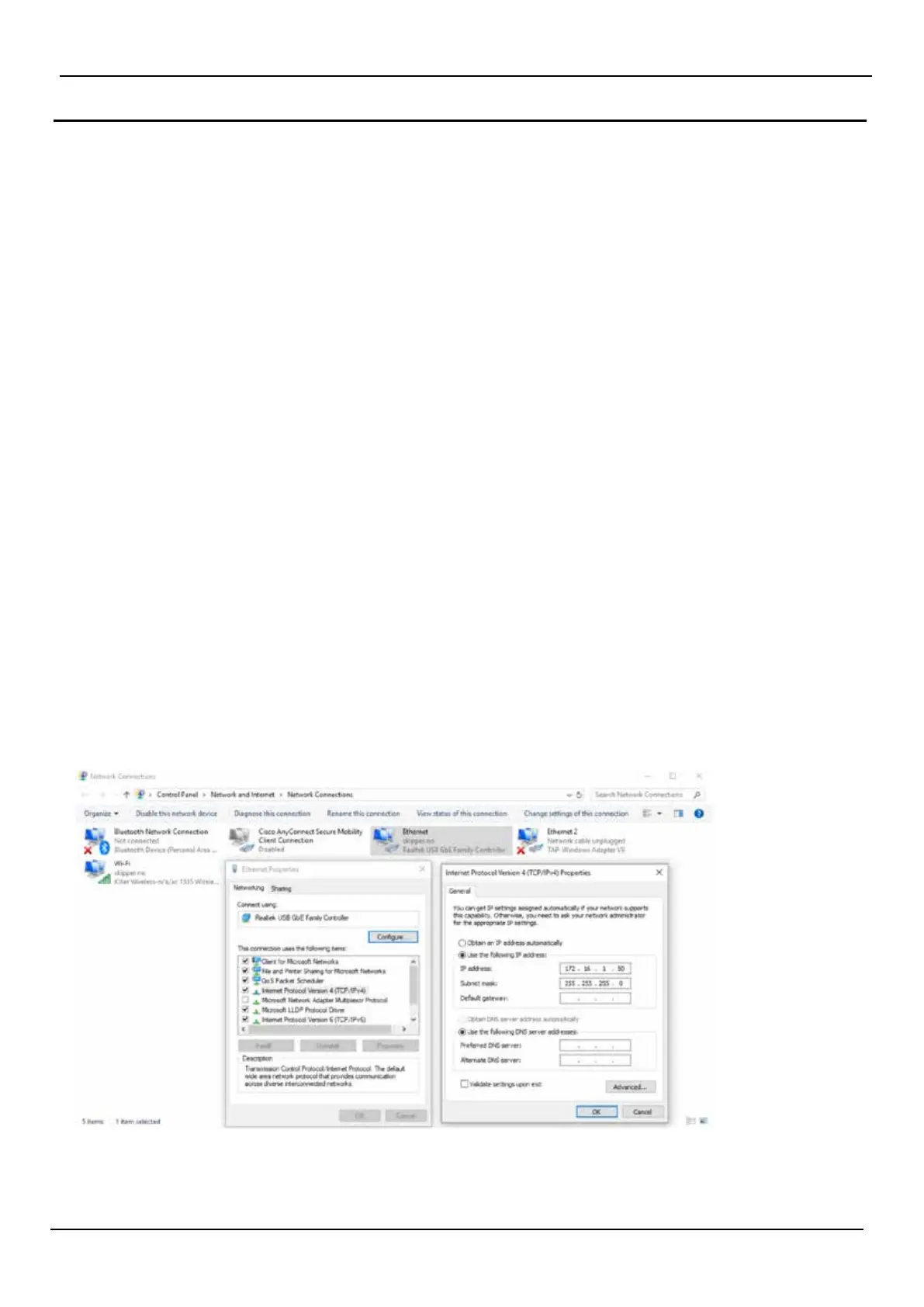
e PC ethernet adaptor to be connected to the ESN100 needs to be precongured to be on the same
subnet mask as the ESN100. e.g. 172.16.1.xxx (e ESN100 default IP address is 172.16.1.105.)
Setting up static IP address in Windows:
1: Click Start menu > Control panel > Network and sharing center or Network and internet > Network
and sharing center.
2: Click change adaptor settings.
3: Right click on local area connection.
4: Click properties.
5: Select Internet protocol version 4 (TCP/IPv4)
6: Click properties.
7: Select Use the following IP address
Install the the stand alone soware “ESN printing.exe” or “SKIPPER service soware”



 To Next Page