31
Quick Conguration
To edit sensor properties in a separate window,
click “Edit” at the bottom of “Properties” bar.
A window will appear where you can edit the
parameters and then click «Set and Close».
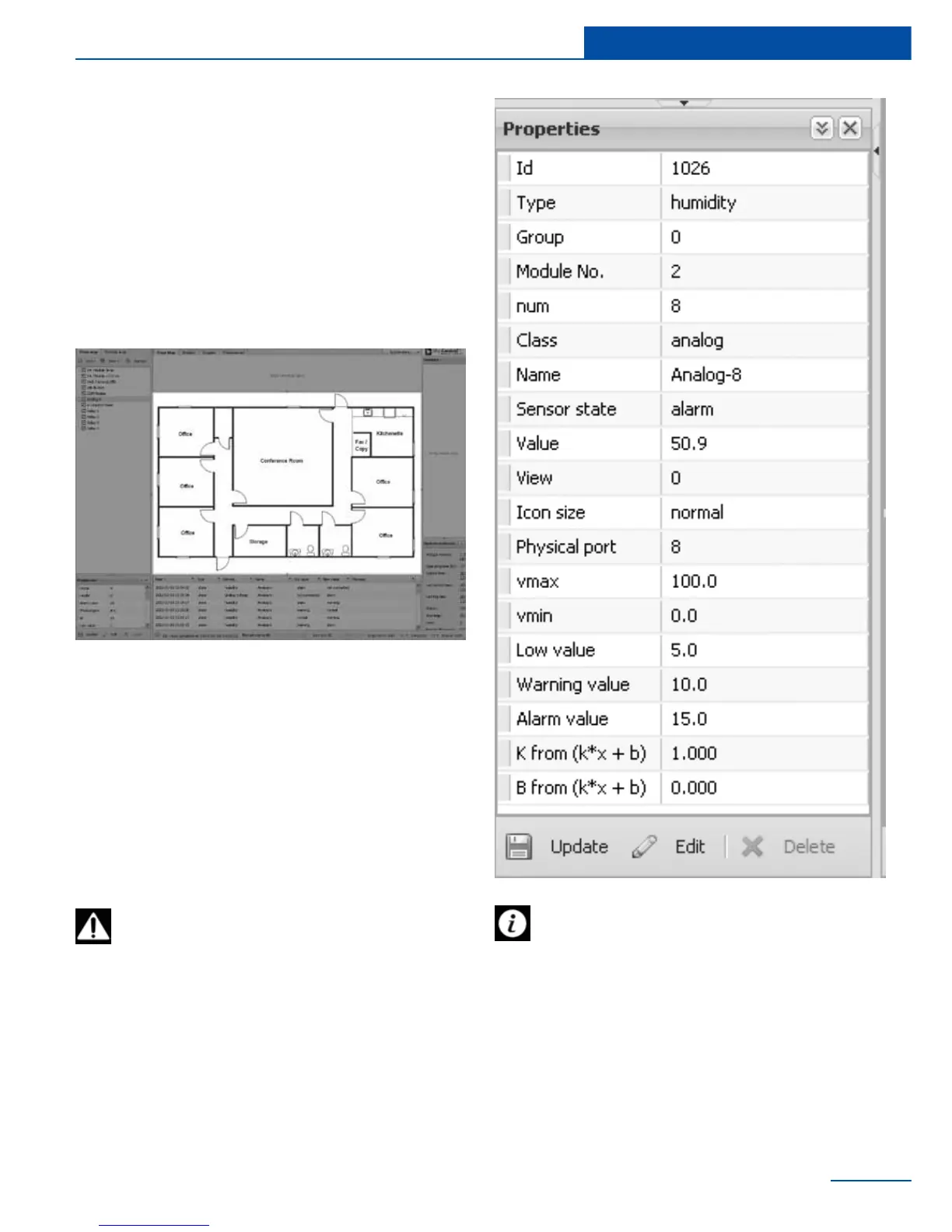
Creating oor map plan
To upload a map or plan , go to “System Menu”
, click on “Upload / edit image maps” , select
the image with the plan of your building/ofce
and click “OK”.
To place an icon on the map/plan, select the
element from the tree, and drag it to the map .
To remove the icon from the plan, right-click on
the icon, select “Delete”
Sensor conguration
To congure a sensor, click on the sensor ele-
ment in the tree or on the sensor icon in the
toolbar. You can view or edit parameters of sen-
sor in the window “Properties” in the bottom left
corner of the interface. You can change the size
of the window by dragging it with your mouse.
Change the needed settings and click “Update”
at the bottom of the “Properties” window.
To save sensor properties in the ash
memory of the device go to System
menu->Save setting to ash
Setting up the thresholds is not always



 To Next Page