6| INSTALLING YOUR SMART BOARD 685IX PREMIUM INTERACTIVE
WHITEBOARD SYSTEM (APPLIANCE-BASED)
Installing the SMART Hub SE240/SE220’s power and USB
cables
To keep the hub’s power and USB cables out of sight, route them inside the wall
mount frame behind the interactive whiteboard. Because you won’t be able to reach
them after you install the interactive whiteboard, you must install them now.
To install hub power and
USB cables
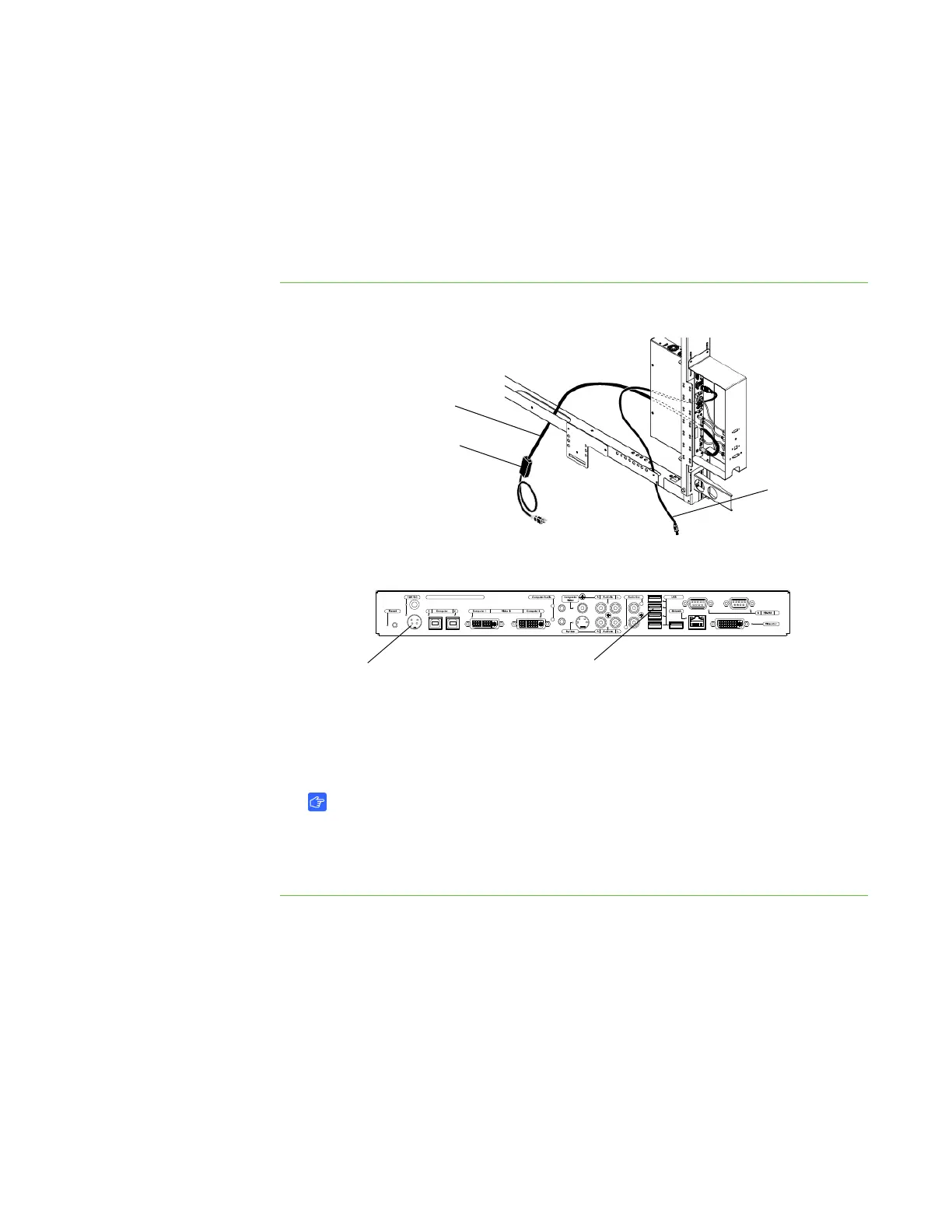
1. Connect the hub’s power supply cable and the USB cable to the hub.
2. Route the cables behind the hub, and then through a hole in the lower frame of
the wall mount. Route the USB cable through a hole near the bottom right corner
of the frame so it’s close to the interactive whiteboard’s controller module.
IMPORTANT
You can route the hub’s power cable through an opening in the bottom or side
of the wall mount closest to your wall outlet. Don’t connect the power cable to
a wall outlet at this time.
USB Cable
Power Supply
Cable
L
R
2
1
SMART Collaboration Appliance SCA-100
SMART Hub Connection Panel
Power
Connector
USB Connection
to Controller
Power Supply


 To Next Page