CHAPTER 4
USING THE INTERACTIVE PEN DISPLAY
28 smarttech.com/kb/171254
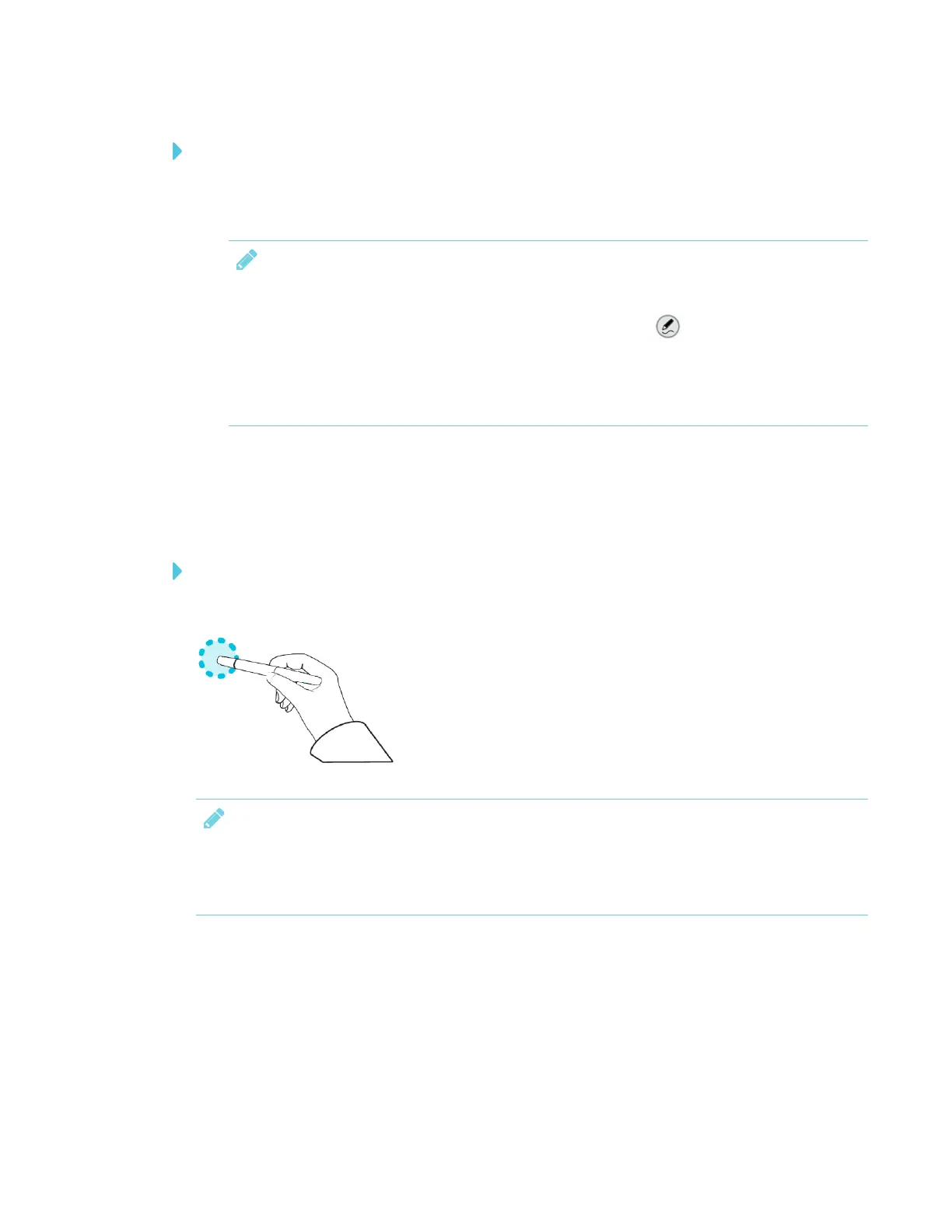
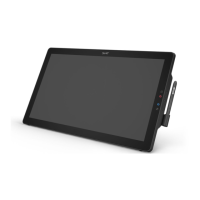
To write or draw digital ink
1. Pick up the cordless pen.
2. Write or draw on the screen to make notes and draw over your desktop and programs.
NOTES
o
Press an ink color side button to select an ink color (see Pen color buttons on page25.)
o
You can also press the SMART Ink dynamic toolbar icon and use the toolbar
commands to customize the pen colors and line thickness, convert handwriting to text,
take screen captures and use favorites. To learn more, see Working with SMART Ink on
page31.
Erasing digital ink
Use the eraser end of the cordless pen to erase the digital ink on the interactive pen display.
To use the cordless pen to erase digital ink
Turn the pen around and move the eraser over the area you want to erase.
NOTE
You can also use the pen nib as a customizable eraser by using SMART Settings to assign an
eraser action to one of the pen buttons. See Customizing button actions on the cordless pen on
page25.







 To Next Page