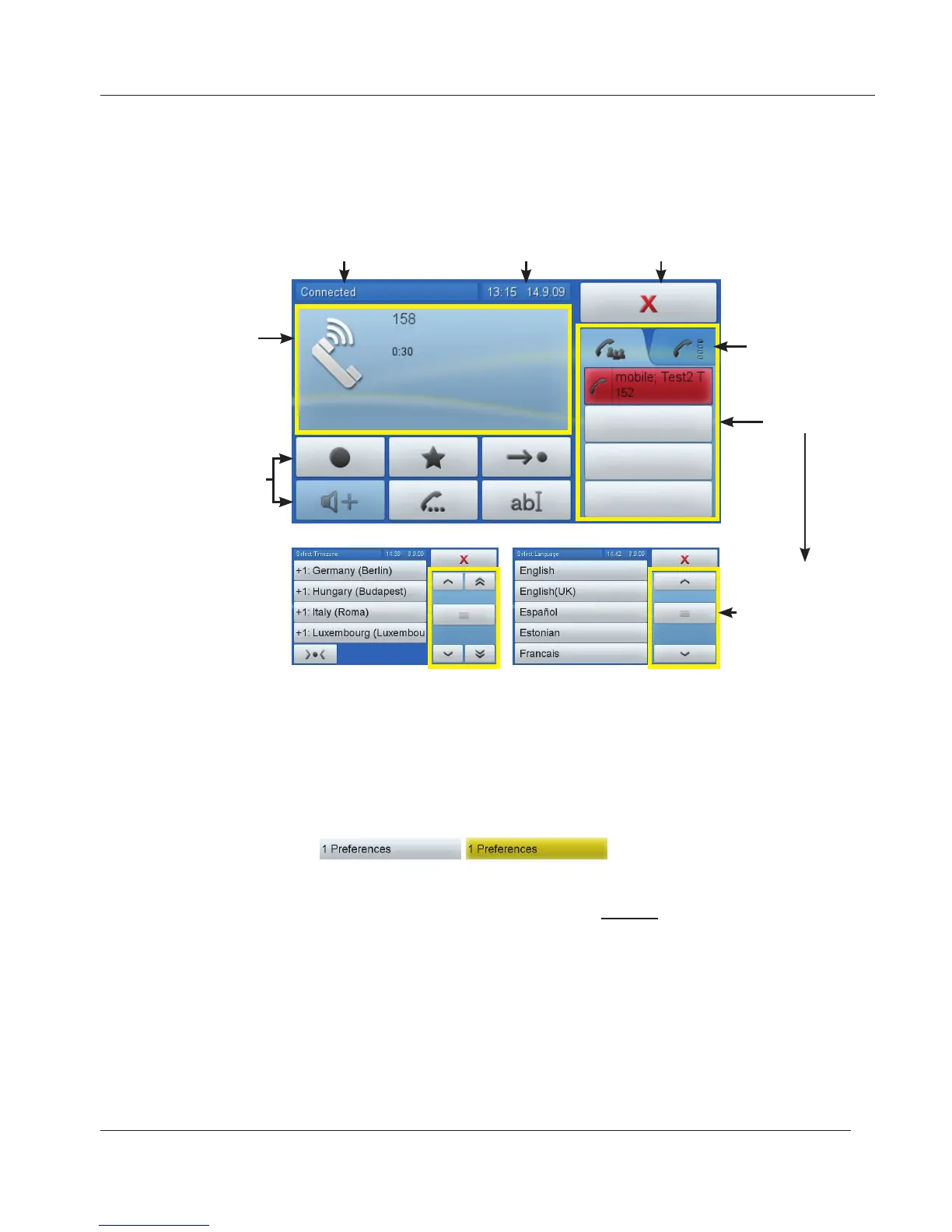
1. Tap icons/buttons with your fingertip to select items, initiate and terminate
actions, enter menus, turn functions on and off, etc.
a. If properly tapped, the icon/button/virtual function key will turn yellow.
The command is executed when the fingertip leaves the icon/button.
Example:
.
b. If you have mistakenly tapped the wrong icon/button, move your
fingertip away from the yellow icon/button before lifting it off the
screen. The command will not be executed.
2. Drag-and-drop keys/buttons from and into the different areas.
a. "Drag and drop" here means: Tap the button with your fingertip (button
will turn yellow) and, without letting the fingertip lose contact with the
screen, move it into another area, then lift your finger off the screen.
b. In some contexts the entire context area can be dragged-and-dropped
into the info area.
www.InternetVoipPhone.co.uk | sales@internetvoipphone.co.uk | 0800 088 48 46


 To Next Page