© 2009 snom technology AG
man_snom870_v101_en
18
snom 870 User Manual
Getting to Know Your Phone
3. Scrolling.
a. Tap arrow buttons in navigation area - see "Components" on page 17
and "Navigation arrows" on page 33.
b. Place a fingertip on the touchscreen and drag it lightly up or down to
scroll through lists. Lift the fingertip off the screen to stop.
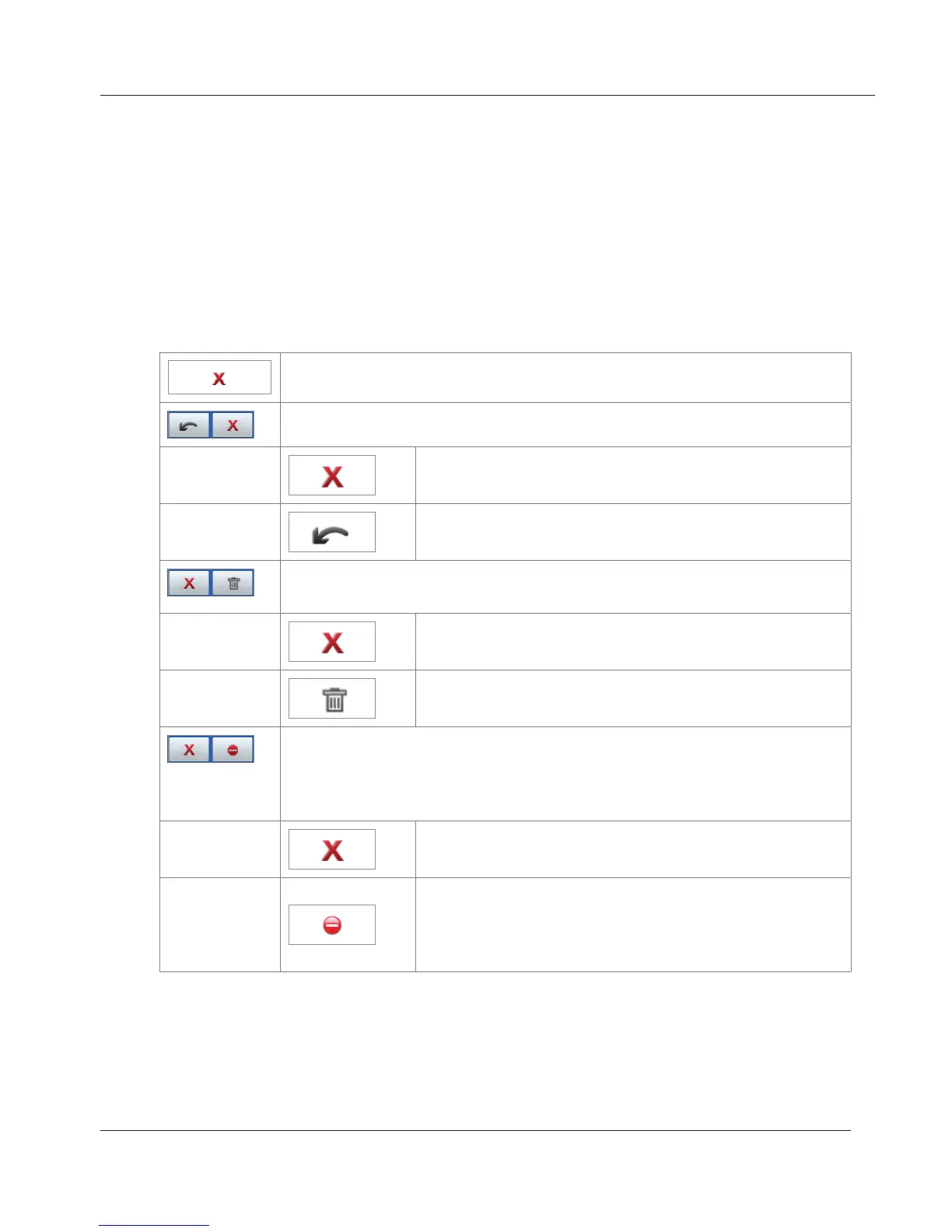
Escape area
Context-sensitive buttons.
Single button - return to previous screen
Combination of arrow + cancel buttons (menus)
Return to idle screen
Return to previous screen
Combination of cancel and delete buttons (call lists,
directories)
Return to previous screen
Delete
Combination of "block this call" and "block all calls" buttons
(incoming calls, call waiting). "Block all calls from this number"
is not a factory default - see "Customizing Phone Settings" on
page 65.
Block incoming call; caller hears busy signal.
Block incoming call and place number on deny
list (list of permanently blocked numbers - see
"Contact Types" on page 35); caller hears busy
signal.
www.InternetVoipPhone.co.uk | sales@internetvoipphone.co.uk | 0800 088 48 46


 To Next Page