39Windows
Echochange - Manual / Windows
39
7.3 Connections List
The Connections list of the device is displayed in the main window. It shows an overview of the
configured connections including their parameters. The connections are displayed in different colors
to indicate their current status: active (black) or inactive (gray).
To edit a connection, double-click it. To do so, you need master access.
You can toggle the main window between the Connections list and Online Diagnostics by clicking
the Diagnosis - Show All Connections menu item or the corresponding icon from the toolbar.
Clicking the table header sorts the table by this column in ascending order. Another click on the
table header changes the sort order to descending.
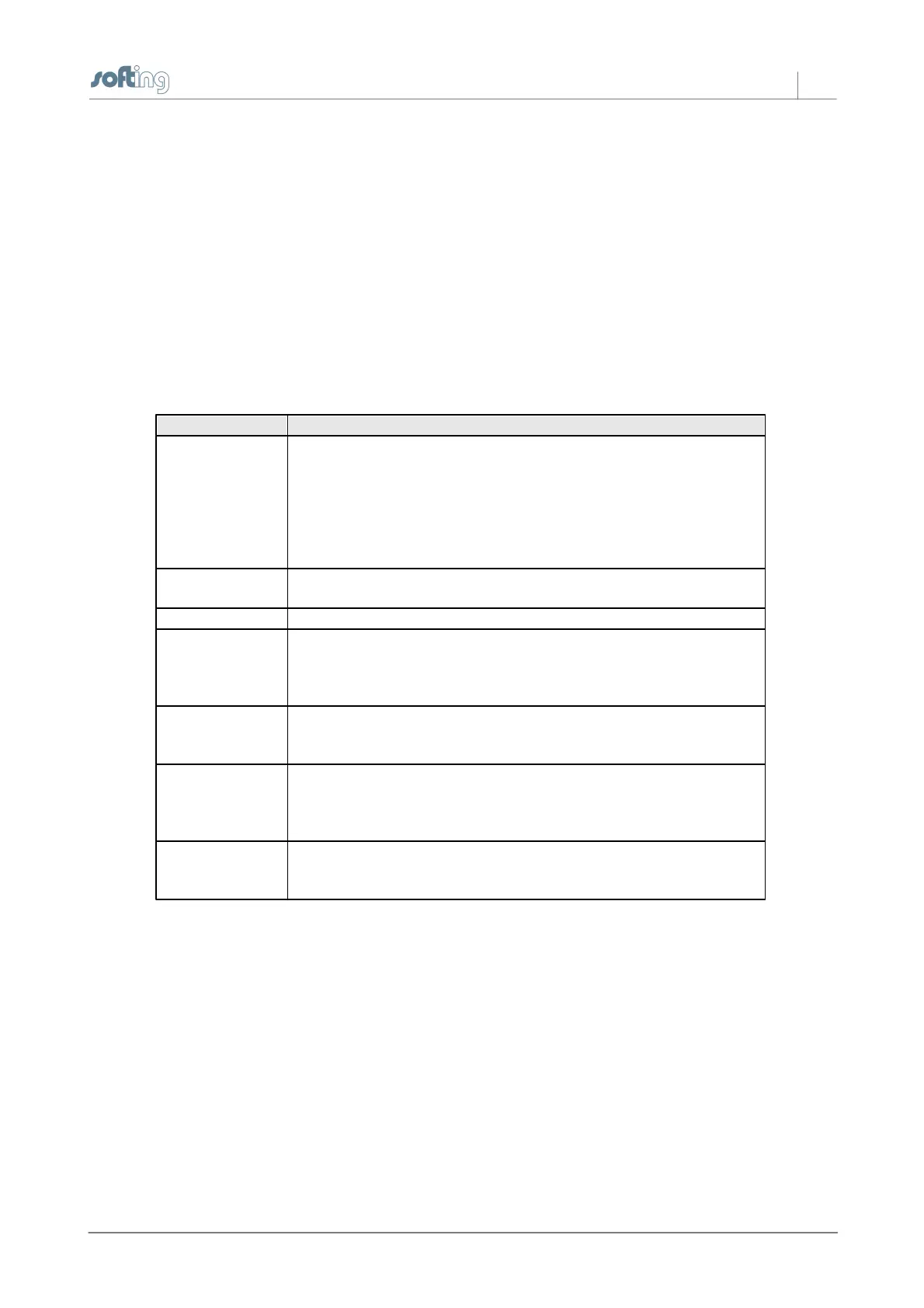
The individual columns have the following meanings:
Displays the transport protocol used:
- TCP/IP
- H1
- Iso TCP (RFC 1006)
- Collect Type
If the connection is inactive, its name is followed by (off) and grayed
out.
The name of the connection.
Shows the application protocol used.
Shows the network protocol used and whether the connection has
been established actively or passively:
TCP/IP: Client [active] / Server [passive]
H1: Act [active] / Pass [passive]
Shows the address of the destination hardware (IP address, IP
name or Ethernet address) which can be 0 if the connection has
been established passively.
This column displays some connection parameters:
- Port number
- Transport protocol TCP or UDP
- Local TSAP, Dest TSAP for RFC 1006 and H1 connections
Shows additional connection parameters and details,
including:
- OPCpipe access: Read and write: RW, read only: RO


 To Next Page