Chapter 3 Software Setup
49
3-6 Proceed To Hardware Monitor Utility Installation
2
In case you are already on the Installation Main Menu of the Support
CD, please click to the “Install Hardware Monitor”. Instantly, a message
shows up to inform you of the correct path of installing “Hardware
Monitor”. Please Exit the message and follow the path as instructed:
For user who wants to install Hardware monitor
utility, please install it through this path:
D:\hardwaremonitor\ITE\install.exe
(assuming that your CD-ROM Drive is Drive D)
3
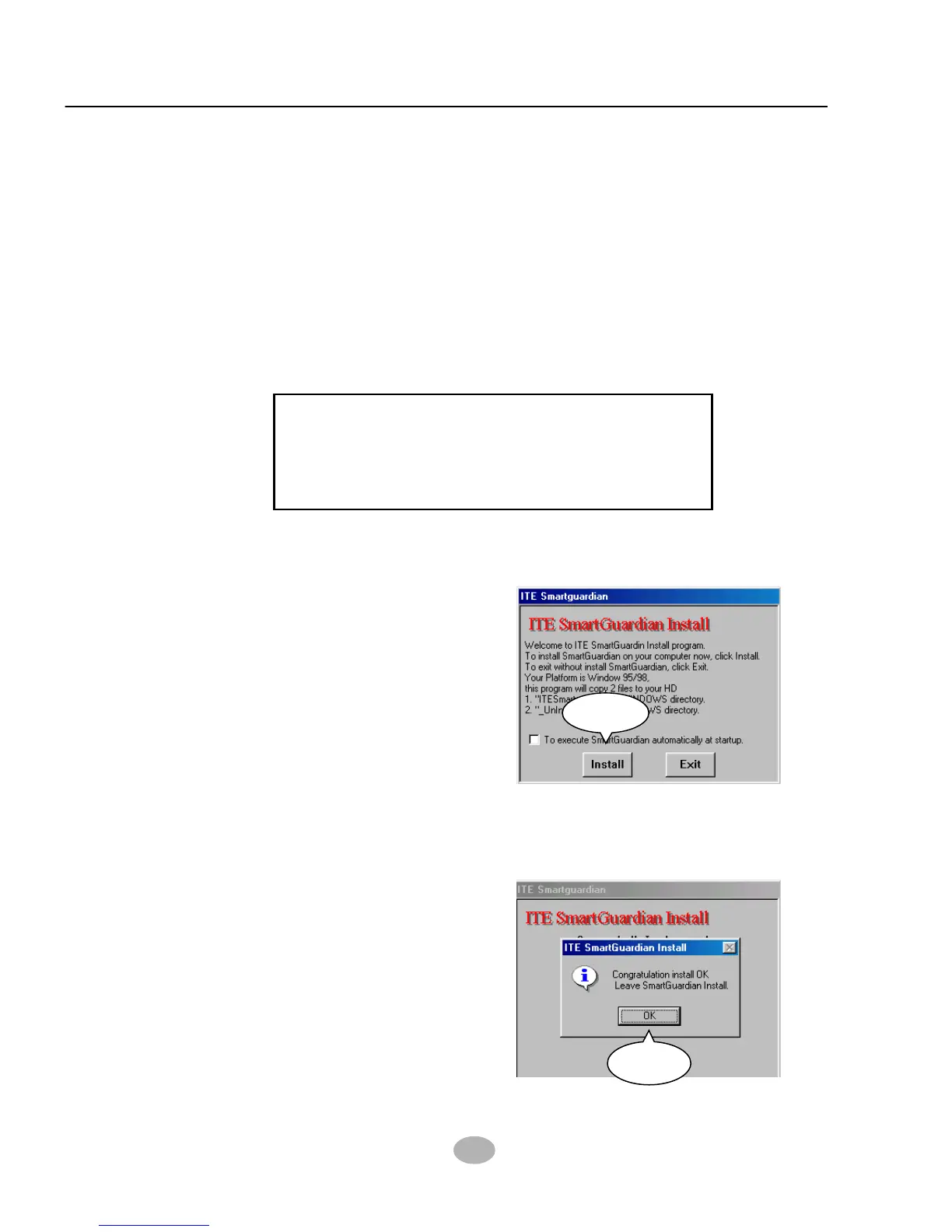
Once you enter the path and
click to the file “Install.exe”, in-
stantly the “ITE SmartGuardian
Install” pops up. Please click
to “Install” to continue.
Install
In a few second, installation of
Hardware Monitor is complete.
Please click on the “OK” Dialog
Box to finish installation.
4
OK
1
You have to install Hardware Monitor manually. Please click to the
following path to execute Hardware Monitor installation:
D: \ Hardwaremonitor\ ITE \ Install.exe
(assuming that your CD-ROM Drive is Drive D)



 To Next Page