Dubbing/Editing
Dubbing/Editing
67
4 Turn the SEL/PUSH EXEC dial to
select [OK], then press the dial.
The title lights up.
b Notes
• You can put a title only into the tape of the VCR.
• If you set the background color to [FADE], the
picture may not appear properly, depending on the
connected VCR.
z Tips
• The title color changes as follows:
[WHITE] y [YELLOW] y [VIOLET] y
[RED] y [CYAN] y [GREEN] y [BLUE]
• The title size changes as follows:
[SMALL] y [LARGE]
• The background color changes as follows:
[FADE] y [WHITE] y [YELLOW] y
[VIOLET] y [RED] y [CYAN] y [GREEN]
y [BLUE] y [BLACK]
Step 3: Selecting the dubbing
mode
You can choose either normal recording
([NORMAL]) or interval recording
([PREVIEW]).
1 Turn the SEL/PUSH EXEC dial to
select [MODE SEL], then press the
dial.
2 Turn the SEL/PUSH EXEC dial to
select [NORMAL] or [PREVIEW],
then press the dial.
When you select [NORMAL]
You can record into the VCR normally.
When you select [PREVIEW]
You can make a time-lapse dubbing by
setting the VCR to automatically repeat 5
seconds’ recording and 25 seconds’
standby.
a. Recording time (VCR)
b. Waiting time (VCR)
c. Playback time (camcorder)
Step 4: Performing Easy Dubbing
Make sure that your camcorder and VCR are
connected, and that the VCR is set to
recording pause.
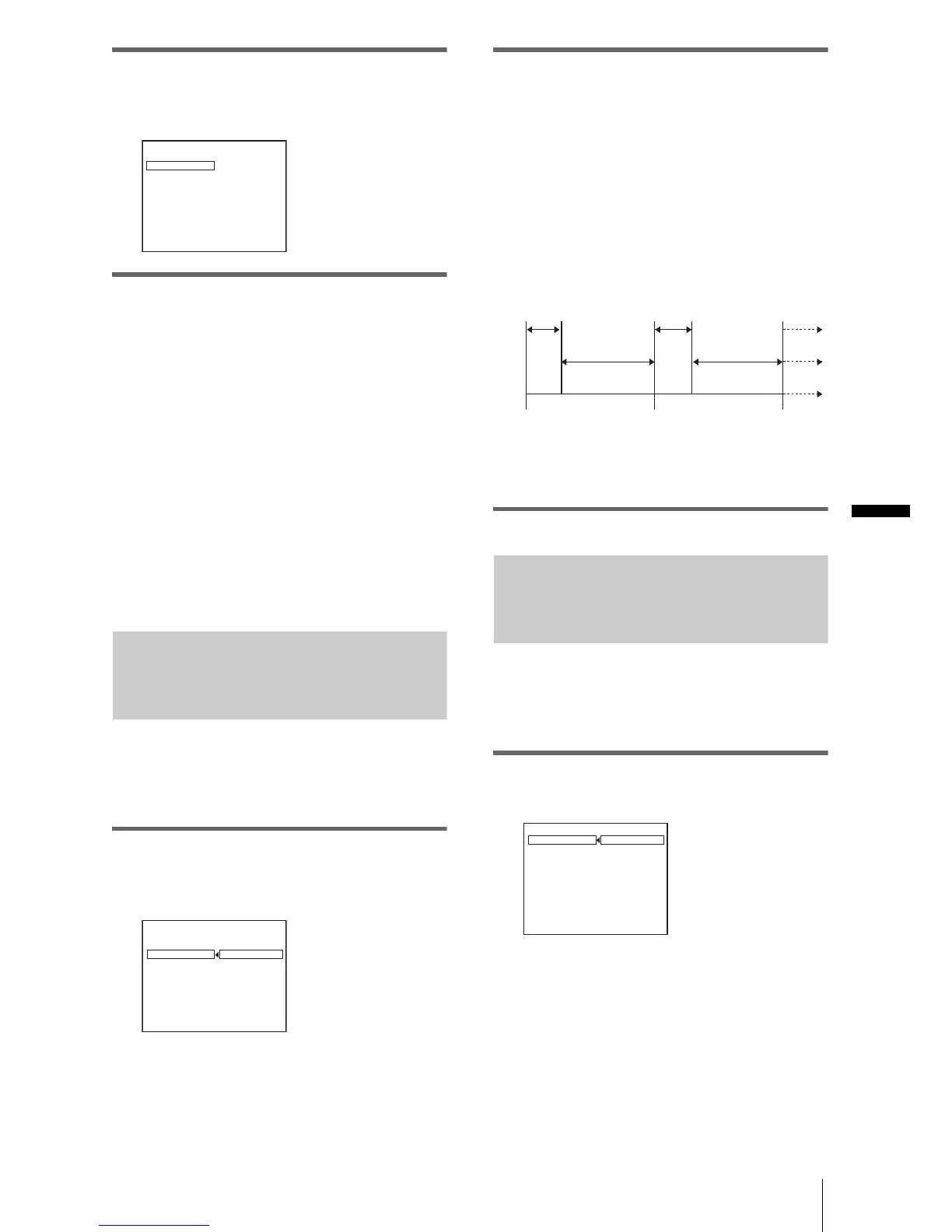
1 Turn the SEL/PUSH EXEC dial to
select [START], then press the dial.
EASY DUBBING
START
T I T LE SEL
MODE SEL
SETUP
0 0 : 0 0 : 0
NORMAL
ON
[
E A SY
]
:
E N D
B UD
HELLO!
EASY DUBBING
START
TITLE SEL
MODE SEL
SETUP
0 0 : 0 0 : 0
NORMAL
NORMAL
PREVIEW
[
EASY DUB
]:
END
HELLO!
25 s
30 s 30 s
25 s
5 s
5 s
[a]
[b]
[c]
EASY DUBBING
START
TITLE SEL
MODE SEL
SETUP
0 0 : 0 0 : 0
NORMAL
RETURN
EXECUTE
[
EASY DUB
]:
END
Engage rec pause.
,continued





 To Next Page