24
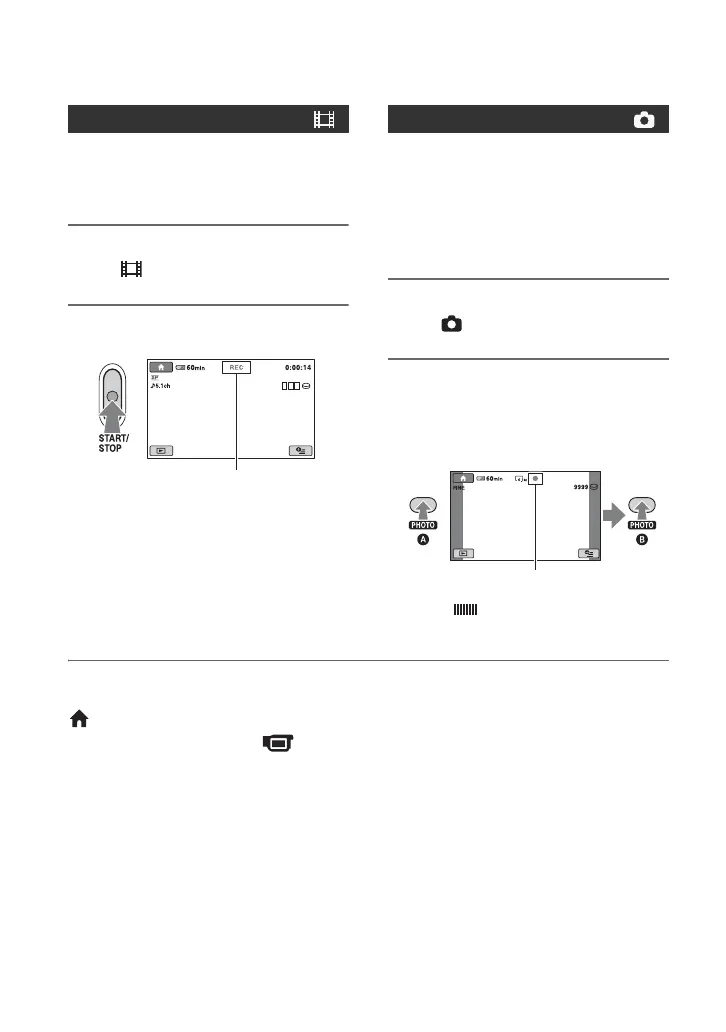
You can record movies on the hard disk of
your camcorder. For the recordable time,
see page 54.
1 Turn the POWER switch A until
the (Movie) lamp lights up.
2 Press START/STOP B (or C).
To stop recording, press START/STOP
again.
You can record still images on the hard disk
of your camcorder in the default setting. To
record still images on a “Memory Stick
Duo,” change the recording media. For the
number of recordable still images, see
page 57.
1 Turn the POWER switch A until
the (Still) lamp lights up.
2 Press PHOTO F lightly to adjust
the focus A (a beep sounds),
then press it fully B (a shutter
click sounds).
When disappears, the image has
been recorded.
To switch the shooting mode using the
(HOME) D (or E) button
On the HOME MENU, touch
(CAMERA) t [MOVIE] or [PHOTO].
To capture high resolution still images
during recording a movie (Dual Rec)
(DCR-SR190E/SR200E/SR290E/SR300E)
t For details, see page 26.
To change the recording media of still
images
t For details, see page 27.
Recording movies
[STBY] b [REC]
Recording still images
Flashing b Lights up




 To Next Page