87
Performing with a computer
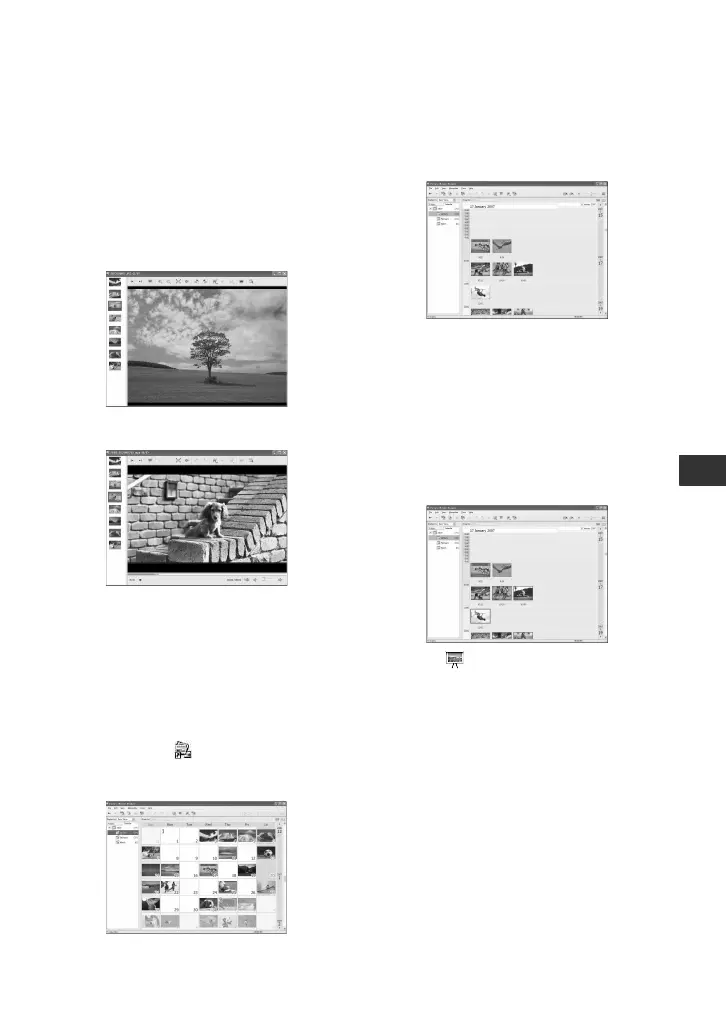
To enlarge an image
Double-click the thumbnail.
The view image window starts up and the
selected image is enlarged.
When you select a movie, the slider and the
playback control buttons appear and
playback starts.
When you select a still image
When you select a movie
To playback images continuously
You can playback images continuously as a
slide show. Here we explain the procedure
for starting a slide show by selecting
images in the Calendar view.
1 Turn on the computer.
2 Double-click [ ] (Picture Motion
Browser) on the desktop.
[Picture Motion Browser] starts up.
3 Click [Calendar] on the Folder/Calendar
switching tab.
4 Click the date when the image you want
to view in the slide show is recorded.
A list of images recorded on the selected
date is displayed.
5 Select the images.
The selected images are marked with a
blue frame.
• To select listed images in the image display
area on the main window, click the first
thumbnail, then press and hold down [Shift]
key and click the last thumbnail.
To select two or more random images, press
and hold down [Ctrl] key while clicking
thumbnails.
6 Click [ ].
The selected image is displayed full
screen, and a slide show starts.
If you move the mouse while the slide
show is playing, a setting bar for
controlling the playback is displayed
and you can control playback and adjust
the volume.
To delete unnecessary image from the
computer
1 Right-click the thumbnail of the image
you want to delete.
2 Click [Delete] t [Yes].









 To Next Page