92
9 Confirm the movies to write to a
DVD.
The movies with checkmarks at the top
right are written on the DVD in the
Playlist order.
10
Click [Next].
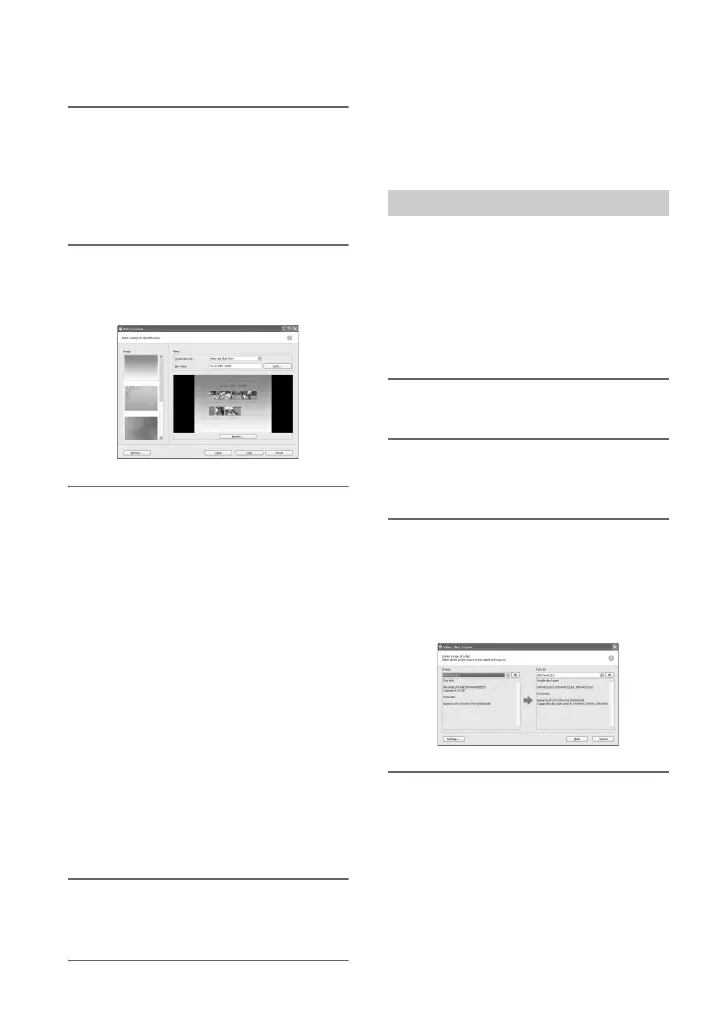
The menu selection window of the DVD
is displayed.
11
Select a menu design and a title
creation method, and enter the
DVD name.
Image of DVD video menu to create is
displayed.
z Tips
• Selecting [Menu Sorted by Date Taken] in the
Menu structure drop-down list automatically
changes the order of movies and still images
into the order of date on which they were
recorded.
• Clicking [Font] lets you select the text color of
the DVD name and title, etc.
• Clicking [Preview] lets you check the
completion image of the DVD video to create.
• Clicking [Settings] lets you set the various
operations that take place upon the first play of a
DVD, movie quality, and display time for each
still image in slide show.
12
Click [Start].
DVD creation starts.
z Tips
• You can choose to create more copies of the
same DVD after writing to the DVD is
completed.
You can copy the images recorded on a
DVD to another DVD.
You can also back up a DVD.
This procedure describes how to copy the
images recorded on a DVD-RW (12 cm) to
a DVD-R (12 cm) in the DVD drive of your
computer.
1 Turn on the computer.
2 Insert a recorded DVD into the
DVD drive of your computer.
3 Click [Start] t [All Programs] (for
Windows 2000, click [Programs])
t [Sony Picture Utility] t [Video
Disc Copier] on your computer.
Disc copy window is displayed.
4 Select a DVD drive for [Source:]
and [Copy to:].
The status of the drive and DVD is
displayed. Depending on the status,
copying cannot start. Follow the
instruction to change the DVD.
Obtaining information from a DVD of
your computer takes time. Wait until the
DVD information is displayed in the
window.
Copying a DVD




 To Next Page